
List and Dropdown List Question Types in AdsQuiz
List and Dropdown List Question Types in AdsQuiz
Once your quiz is created and the basic settings are configured, it’s time to fill it with questions. The format you choose for each question has a direct impact on how easy and clear the quiz feels to the person taking it. In this article, we’ll look at two popular question types – list and dropdown list – and explain when it’s best to use each one.
📝 How to Add a New Question
To add a new question to your quiz, open the quiz editor and click “Add Field.” A list of available page types will appear – choose the format you need from there.
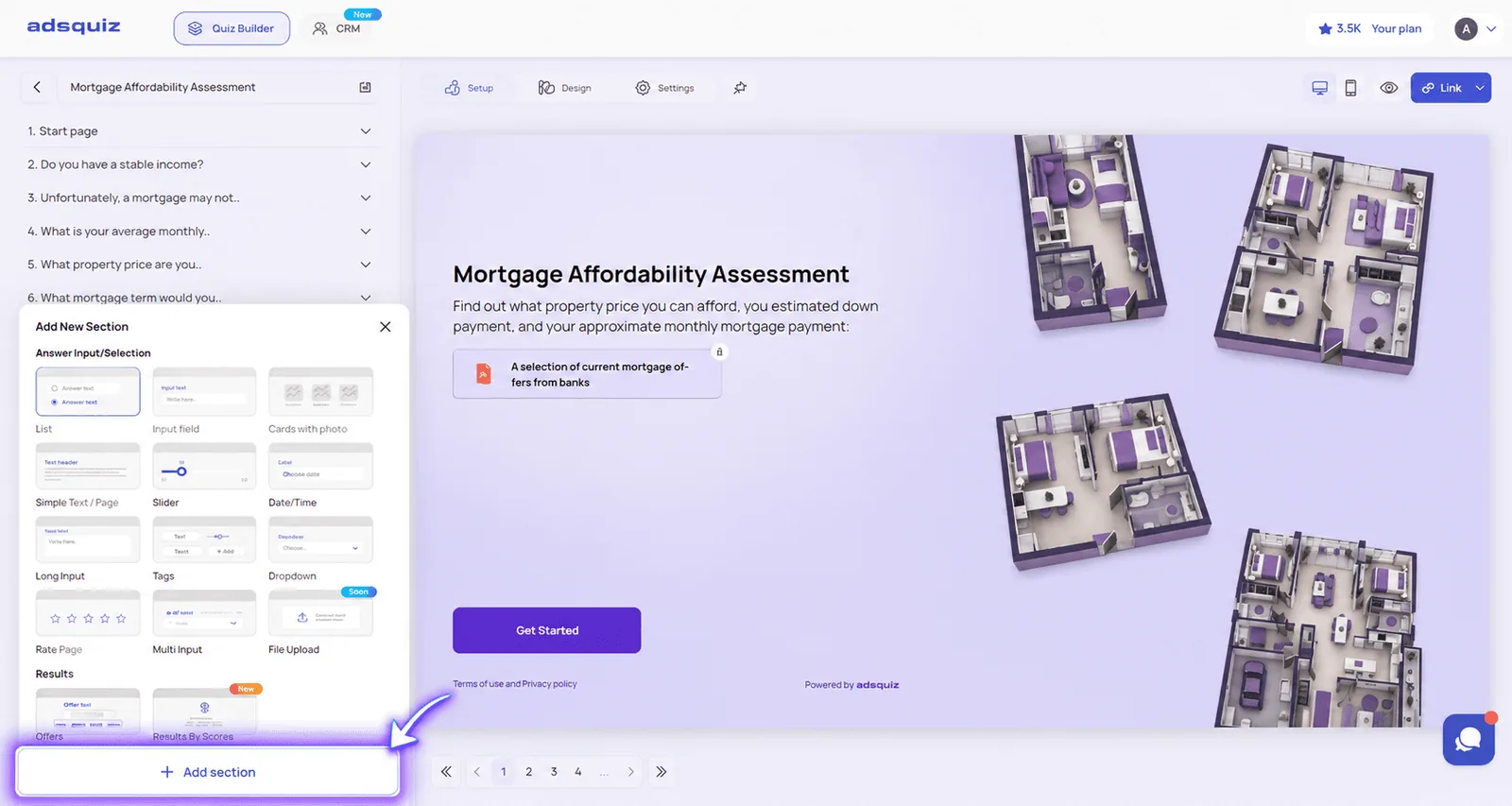
📋 The “List” Question Type
A list is a question type where all answer options are displayed on the screen at once, arranged as a set of choices. The person taking the quiz sees every available option right away and simply picks the one that fits.
With the “List” format, you can configure:
- Question title – phrase it clearly and tailor it to your audience
- Answer options – add text-based options, or attach a photo or video to each one
- Required/optional status – make the step mandatory or skippable
- Auto-advance – the quiz automatically moves to the next step once an answer is selected
- “Other” button – lets the user type in their own answer if none of the preset options fit
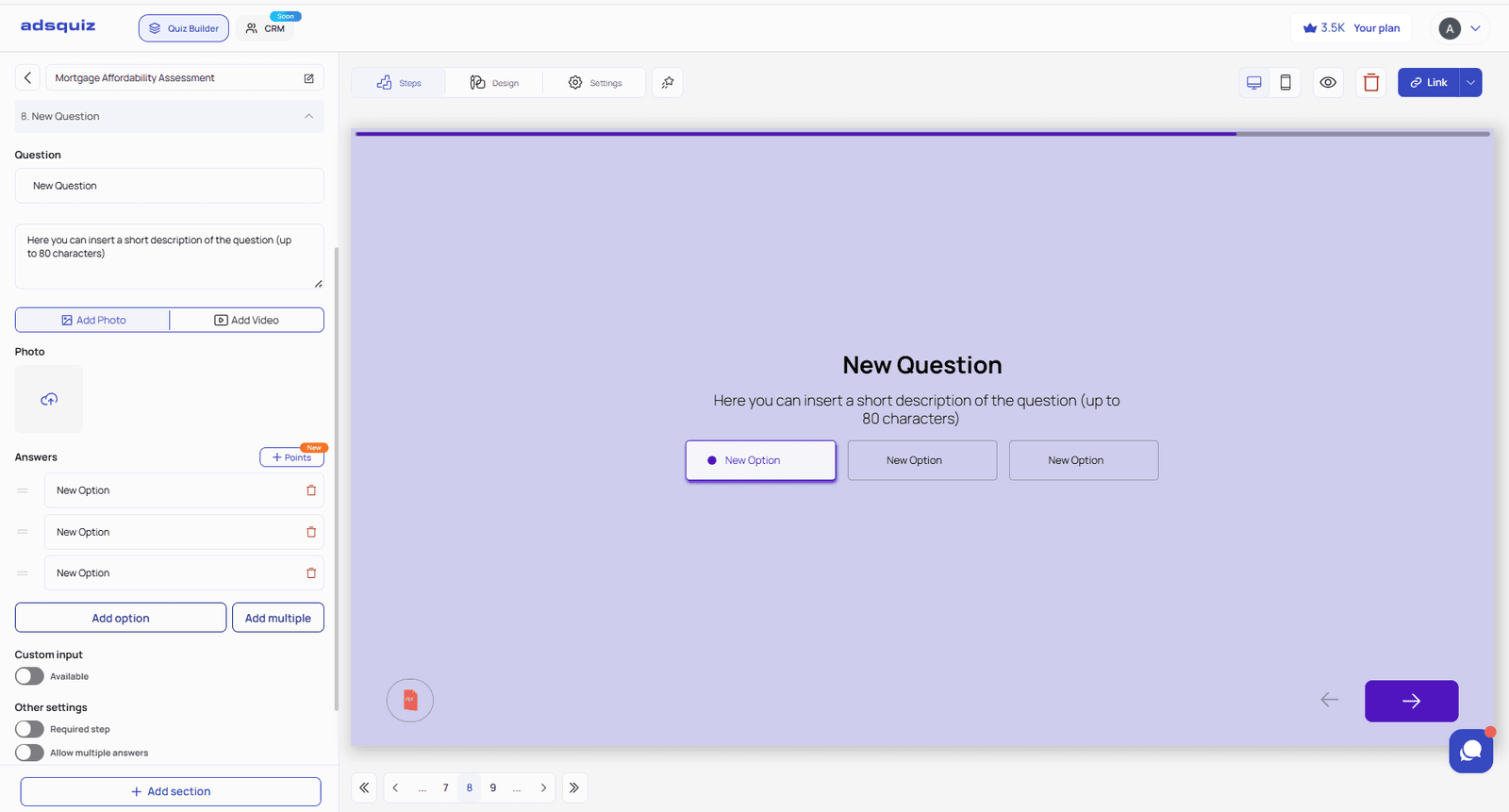
You can also set up display logic for a “List” question – for example, showing it only under certain conditions or based on previous answers.
Learn more: Question Logic
When to use a list: The list format works best for questions with a small number of answer options, where it’s important for the user to see all the choices at once. For example: choosing a service, product type, collaboration format, budget range, or design style.
💡 Tip: If you have more than 6-7 options, a list can start to feel cluttered and overwhelming. In that case, switch to a dropdown list instead.
🔽 The “Dropdown List” Question Type
A dropdown list is a question type where the answer options are hidden behind a single field. When the user clicks on the field, the list of available options appears, and they select the one they need.
With the “Dropdown List” format, you can configure:
- Question title
- Answer options
- Photo or video attached to the question
- Required/optional status
- Auto-advance to the next question after an answer is selected
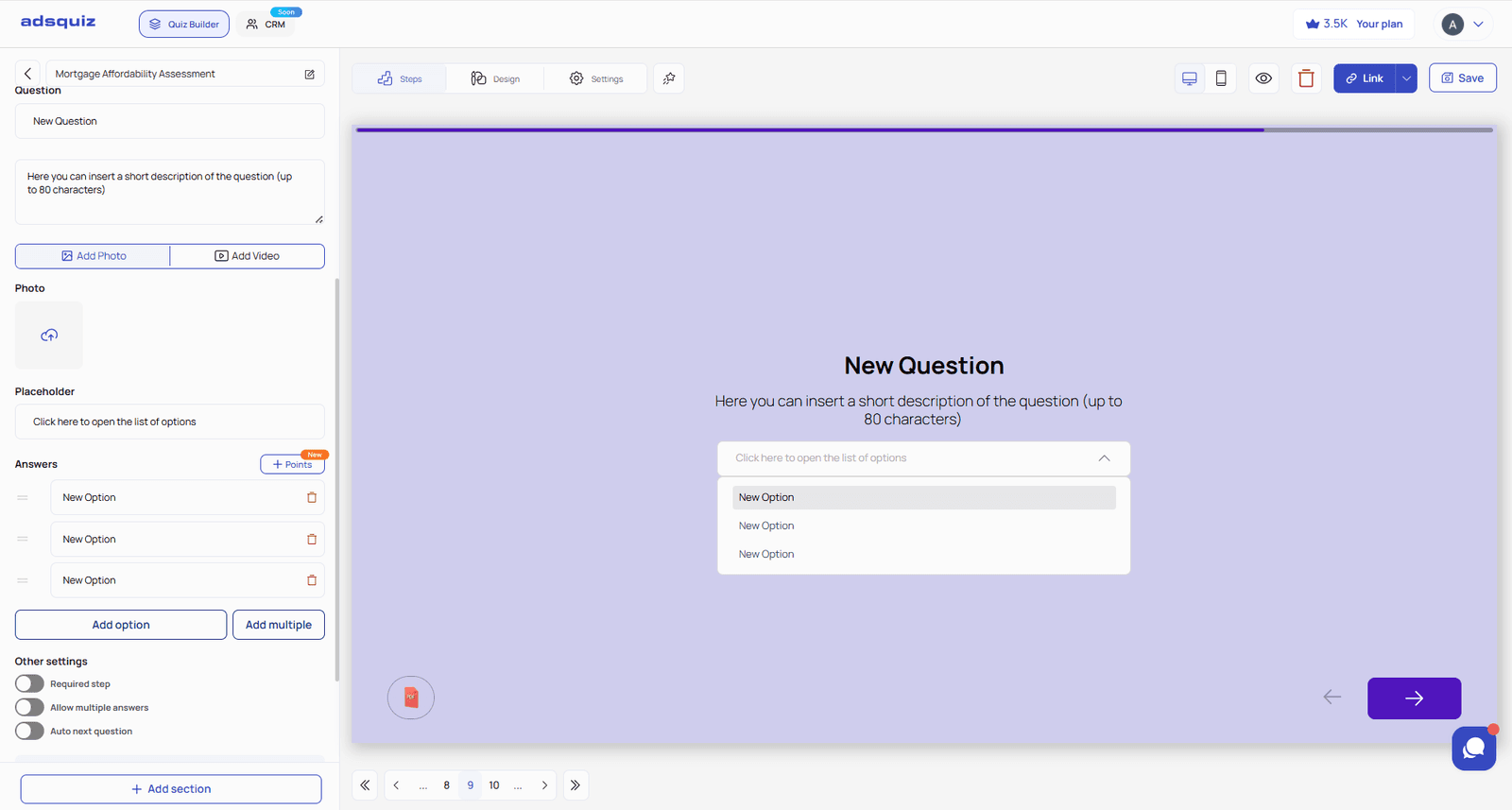
When to use a dropdown list: This format is ideal when there are many possible answers and displaying them all as a regular list would be impractical. For example: choosing a city, country, product model, category, branch location, or delivery address.
A dropdown list keeps the page compact and prevents the user from feeling overwhelmed by too many elements on the screen at once.
❓ Frequently Asked Questions
What’s the main difference between a list and a dropdown list?
A list shows all answer options on the screen right away, while a dropdown list hides them behind a single field until the user clicks on it.
How many answer options should a list have?
It’s best to keep a list to 6-7 options or fewer. If you need more, a dropdown list will keep the page cleaner and easier to navigate.
Can I add images or videos to answer options?
Yes, in the “List” question type you can attach a photo or video to each answer option. In “Dropdown List,” you can attach a photo or video to the question itself.
Can users enter their own answer if none of the options fit?
Yes, the “List” question type includes an “Other” button that lets users type in a custom answer.
Does the quiz move to the next step automatically after an answer is selected?
Yes, both question types support auto-advance, so the quiz moves forward automatically once the user picks an answer – no extra click needed.
Can I make a list or dropdown question optional?
Yes, both question types let you choose whether the step is required or can be skipped.