
Make
Setting up the Make integration in AdsQuiz
Make is a powerful platform for automating workflows and connecting services. Unlike simple connectors, Make lets you build complex automation scenarios with conditions, filters and branches – visually and without code. The platform supports hundreds of popular services and gives you almost unlimited options for moving data between them.
With AdsQuiz, Make acts as a flexible intermediary – it receives quiz data via a webhook and passes it to any connected service. For example, you can write leads to Google Sheets, send notifications and create deals in your CRM at the same time – all within one scenario.
What the AdsQuiz and Make integration gives you
- sending quiz leads to any service Make supports
- building complex automation scenarios with conditions and branches
- sending data to several services at once within one scenario
- transferring contact details, answers to questions and UTM tags
📌 Example: sending quiz data to Google Sheets via Make
Let's walk through the setup with a specific example – sending quiz leads to Google Sheets. You can set up transfer to any other service available in Make in the same way.
⚙️ How to set up the Make integration
Step 1. Open the integration settings in AdsQuiz
Go to: Quiz settings → Integrations → Make.
In the integration field you need to paste the webhook URL you'll get in Make.
Step 2. Create a webhook in Make
Open your Make account and create a new scenario. Add a «Custom Webhook» module – give it any convenient name and save it.
Make will generate a unique webhook URL – copy it.
💡 Tip: Only you can see the webhook name – name it so it's clear which quiz it belongs to. For example, «AdsQuiz – Windows quiz».
Step 3. Paste the webhook URL into AdsQuiz
Go back to the integration settings in AdsQuiz and paste the copied webhook URL into the field. Click «Save» and activate the integration.
Step 4. Check the connection
In Make, click «Run once» – the system will start waiting for test data.
Go back to the quiz, copy its link and complete it – answer the questions and submit a test request.
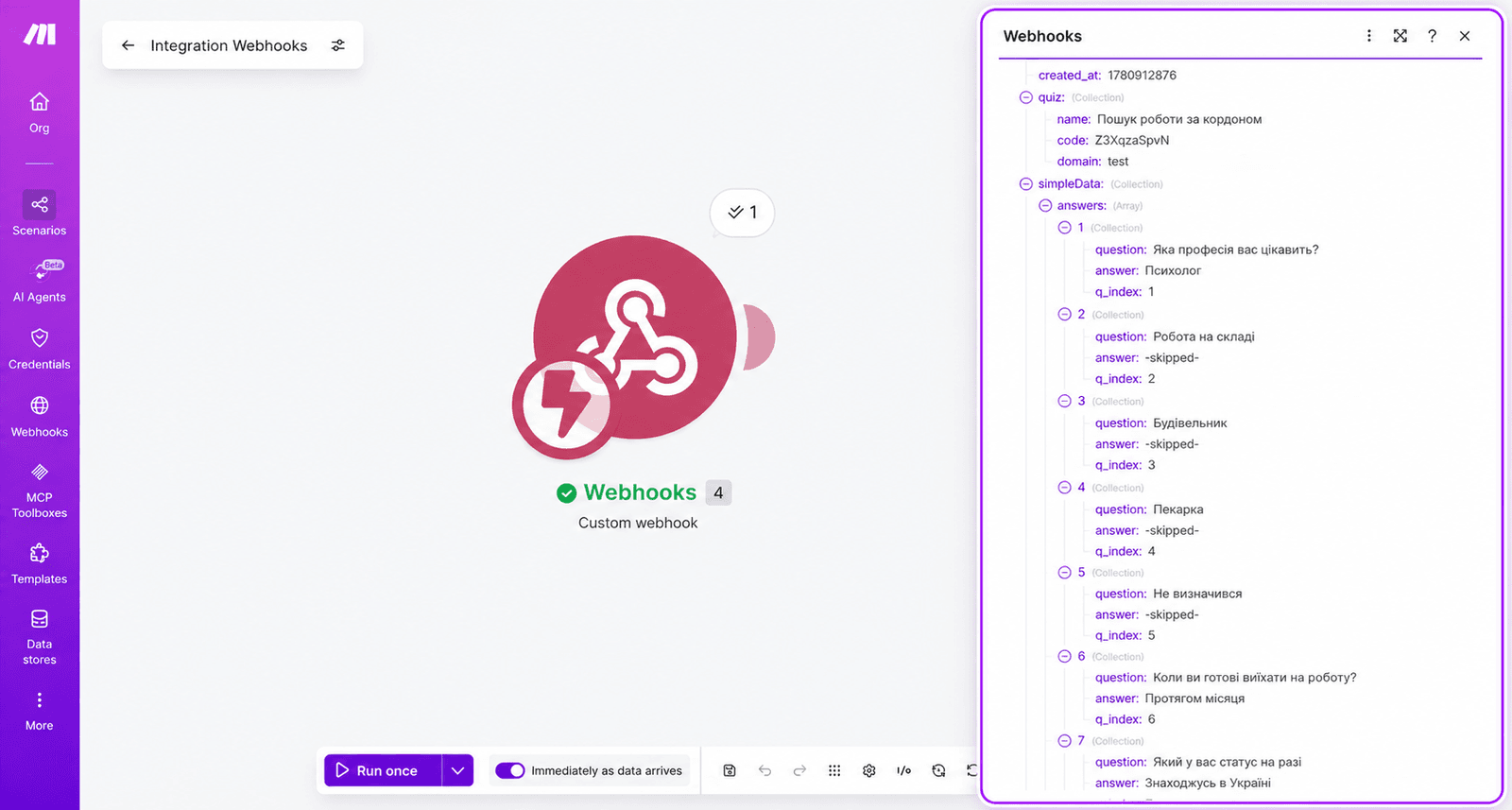
Go back to Make – if everything is set up correctly, you'll see the data has been received and a mark showing the scenario ran successfully. Click it and check that all questions, answers and contact details came through correctly.
To see the answer to each question, expand them by clicking the plus next to the Answer field. Answers are collapsed by default and may not show right away.
💡 Tip: Don't close Make while testing – «Run once» mode waits for data only for a limited time. If it times out, click «Run once» again and repeat the quiz.
Step 5. Add a Google Sheets module
After the test data arrives, add a Google Sheets module to the scenario and choose the «Add a Row» action.
You can choose the spreadsheet in two ways:
- pick a spreadsheet from the list of available ones
- paste a unique link to the Google Sheet you need
After choosing the spreadsheet, choose the sheet – for example, «Sheet 1».
Step 6. Match the fields
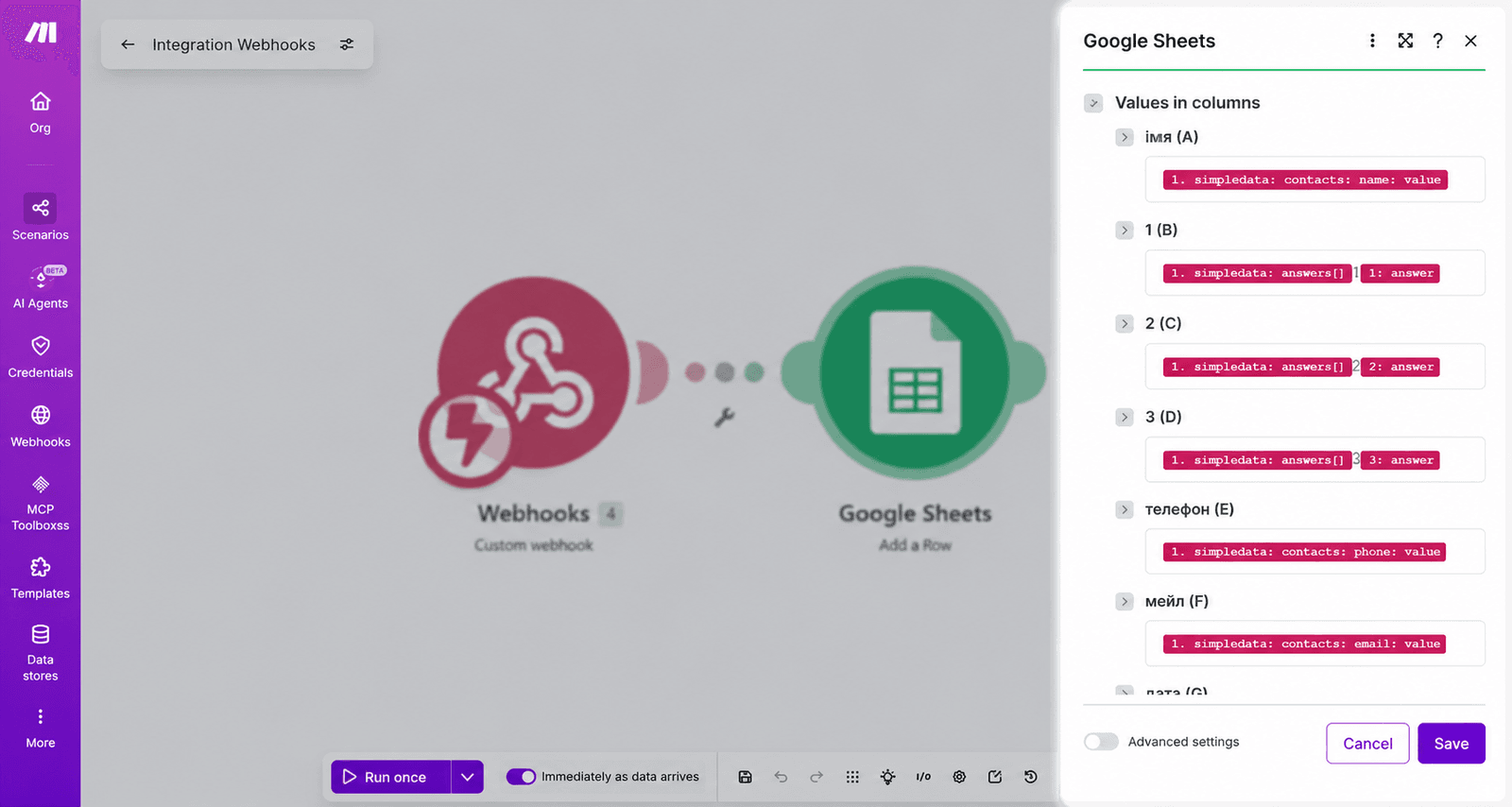
For each column of the sheet, specify which value from the quiz should go there:
- answer to question 1 → first column
- answer to question 2 → second column
- answer to question 3 → third column
- and so on for each quiz question
For contact details, open the Contacts section and choose the matching values:
- «Name» field → the Value from the Contacts section that contains the name
- «Phone» field → the Value that contains the phone number
- «Email» field → the Value that contains the email
💡 Tip: Prepare the Google Sheet in advance – create column headers that match your quiz questions. This makes field matching easier and the sheet clearer for managers.
Step 7. Save and test the scenario
Click OK and save the scenario. Click «Run once» again and take the quiz once more for a final test.
After submitting the request, go to the Google Sheet and check that a new row has appeared with all the answers and contact details in the right columns.
If all the data arrived correctly, the integration is set up and ready to work.
▶️ Recommended video
To better understand how to set up the Make integration, we recommend watching the video guide. It shows step by step how to create a webhook, set up a scenario and check data transfer to Google Sheets.
❓ Frequently asked questions
Can Make send data to several services at once?
Yes. You can add several modules to one Make scenario – for example, write a lead to Google Sheets and send a notification or create a deal in your CRM at the same time.
Do I need technical skills to work with Make?
Basic scenarios – such as sending data to Google Sheets – can be set up without technical skills using the visual interface. More complex scenarios with conditions and filters may take more time to learn.
What if data doesn't reach Make after setup?
Check that the integration in AdsQuiz has the Active status and the webhook URL is pasted correctly. Make sure the scenario in Make is active and running. If the problem persists, create a new webhook in Make and update the URL in the AdsQuiz integration settings.
Can I use Make to integrate with CRMs that aren't on the standard AdsQuiz list?
Yes. Make supports hundreds of services – if you need a CRM or another tool that isn't among the direct AdsQuiz integrations, set up the transfer through Make.
Is data kept in Make if the scenario was turned off?
No. If the scenario in Make is turned off, data won't be processed. Make sure the scenario is always active while the quiz is running.