
Team: How to Give Other People Access to Your Quizzes
The «Team» section lets you work on quizzes together with colleagues, contractors or clients – without sharing the login and password to your account. You decide who gets access to which quizzes and what that person can do there: only view leads, edit the quiz or fully manage it.
What the «Team» section is for
- Agency and client – give the client access to view leads, so they see requests in real time but can't accidentally change the quiz
- Working with a contractor – a designer or copywriter can edit the quiz but doesn't see your clients' contacts
- Project manager – can run the quiz completely: edit it, connect integrations, work with the CRM and add other people to the team
- Account security – everyone works under their own email, and access can be changed or revoked at any time
👥 Roles and permissions
A role is a ready-made set of permissions. When you choose a role, all the required permissions are switched on automatically. A member only has access to the sections they have permissions for.
Here is how it works: Owner grants access → Role selects a set of permissions → Permissions unlock actions → Interface shows the member only the buttons available to them.
🟢 Viewer Can view leads and answers in the selected quizzes. Ideal for a client or a sales team that only needs the requests.
Permissions: View leads
🔵 Editor Can edit the quiz, copy it and work with publishing. Suits a designer, copywriter or marketer who builds the quiz.
Permissions: Edit quiz, Copy quiz, Publishing
🟣 Manager Can edit the quiz, see the CRM, manage integrations and share access further. Suits the person responsible for the whole project.
Permissions: Edit quiz, Copy quiz, Integrations, View leads, Access, Publishing
🔴 Administrator Gets all permissions: management, integrations, CRM, access, transfer, deletion and publishing. Give this role only to people you fully trust.
Permissions: Edit quiz, Copy quiz, Integrations, View leads, Access, Quiz transfer, Deletion, Publishing
What each permission means:
- View leads – access to requests and user answers in the quiz
- Edit quiz – changing questions, pages, design and quiz settings
- Copy quiz – creating a copy of the quiz
- Publishing – publishing the quiz and managing where it is placed
- Integrations – connecting and setting up integrations (CRM, webhooks, email, etc.)
- Access – the ability to share access to the quiz with other people
- Quiz transfer – transferring the quiz to another user
- Deletion – deleting the quiz
⚠️ Important: the «Deletion» permission is only included in the Administrator role. Be careful who you give this role to.
⚙️ How to add a team member
Step 1. Open the «Team» section
Step 2. Click «Add member»
Step 3. Enter the member's email
Enter the email of the person you want to give access to
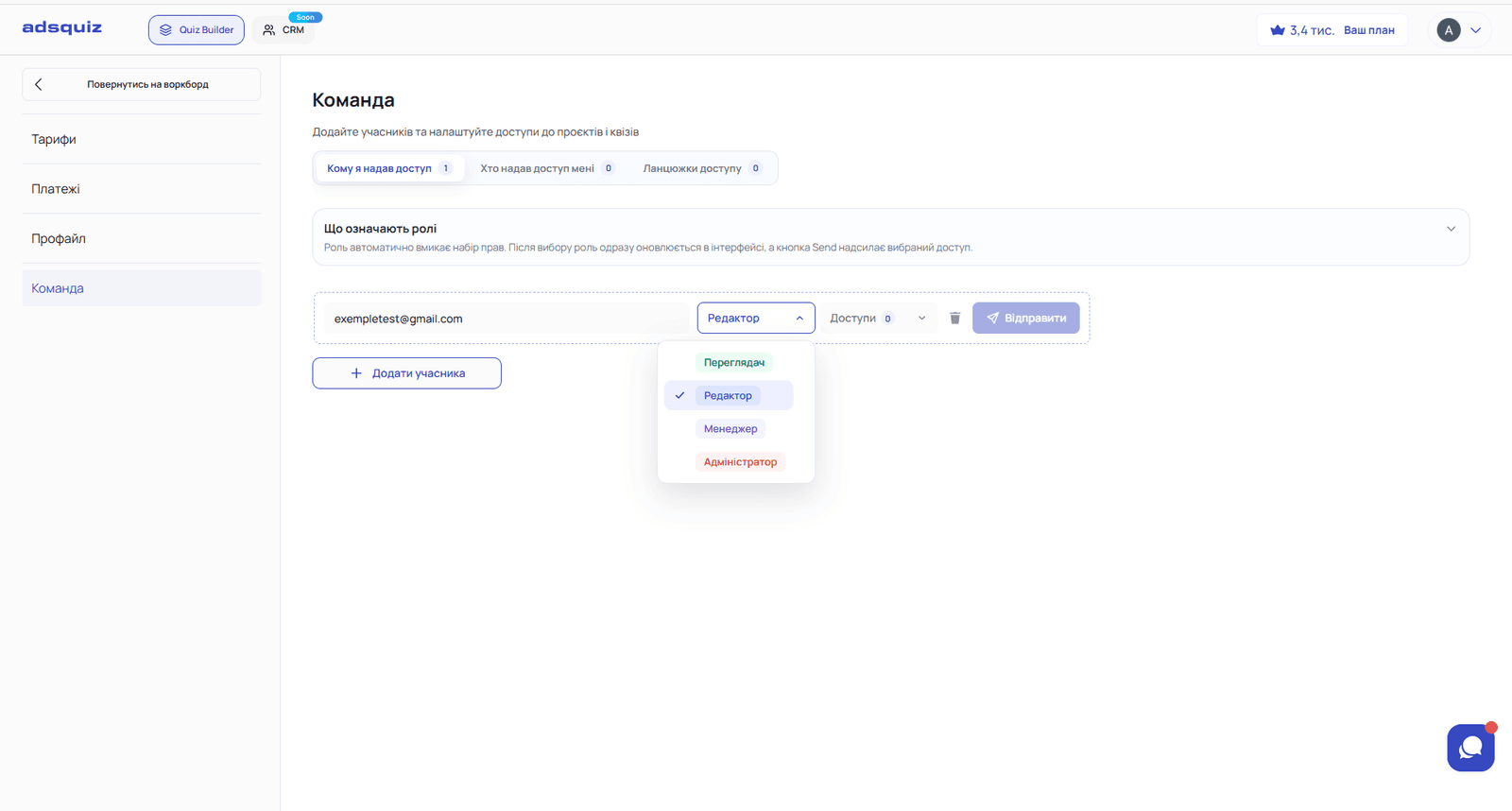
Step 4. Choose a role
Choose one of the four roles
Step 5. Choose quizzes
Select which quizzes the member will have access to. Access is granted only to the selected quizzes – the person won't see the rest of your quizzes.
Step 6. Send the access
Click the Send button – the selected access will be sent to the member. They will appear in your list marked «In team».
📋 How to read a member card
Each member in the list is shown as a separate row:
- Email – the address access was granted to
- «In team» – status: the member has active access
- Role – the member's current role (Viewer, Editor, Manager or Administrator)
- «quizzes: N» – the number of quizzes the person has access to
- «Cannot share further» – the role has no «Access» permission, so the member can't add other people. For the Manager and Administrator roles this status will be different
There are three actions on the right of the row:
- ✏️ Edit – change the member's role or list of quizzes
- ❄️ Freeze – temporarily suspends access without removing the member
- 🗑 Delete – completely revoke the member's access
🗂 Tabs in the «Team» section
There are three tabs at the top of the page. The number next to each name shows how many records it contains.
- Who I gave access to – people you have granted access to. Here you manage their roles and quizzes
- Who gave access to me – other users' quizzes you have been invited to, and the role assigned to you
- Access chains – shows how access is passed on. If you gave someone the Manager or Administrator role, they can share the quiz with other people – this tab shows the whole chain: who gave what to whom
❓ Frequently asked questions
Does a member see all my quizzes? No. A member only sees the quizzes you selected when granting access.
Can I change the role after access has been granted? Yes. Click ✏️ in the member's row, choose a new role and save the changes.
How do I revoke access? Click 🗑 in the member's row. The access will be cancelled.
Can a member add someone else to the team? Only if their role includes the «Access» permission – that is, the Manager and Administrator roles. All such transfers are visible in the «Access chains» tab.
Who can see the quiz leads? The Viewer, Manager and Administrator roles. The Editor doesn't see leads – handy if you work with a contractor and don't want to show them your clients' contacts.
Do I need to pay for each member's seat? The number of available access seats depends on your current plan.