
Setting Up Question Logic
Question logic in a quiz
Once the quiz is created and all page types are added, it's time to set up the question display logic. Question logic is a tool that controls which question a user sees depending on their previous answers. Instead of a linear path, the quiz becomes smart and adapts to each user individually.

What question logic is for
The main task of logic is to split your audience into target and non-target users and to personalise the quiz path. Typical use cases:
- Audience segmentation – depending on the answer, the user goes down different branches of questions. For example, if they choose «Apartment» they get a question about the area, if «House» – a question about the number of floors
- Filtering out non-target users – if the user doesn't meet your criteria, the quiz ends on a dead-end page. For example, if they are under 18, the quiz ends with a suitable message
- Personalised result – depending on the answers, the user gets a specific offer or result that matches their needs
- Skipping irrelevant questions – if the answer to one question makes the next one irrelevant, it can simply be skipped
⚙️ How to set up question logic
Every quiz question has a «Question logic settings» button. Click it to open a panel where you can add display conditions for that question.
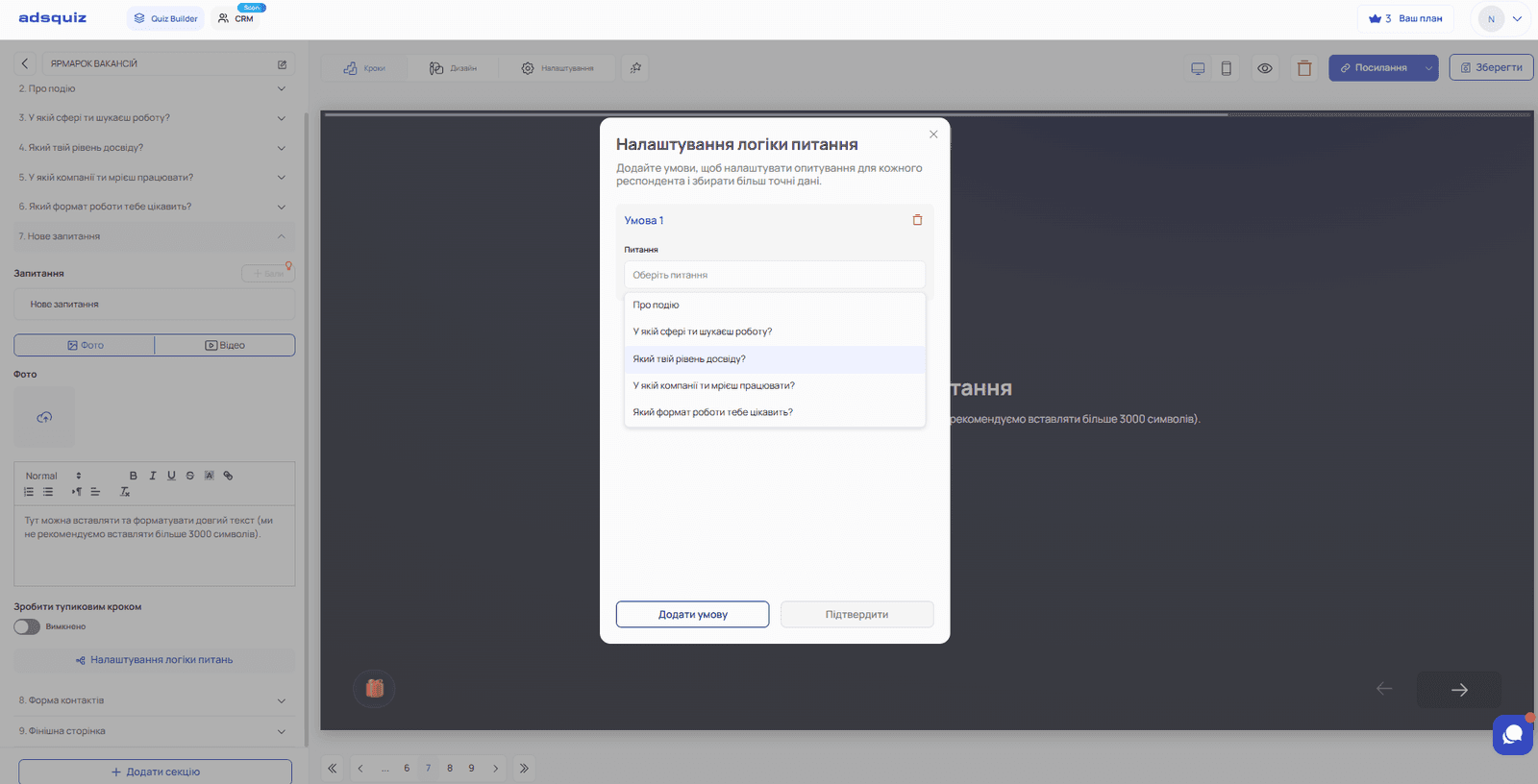
Step 1. Add a condition
Click «Add condition». In the condition settings you need to choose:
- Question – choose the earlier question the condition is based on. Only questions placed earlier in the quiz structure are available
- Condition type – choose one of the options:
- All selected – the condition is met if the user selected all the specified answers. For example, to show a question only if two specific answers were chosen together in the previous one
- One of selected – the condition is met if the user selected at least one of the specified answers
- None of selected – the condition is met if the user selected none of the specified options. For example, if there are 5 answer options and one of them is non-target, choosing it sends the user to a dead-end page
- Answers – choose the specific answers the condition reacts to
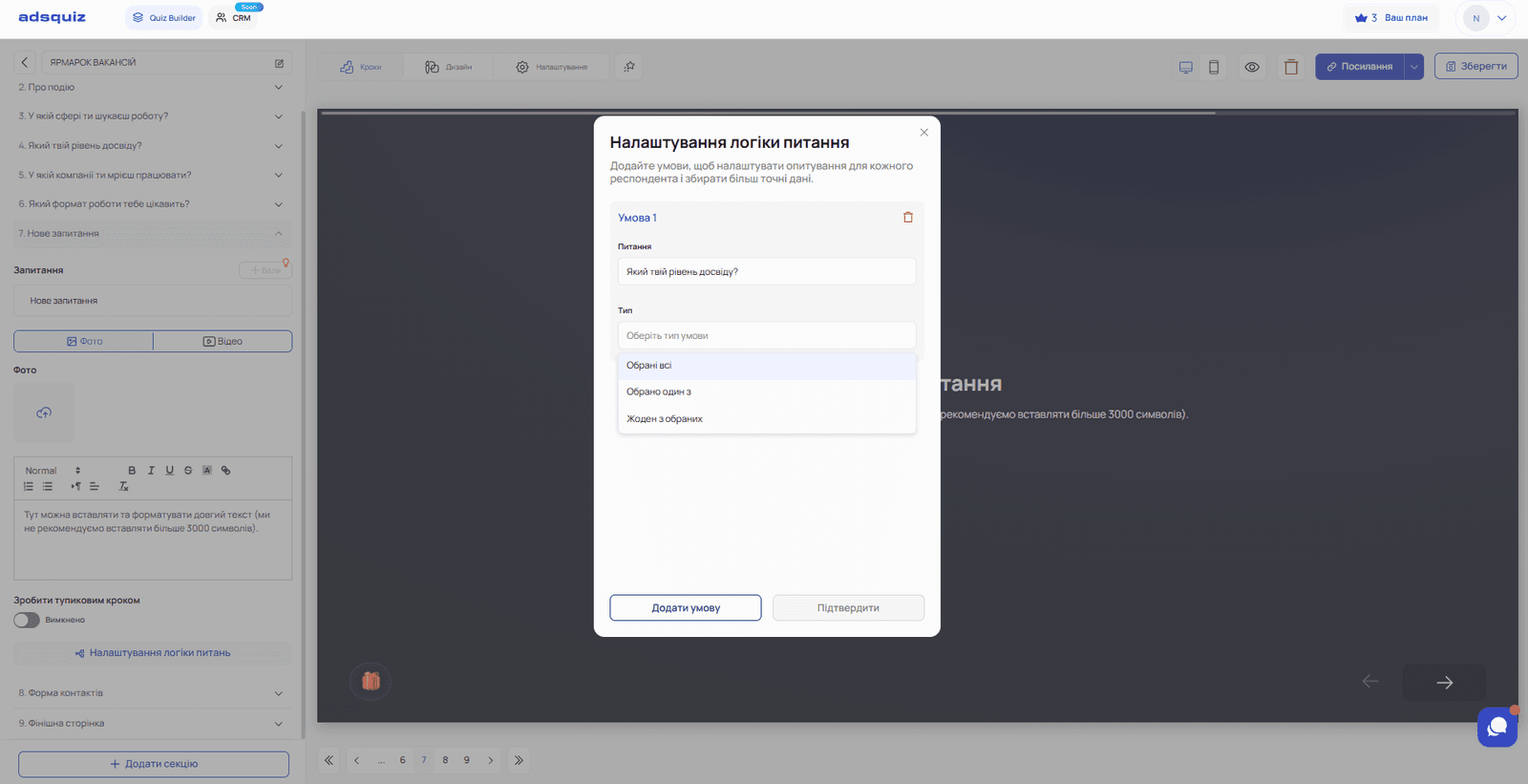
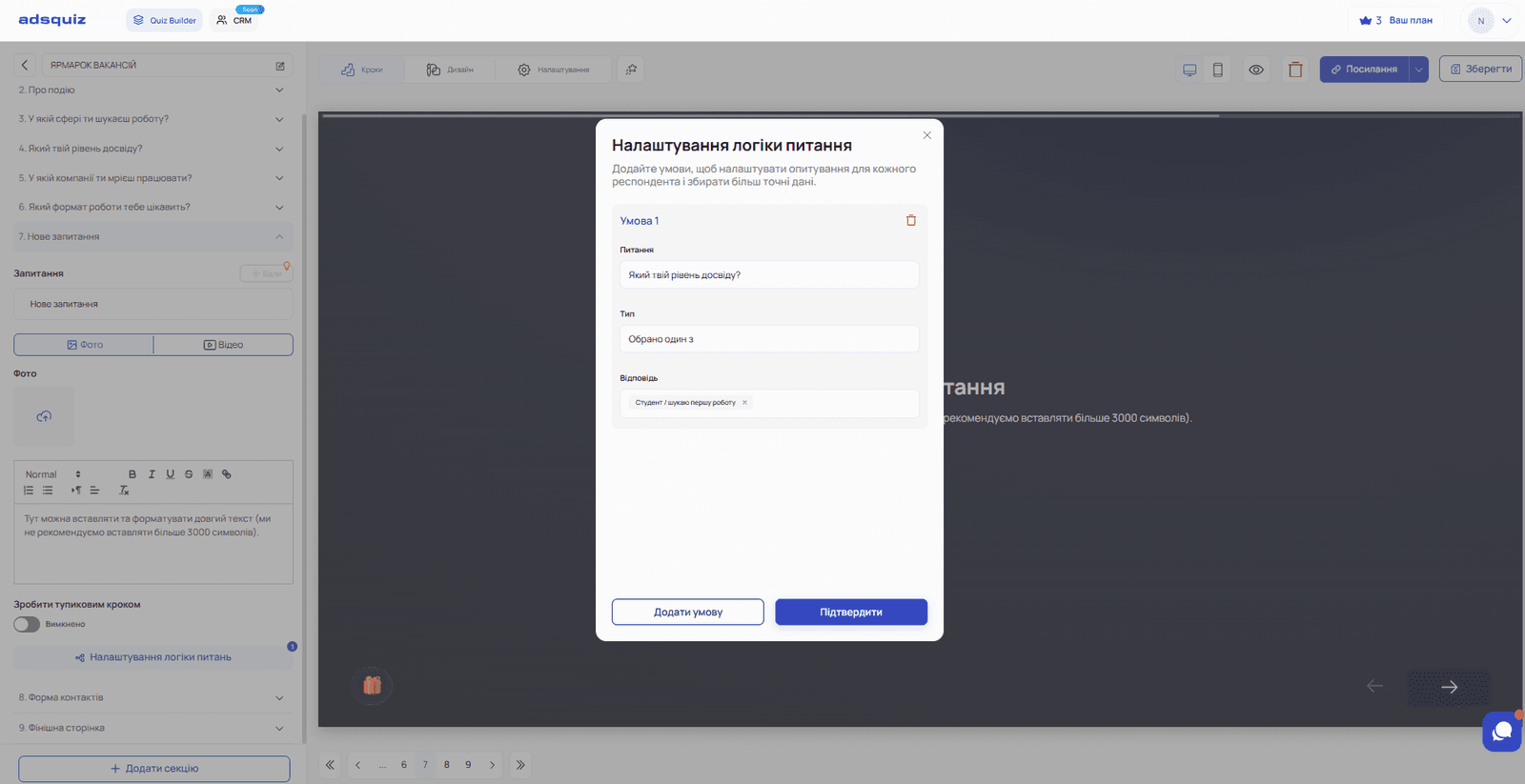
Step 2. Add several conditions if needed
If the logic depends on several questions at once, click «Add condition» and set up the next one. Once you have several conditions, you can choose:
- All conditions required – the question is shown only if all the conditions are met at the same time
- One condition is enough – the question is shown if at least one of the conditions is met
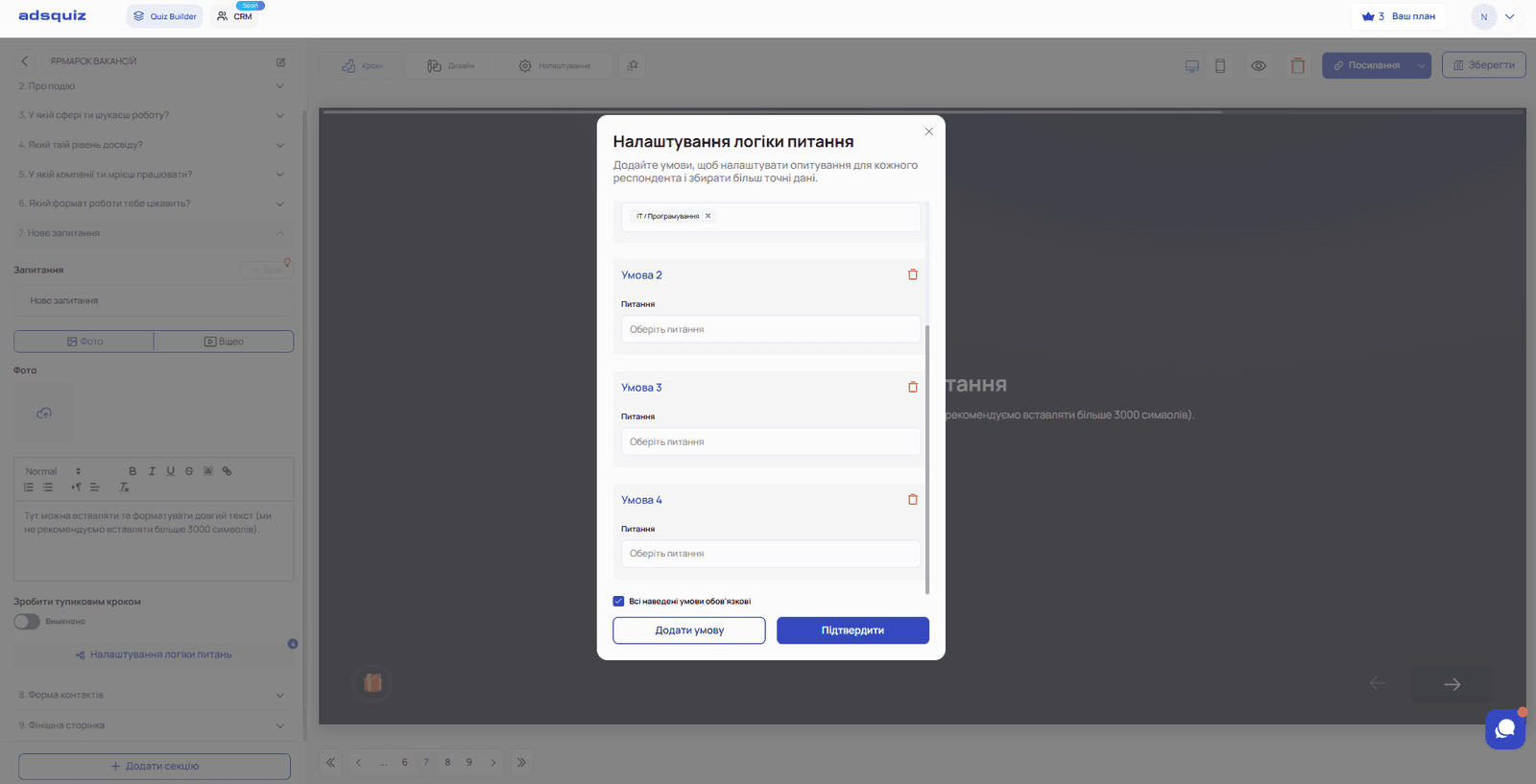
Step 3. Confirm the settings
Once all conditions are set, click «Confirm» – the logic is saved and applied to the question.
💡 Tip: Start setting up logic after the quiz structure is fully built. This makes it easier to see all the questions and understand which of them need to be connected.
▶️ Recommended video
We go through examples of setting up branching by answers in more detail in our video review. We recommend watching it to see the full setup process in practice:
📌 Logic setup examples
Example 1 – Segmentation by client type: Question 1: «Who are you?» – options: «Individual» / «Business»
- If «Individual» is chosen → show questions about personal needs
- If «Business» is chosen → show questions about the number of employees and budget
Example 2 – Filtering out non-target users: Question: «How old are you?» – options: «Under 18» / «18-35» / «35+»
- If «Under 18» is chosen → a dead-end page saying the service is not available
- If anything else is chosen → the quiz continues
Example 3 – Personalised result: Question: «What is your budget?» – options: «Up to $250» / «$250-1,250» / «Over $1,250»
- Each option leads to a separate results page with a matching offer
⚙️ What's next
Question logic is the first level of branching in a quiz. For more detailed setup of transitions and branching by answers, read on:
- More about branching by answers: Branching by answers
- Setting up points for results: Scores and results
- Connecting integrations to send leads: Integrations
❓ Frequently asked questions
Can logic be set up for any question type? Logic can be set up for these page types: list, photo cards, slider, tags, text page, input field / large input field, dropdown list, rating and multi-input.
What is a dead-end step and how do I set it up? A dead-end step is a page where the quiz ends for a certain segment of users. It is set up with logic – when a certain answer is chosen, the user lands on this page instead of continuing. More details: Branching by answers
Can I add several conditions to one question? Yes. You can add any number of conditions and choose whether all of them must be met or one is enough.
Will the logic be kept if I edit the question? Yes. The logic is kept regardless of edits to the question text or answer options. But if you delete an answer option used in a condition, you need to update the logic manually.
Can I test the logic before publishing? Yes. However, take the quiz via its direct link, because in preview mode the pages are shown in the order they were created.