
Branching by Answers
Branching by answers in a quiz
Branching by answers is a tool that builds an individual path through the quiz for each user, depending on their answers. With branching you can split your audience into target and non-target users, filter out irrelevant visitors or give each segment the most precise, personalised offer.
If your company covers several different needs, the quiz can split users at a certain point and lead each of them down their own branch. As a result, the manager who handles the lead already has specific information about the client's needs and doesn't waste time clarifying it.
Let's look at how to set up branching with a practical example.
📌 Example: a job fair quiz
Let's take a quiz that helps a candidate find a suitable vacancy. It has several questions and uses branching to segment the audience.
Quiz structure:
Question 1. Which field are you interested in? Options: Sales / Marketing / IT / Finance / Other
The first question collects basic information about the job search direction. Everyone answers it the same way – branching starts at the next step.
Question 2. What is your level of experience? Options:
- Student, looking for my first job
- 1-3 years of experience
- 3-5 years of experience
- 5+ years of experience
This is where the first branch starts. If the user chooses «Student, looking for my first job», the quiz sends them to an extra question about their age. For all other options, the age question is skipped and the quiz moves on.
Question 3. How old are you? (shown to students only)
Options: under 18 / 18-20 / 20+
This question is shown only to users who chose «Student, looking for my first job» in the previous question, so this is where you set up «Question logic»
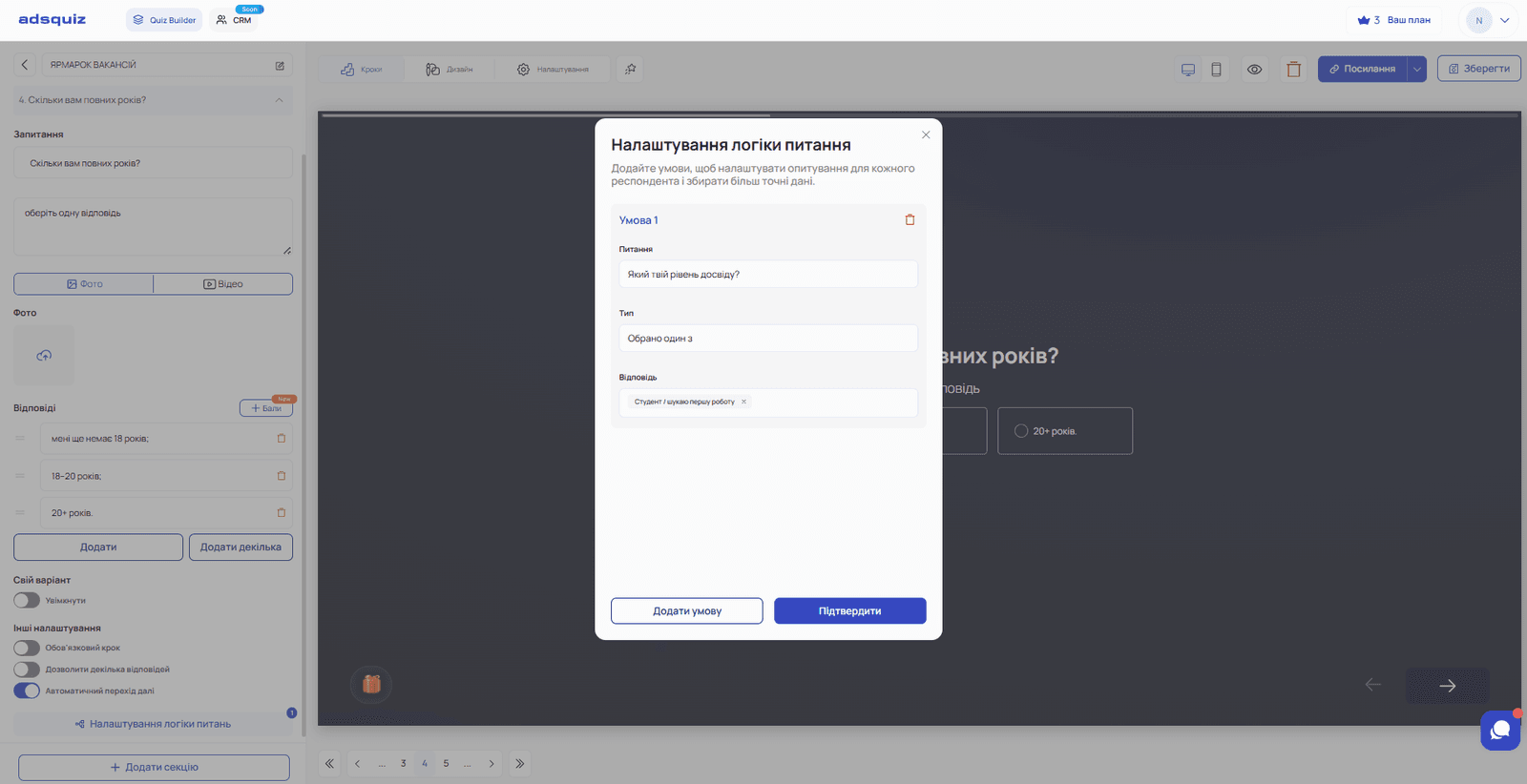
The second branch happens here as well:
- If «Under 18» is chosen → dead-end page
- If any other option is chosen → the quiz continues
Dead-end page for users under 18: «Sorry, the vacancies currently available are only for candidates aged 18 and over»
The quiz ends on this page – the user can't continue.
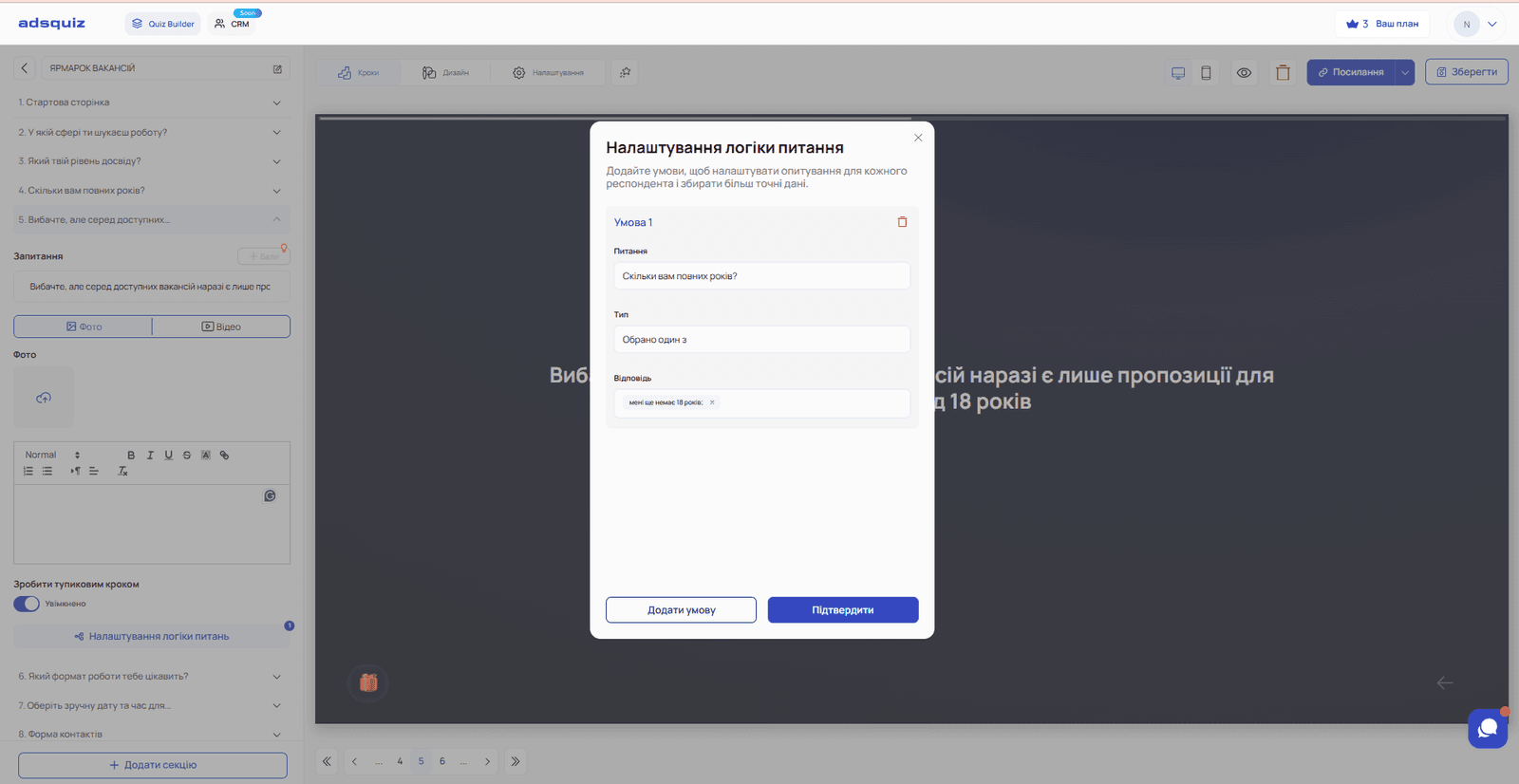
💡 Tip: For a dead-end page to work correctly, place it right after the question it relates to. If there are other steps between the question and the dead-end page, the logic may not work correctly.
Question 4. Which work format are you interested in? Options: Office / Hybrid / Remote / Doesn't matter
This is the third branch. If the user chooses «Remote», the next step is a question to pick a date and time for an online interview. For all other options this question is skipped.
Question 5. Choose the interview date and time (remote format only)
This question has a calendar and time picker. It is shown only to users who chose the remote work format. The user immediately sets a convenient date and time for the online interview – the manager sees it in the request and can prepare in advance without extra clarification.
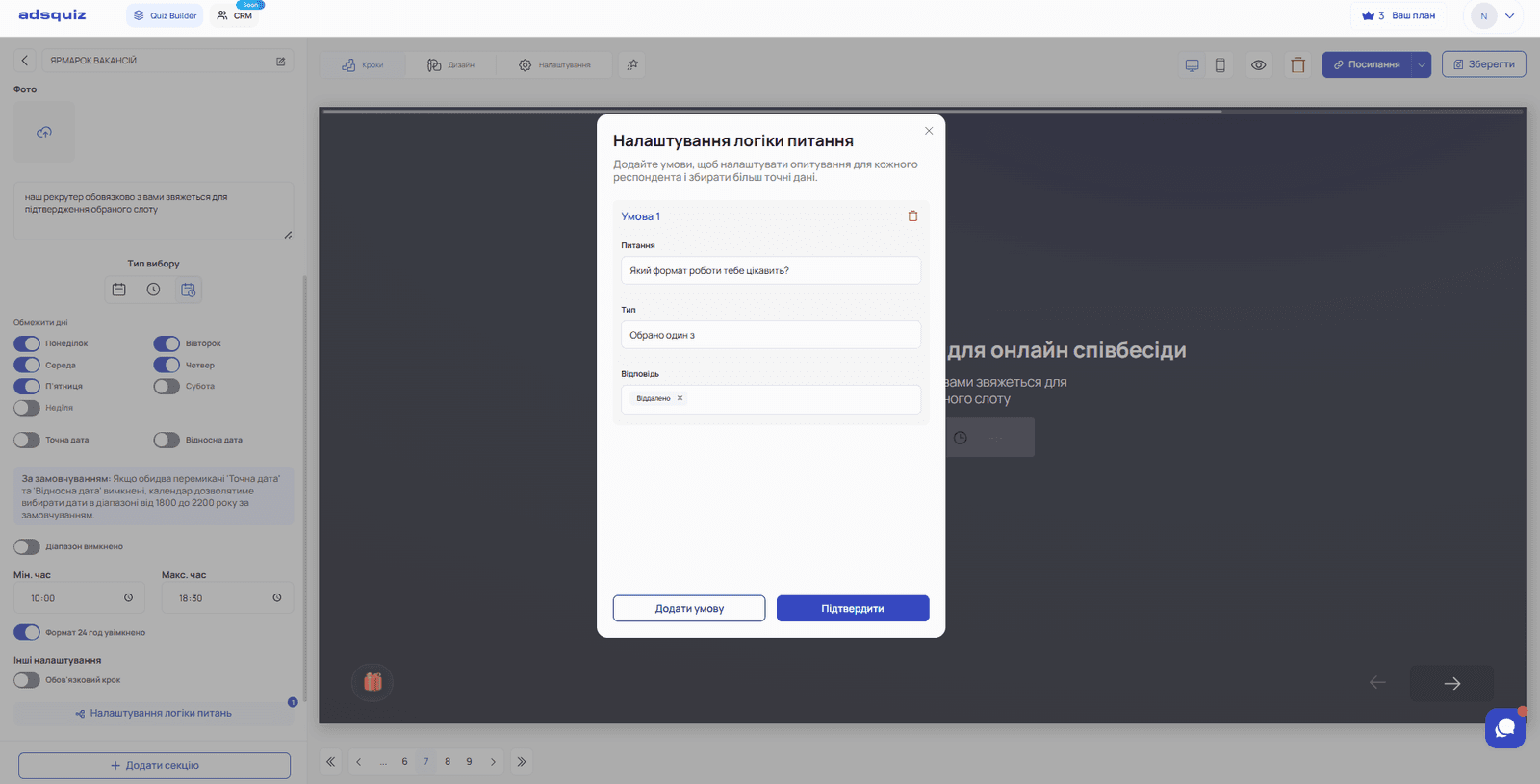
For those who chose office or hybrid, the manager gets in touch and agrees on a time personally.
Final step. Contact form
After all the questions there is a standard contact form. The manager gets a request with the candidate's full profile: field of interest, experience level, work format and – for the remote format – an already agreed interview time.
In this quiz we used two types of branching at once:
- Filtering out non-target users – users under 18 land on a dead-end page and don't get into the lead database
- Segmentation by need – users choosing remote work pick their own interview time, which saves the manager's time and speeds up processing
As a result, the manager gets not just a contact but a fully qualified lead with clear needs and readiness for the next step.
🎥 Video review of branching setup
We go through branching examples in more detail in our video review. We recommend watching it – it shows step by step how logic is built for different scenarios:
❓ Frequently asked questions
Where is the display logic set up – on the current page or the previous one? Logic is always set up on the page that should be shown – that is, the next one. For example, if the age question should appear only for students, the logic is set up on the age question itself, not on the experience question.
Can I have several dead-end pages in one quiz? Yes. You can set up a separate dead-end page with a suitable message for each non-target segment. Logic is set up on each dead-end page separately.
Does the manager see which branch the user went through? Yes. All the user's answers are recorded in the request – the manager sees the full picture of how the quiz was completed.
Can I combine several conditions in one branch? Yes. You can add several conditions and specify whether all of them must be met or one is enough. More details: Question logic
What happens if the user goes back and changes an answer? If the back button is enabled, the quiz recalculates the logic and sends the user down the new branch based on the changed answer.
⚙️ What's next
- Setting up results pages with logic: Results page
- Choosing logic for different niches: Logic for different niches