
Custom Color Scheme
Custom Quiz Color Scheme
The color scheme setting in AdsQuiz is a tool for fully customizing your quiz design to match your brand. If none of the ready-made design themes fit your needs – for example, if the quiz needs to blend seamlessly into your website’s visual style – you can configure a custom color scheme manually. This lets you accurately reproduce your brand’s colors and make the quiz a natural part of your overall visual identity.
🎨 How to Set Up a Custom Color Scheme: Step-by-Step Guide
Follow this guide and your quiz color scheme will be configured to match any brand in just a few minutes.
⚙️ Step 1. Go to the “Design” Section
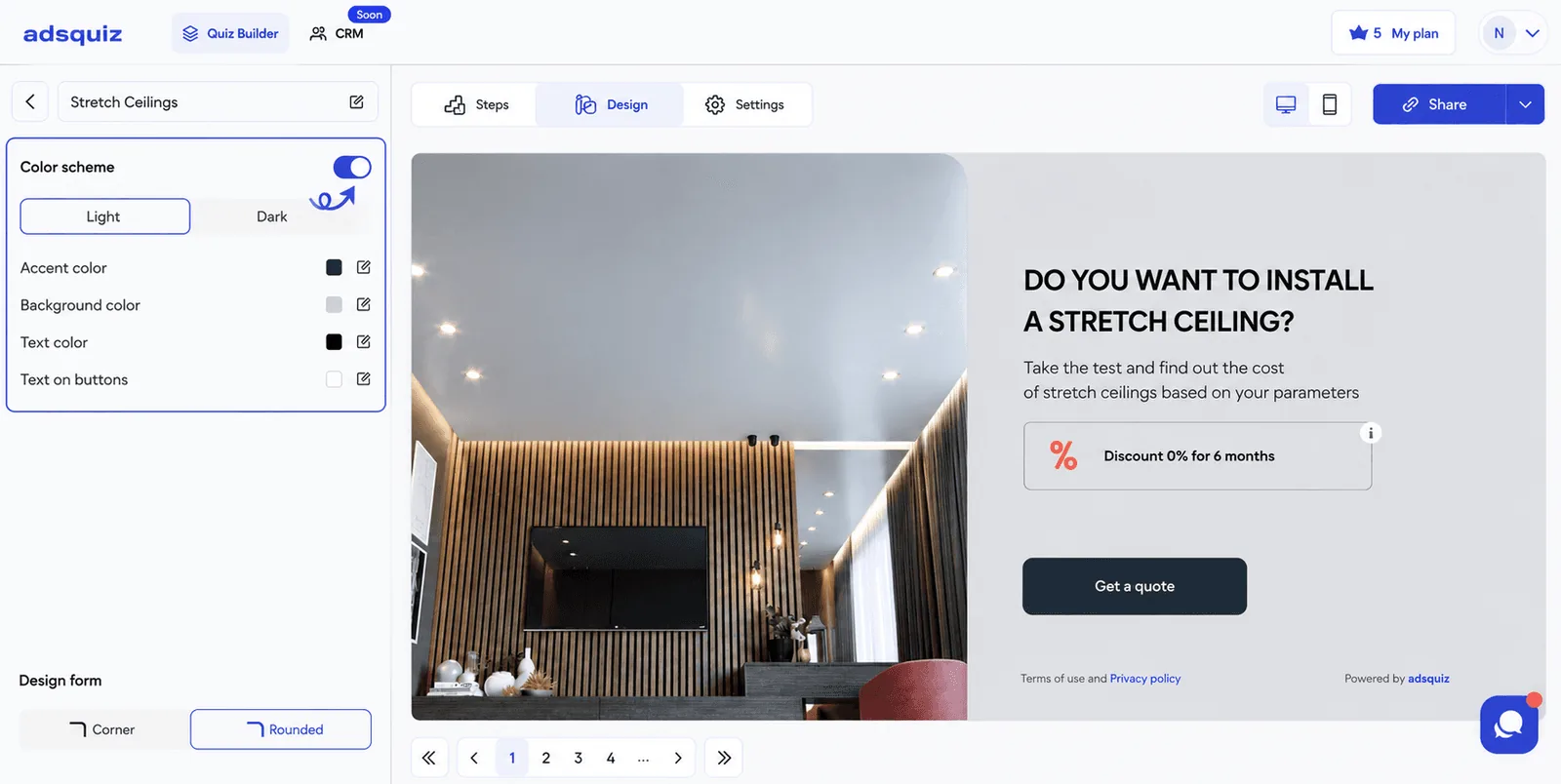
Open the quiz editor in AdsQuiz and navigate to the “Design” tab. Find the color scheme block and select “Custom color scheme.”
⚙️ Step 2. Configure the Colors
Once you select the custom color scheme, the following settings become available:
- Accent color – the color of buttons, active elements, and highlights. This is typically your primary brand color.
- Background color – the background color for all quiz pages.
- Text color – the color of the main text in questions and answers.
- Button text – the color of text displayed on buttons.
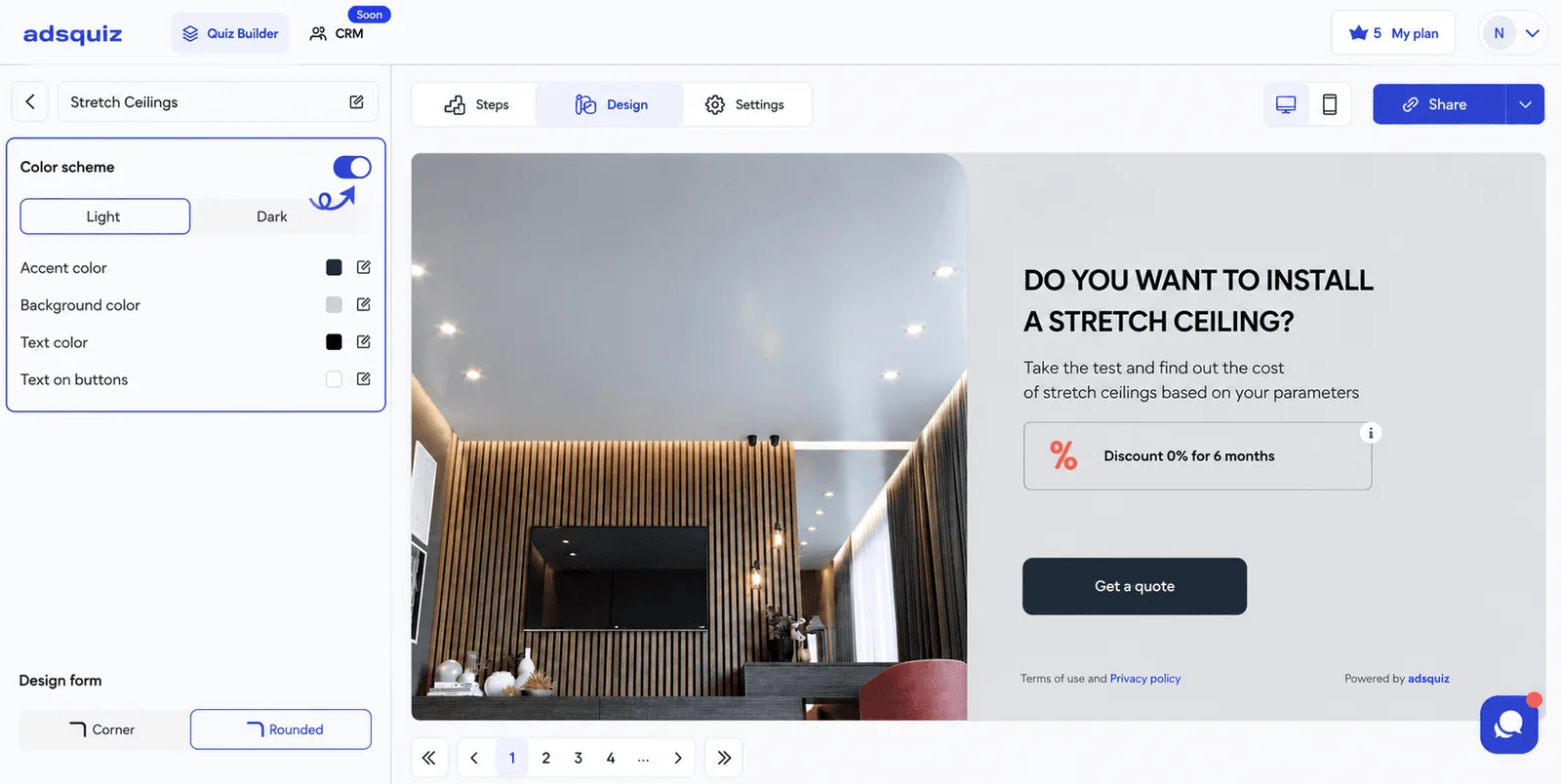
Colors can be entered in HEX format – for example, #2f3e4d – or selected manually using the color picker without entering a code.
💡 Tip: To make the quiz blend naturally into your website, use the same HEX color codes as your site. You can usually find them in your brand guidelines or in the page source code.
⚙️ Step 3. Choose a Light or Dark Theme
In addition to colors, AdsQuiz lets you choose a base display mode:
- Light theme – the classic option with a light background. Works well for most niches.
- Dark theme – a modern look that performs well for tech products, fitness, and gaming.
Choose the option that best fits your brand style and target audience.
⚙️ Step 4. Set the Design Shape
The design shape determines the visual style of quiz elements – specifically the shape of buttons and answer cards. Available options are rounded corners or sharp corners. Choose the one that best complements your brand and overall website aesthetic.
⚙️ Step 5. Save the Color Scheme Settings
Once all parameters are configured, click “Save.” Check how the quiz looks on mobile devices by switching to mobile preview in the editor before publishing.
💡 Tip: If you’re running the quiz alongside ad campaigns, make sure the quiz color scheme matches your ad creatives. A consistent visual style builds user trust and reduces the drop-off rate on the first screen.
❓ Frequently Asked Questions
Can I change the color scheme after the quiz is published?
Yes. The color scheme can be changed at any time in the “Design” section. Changes apply immediately after saving.
Does changing the color scheme affect collected leads?
No. Collected leads are stored independently of any design changes made to the quiz.
What format should I use for colors?
HEX format – for example, #2f3e4d. You can also select a color manually using the color picker without entering a code.