
Quiz from scratch
What is a Quiz from Scratch
A quiz from scratch is a fully custom quiz that you build to suit your exact needs without using ready-made templates. You define the structure, number of questions, transition logic, and design yourself. A quiz from scratch is the best option if you have a clear understanding of your audience and funnel, or if none of the ready-made templates fit your niche.
With AdsQuiz you can build a quiz from scratch for any goal: lead generation, audience segmentation, product or service selection. Full freedom over structure, design, and transition logic.
How to Build a Quiz from Scratch: Step-by-Step Guide
Follow this guide – and your fully custom quiz from scratch will be ready with no limitations on structure or design. No technical skills required.
➕ Step 1. Create a New Quiz from Scratch
Log in to your AdsQuiz account and click the «+» button (create a new quiz) on the main page. In the gallery, select «Create from Scratch» – the quiz editor will open with an empty structure ready to be configured.
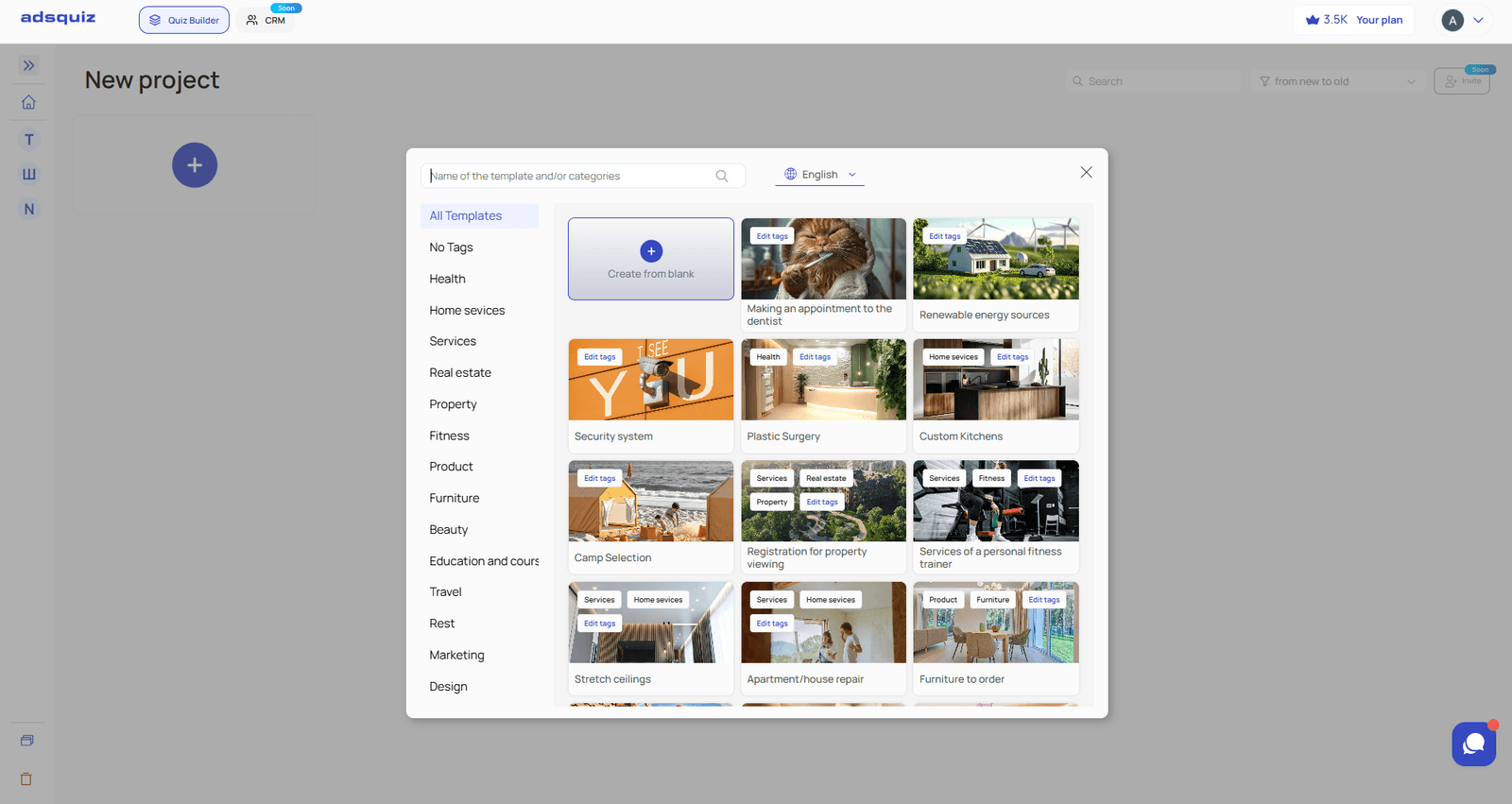
✏️ Step 2. Set Up the Start Page
The start page is the first thing a user sees. It determines whether they begin the quiz or leave.
What to configure:
- Quiz title – make it clear and user-focused, for example: «Find the right program for your goals in 2 minutes»
- Media – add an image or video that grabs attention
- Button text – instead of the default «Start», use something more compelling: «Take the Quiz», «Get My Result», «Find My Option»
- Bonus for completing – tell users what they get after finishing the quiz: a discount, PDF guide, or free consultation. This increases motivation to reach the final form.
💡 Tip: A bonus on the start page increases quiz completion rates. Users immediately understand what they get in exchange for their answers.
➕ Step 3. Add Questions
In the bottom left corner of the editor, click «Add Section» – a menu will open with the types of pages you can add to your quiz from scratch. Choose the type that fits your goal: multiple choice question, open-ended question, information screen, and so on.
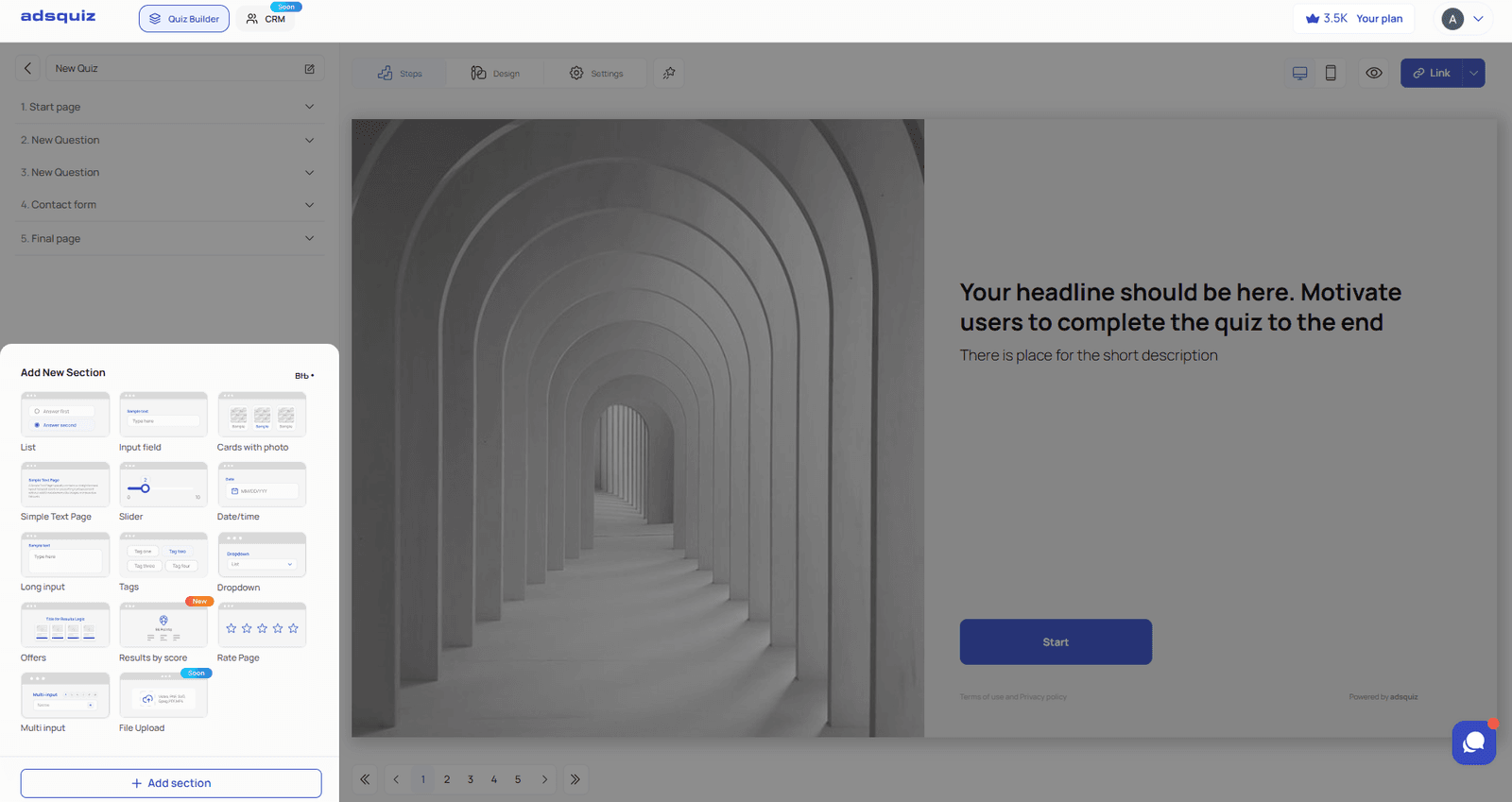
In the editor of each page you can configure:
- Question – write it clearly and with your audience in mind
- Description – add a clarification or hint below the question
- Answer options – add text options or attach a photo or video to each answer
- Transition logic – set which page the user goes to depending on their answer. This lets you segment your audience directly inside the quiz from scratch.
💡 Tip: The optimal number of questions is 4-7. More questions reduce completion rates to the final form.
📋 Step 4. Add a Contact Form
Click «Add Section» and add a contact form block. Configure the fields needed to qualify a lead: name, phone, email. Set the submit button text – for example, «Get My Result» or «Claim My Bonus».
If needed, add extra fields – for example, a social media handle or a checkbox for consent to receive newsletters.
💡 Tip: Fewer fields mean higher form conversion. Start with just one field: phone number or email.
🏆 Step 5. Set Up the Results Page or Redirect
After the contact form, the user needs to land on a final page. Choose one of the options:
- Results page – displayed inside the quiz from scratch. Write the text to match your offer: what the user gets, what the next step is. If the quiz segments the audience – set up a separate result for each segment.
- Redirect to a thank-you page – the user is taken to a separate page on your website where they receive their bonus: a discount, PDF, or access to a consultation.
🎨 Step 6. Customize the Design
Go to the «Design» section. Choose one of the ready-made color schemes or set up your own – if your quiz from scratch needs to match your brand colors. Check how the quiz looks on mobile – switch to mobile preview in the editor.
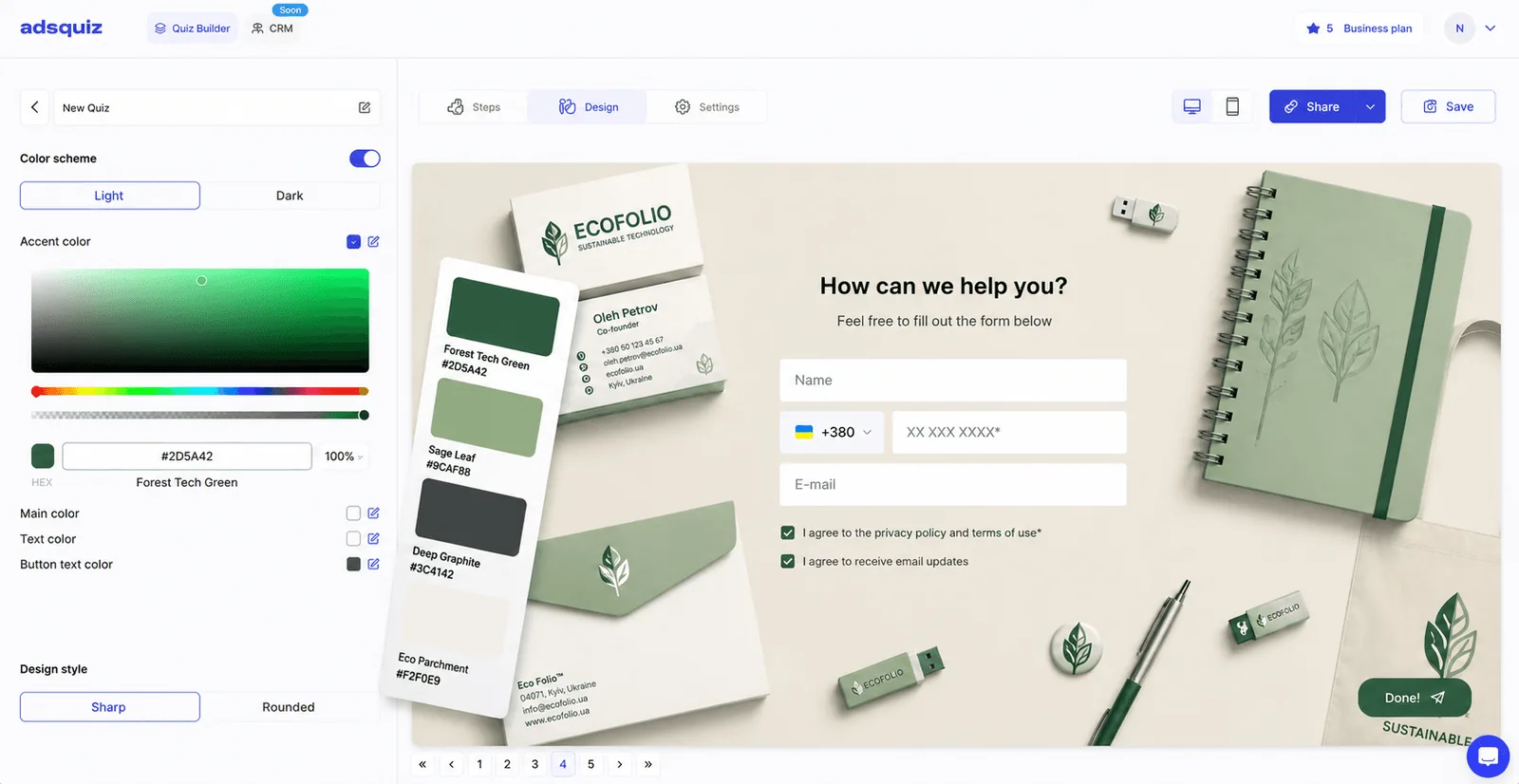
💡 Tip: If the quiz is running alongside paid ads – make sure the quiz design matches your ad creatives. This reduces drop-off on the first screen.
🚀 Step 7. Save and Publish
Click «Save» in the top right corner. Set your subdomain and copy the quiz link. Before driving traffic, go through the quiz from scratch yourself – from the start page to the final page. Check the transition logic, question display, and that leads are arriving in your CRM or Google Sheets.
⚙️ What’s Next
- Connect an integration – send leads to your CRM, Google Sheets, or messenger. Learn more: Connect Integration
- Set up UTM tags – to track lead sources from ads. Learn more: Traffic & Promotion
- Publish your quiz – embed it on your website or publish on your own domain. Learn more: Publishing Your Quiz
❓ Frequently Asked Questions
What is the difference between a quiz from scratch and a template? A template is a ready-made structure you adapt. A quiz from scratch is a fully custom structure you build yourself – from the start page to the results.
Can I edit the quiz after publishing? Yes. The editor is available at any time. Changes take effect immediately after saving.
Will I lose my leads if I edit the quiz? No. Collected leads are stored independently of any changes to the quiz structure.
How many questions is optimal for a quiz from scratch? 4-7 questions. More reduces completion rates to the final form and decreases the number of leads.