
Zapier
Setting up the Zapier integration in AdsQuiz
Zapier is one of the most popular automation and integration services in the world. It connects thousands of apps and services without code, through a simple visual interface. With Zapier you can set up automatic data transfer between CRMs, email services, spreadsheets, messengers, project management tools and more. Each automation scenario in Zapier is called a «Zap» – a chain of a trigger and one or more actions.
With AdsQuiz, Zapier acts as an intermediary – it receives quiz data via a webhook and passes it to any connected service. This opens up almost unlimited options for automating your work with leads.
What the AdsQuiz and Zapier integration gives you
- sending quiz leads to any CRM or service Zapier supports
- automatic transfer of contact details and answers to the quiz questions
- complex scenarios – for example, creating a deal in your CRM and sending an email to the manager at the same time
- connecting to thousands of services without technical skills
⚙️ How to set up the Zapier integration
Step 1. Log in to Zapier and create a new Zap
Open your Zapier account and click «Create Zap».
Step 2. Set up the trigger
In the trigger field, choose «Webhooks by Zapier». In the Trigger Event field, choose «Catch Hook» – this trigger type lets Zapier receive data via a webhook from external services.
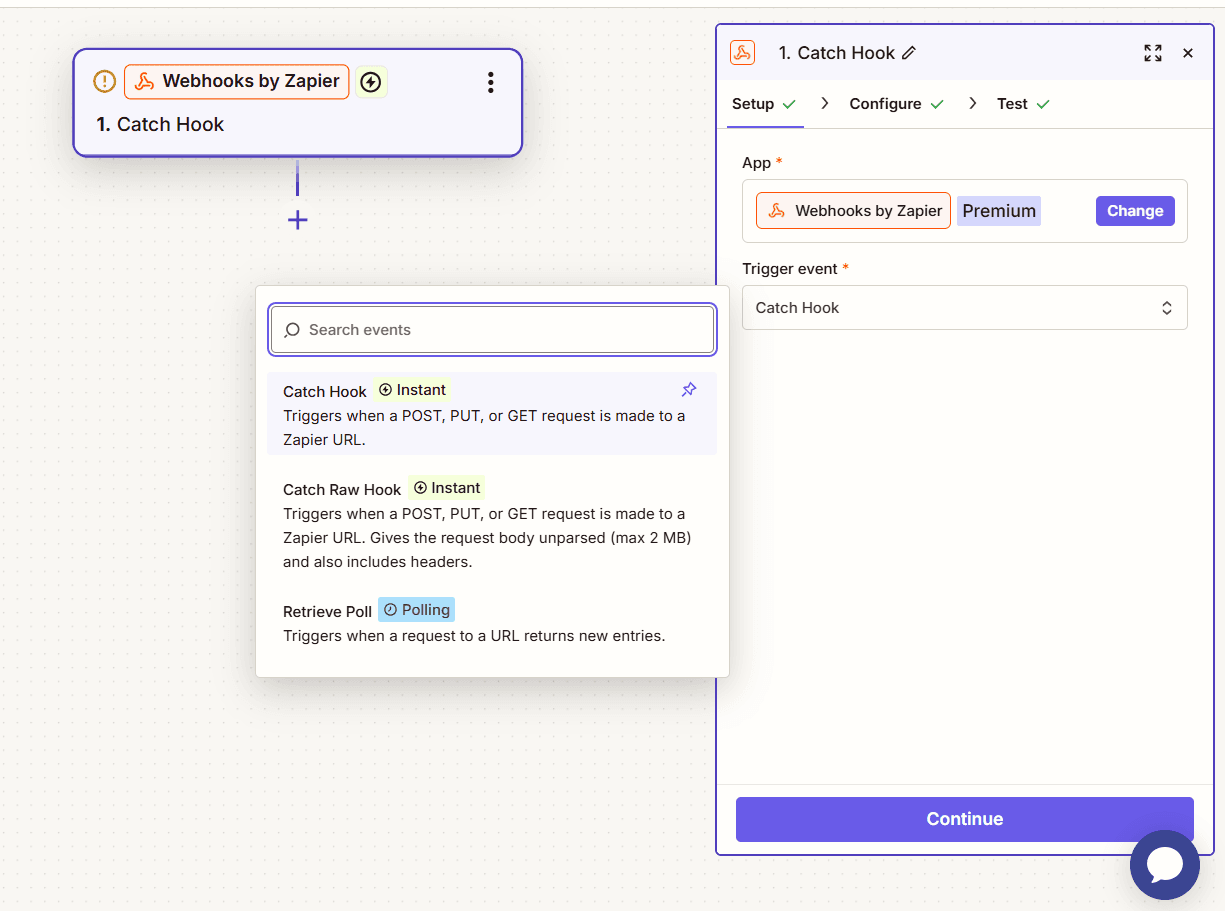
Step 3. Skip the Configure tab
You can skip the Configure tab at this step – no extra settings are needed here.
Step 4. Copy the webhook URL
Zapier will generate a unique webhook URL – copy it.
💡 Tip: Don't close the Zapier page after copying the URL – you'll need it in the next step for testing.
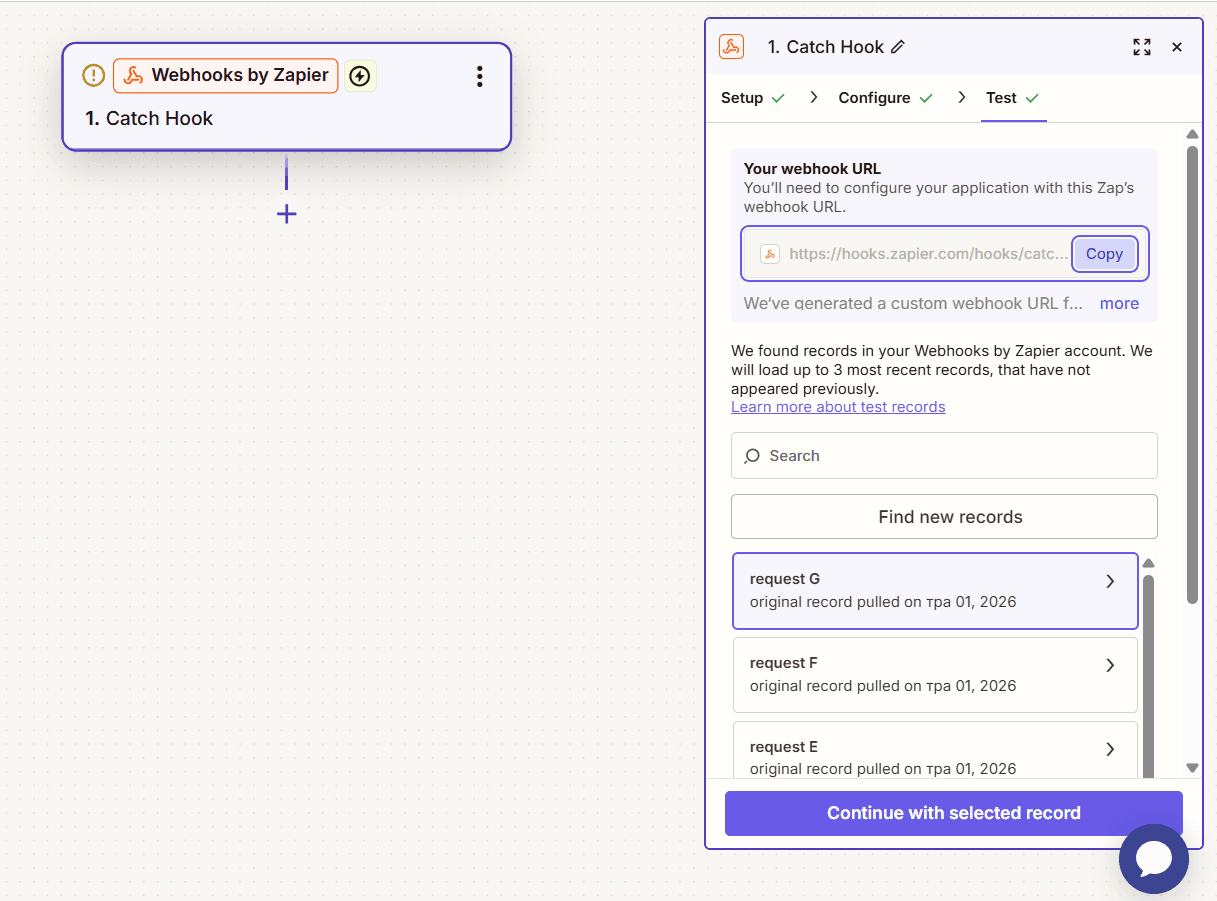
Step 5. Paste the webhook URL into AdsQuiz
Go to: Quiz settings → Integrations → Zapier.
Paste the copied webhook URL into the field and click «Save».
Step 6. Send test data to Zapier
Go back to Zapier and click «Test Trigger». For Zapier to get test data, complete the quiz like a regular user and submit a test request.
After submitting, go back to Zapier and click «Test Trigger». If everything is set up correctly, you'll see a record with the data sent from the quiz: name, phone, email and answers to the questions. Based on this data, you can continue setting up your Zap and specify where the data should go.
💡 Tip: Check that the test data includes all the fields you need – contact details and answers to the questions. This is important for setting up the next Zap steps correctly.
Step 7. Set up the action (Action)
After the trigger test succeeds, add an action – specify where Zapier should send the data. For example:
- Google Sheets – write the new lead to a spreadsheet
- Gmail – send an email notification to the manager
- Slack – post a message to a channel
- HubSpot / Pipedrive – create a contact or deal in the CRM
- Trello – create a card for the new lead
For each action, match the fields – specify which quiz data goes into which fields of the chosen service.
💡 Tip: Zapier lets you add several actions to one Zap – for example, write a lead to Google Sheets and send a Slack notification at the same time. Use this to automate every step of handling a request.
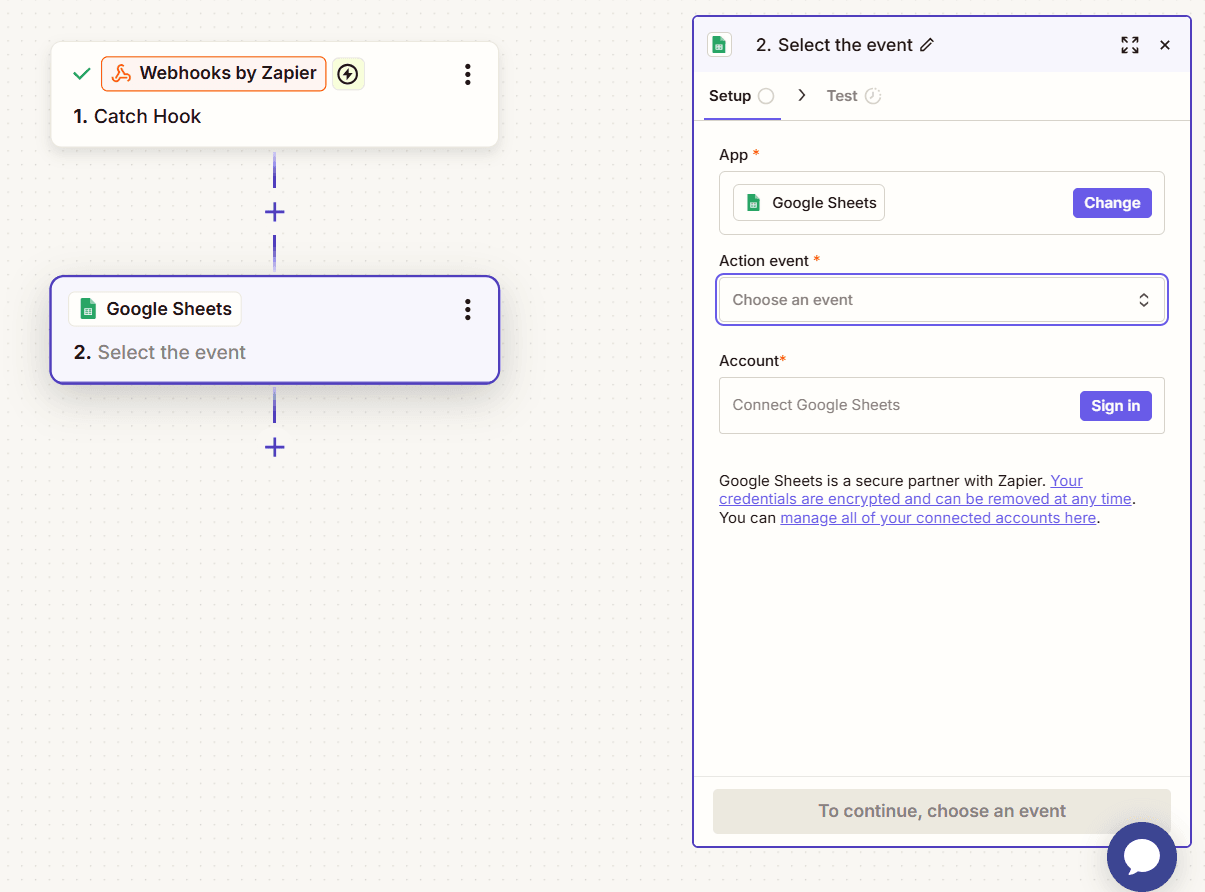
Step 8. Turn on the Zap
After setting up all actions, turn on the Zap – switch the toggle to active. Now all new quiz requests will be sent to the chosen services via Zapier automatically.
❓ Frequently asked questions
Which services can be connected through Zapier?
Zapier supports thousands of services – CRMs, Google Sheets, email services, messengers, project management tools and much more. If the service you need is in the Zapier catalogue, you can connect it to your AdsQuiz quiz.
Can one Zap send data to several services?
Yes. You can add several actions to one Zap – for example, write a lead to Google Sheets and send a Slack notification or create a deal in your CRM at the same time.
What is «Catch Hook» and why do I need it?
Catch Hook is a Zapier trigger type that receives data from external services via a webhook. It's what makes it possible to receive data from your AdsQuiz quiz.
Do I have to take the quiz every time to test?
No – after the first test, the data is saved in Zapier and you can use it to set up the next steps without taking the quiz again.
What if data doesn't reach Zapier after setup?
Check that the webhook URL is correct and that the integration in AdsQuiz is active. Make sure the Zap is turned on. If the problem persists, create a new webhook in Zapier and update the URL in the AdsQuiz integration settings.