
Adding Results Pages Based on Logic
Results logic: personalised offers
In the previous sections we looked at how logic helps segment your audience and filter out non-target users. But quiz logic is not only about dead-end steps and question branching. You can also use it to show personalised offers on the results page. This means one quiz can cover several business lines at once – and each user gets a result that matches their specific need.
🧠 What results logic is for
Imagine a company that makes windows of different types and configurations. Instead of several separate quizzes, it can build one universal quiz where, depending on the answers, the user gets a specific offer for their request. As a result, the manager sees the client's need clearly stated.
That's exactly what quiz results logic is for.
📌 Example: a quiz for a uPVC window manufacturer
The company makes windows of different types and configurations. It creates one quiz with clarifying questions, and the results logic makes sure each user gets a personalised offer that matches their needs.
Here's what the structure of such a quiz should look like:
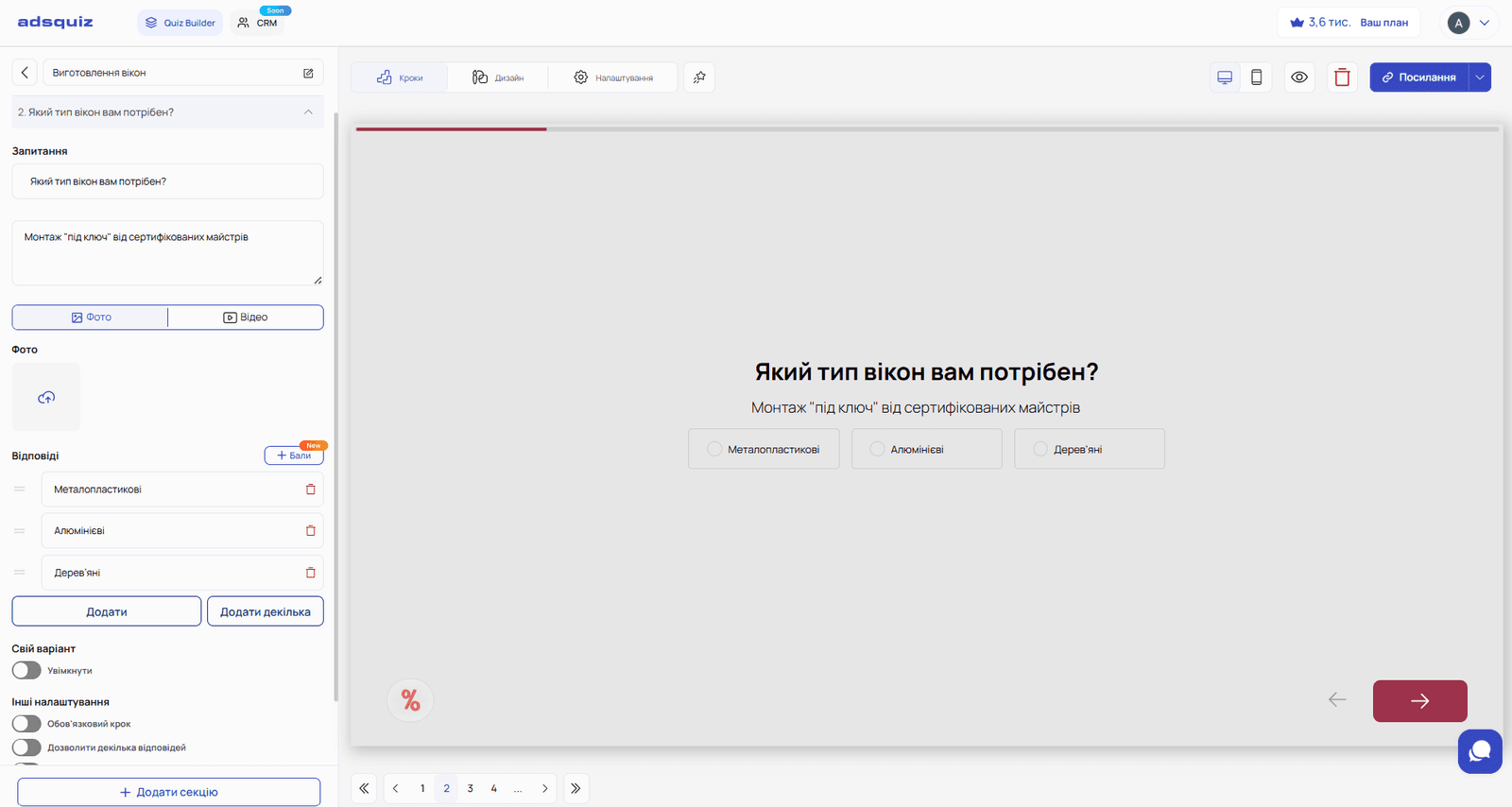
Question 1. Which type of windows are you interested in? Options: uPVC / Aluminium / Wooden
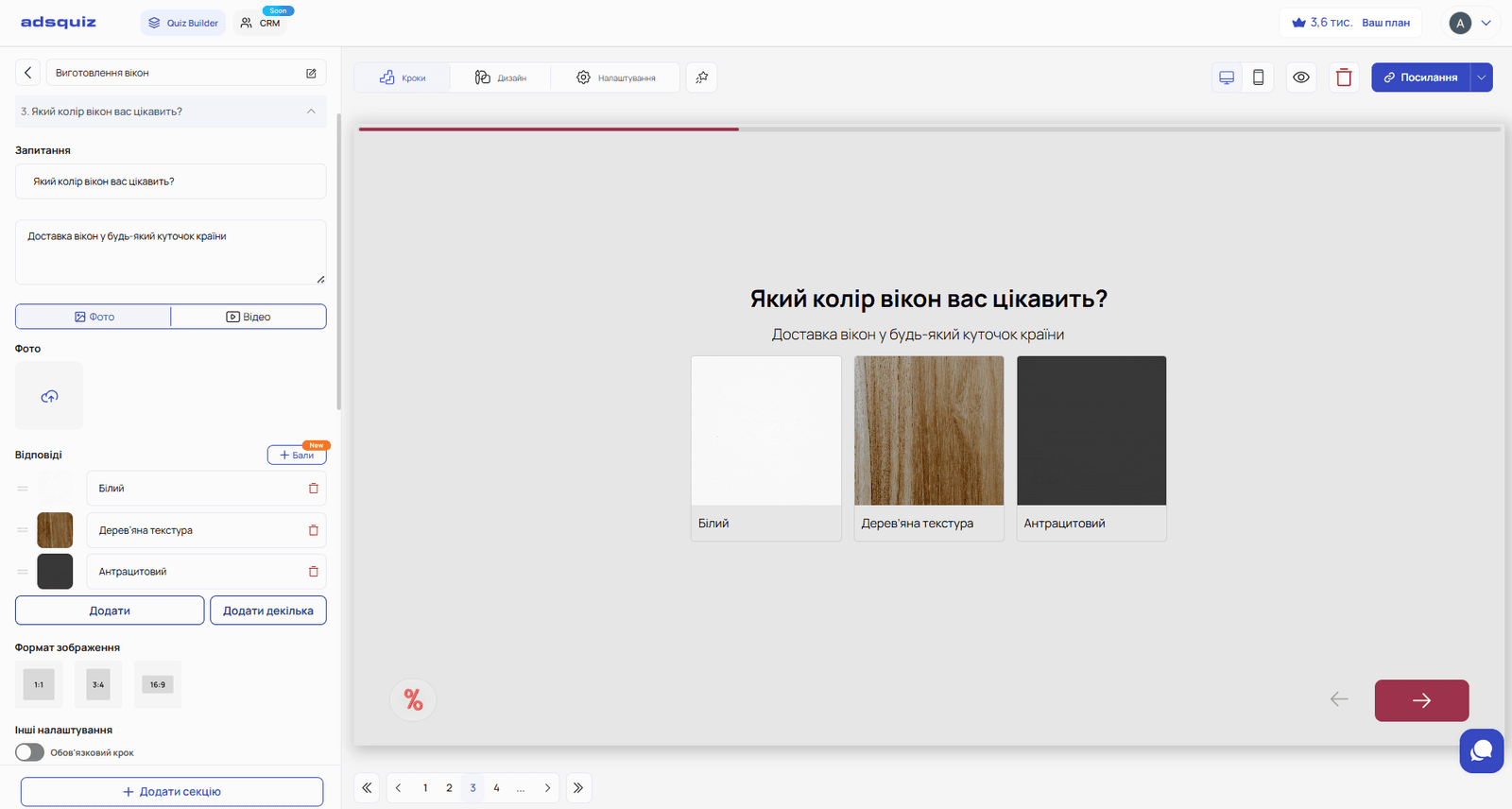
Question 2. Which profile color are you interested in? Options: White / Wood effect / Anthracite / Other
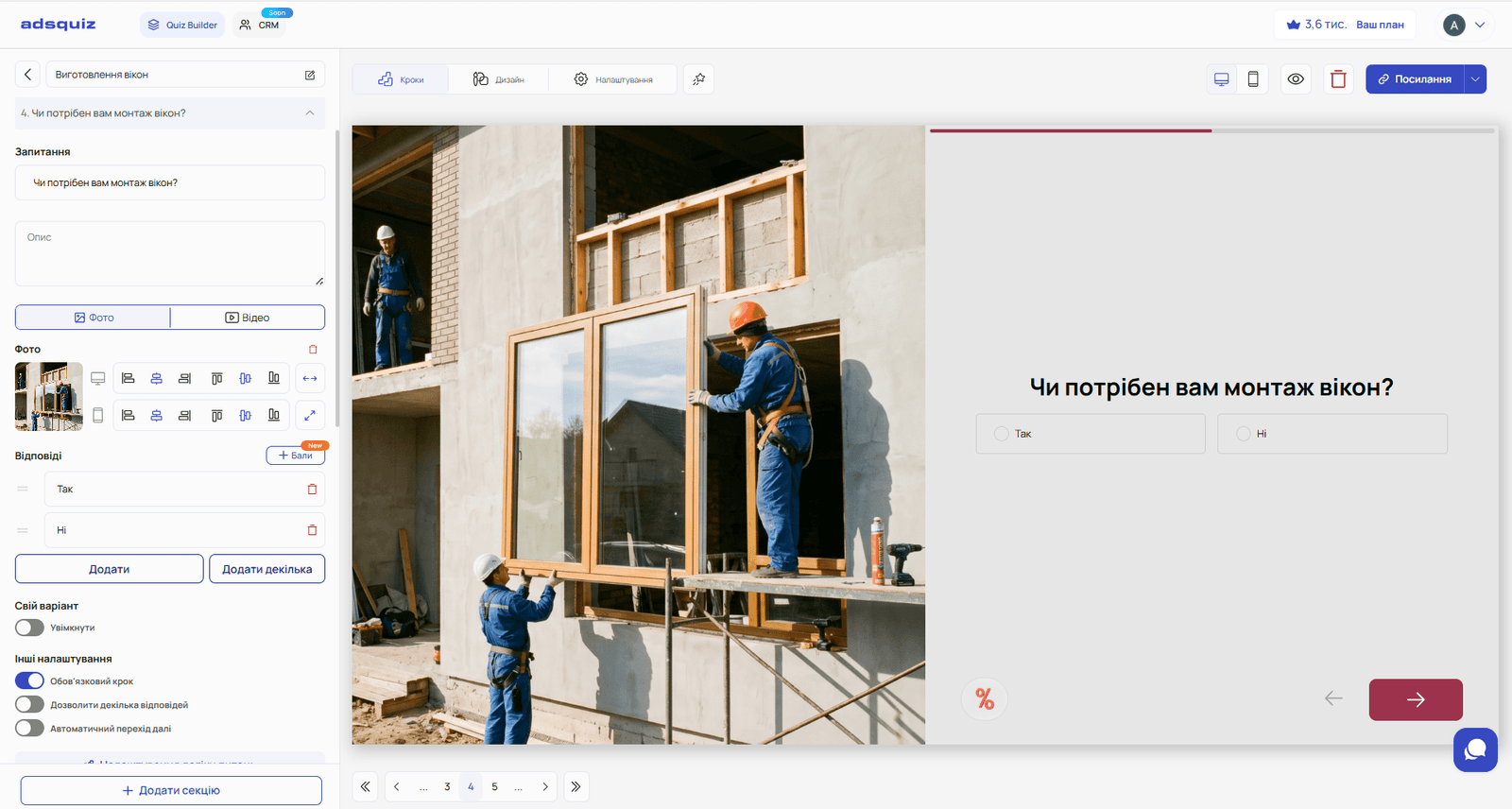
Question 3. Do you need installation? Options: Yes / No
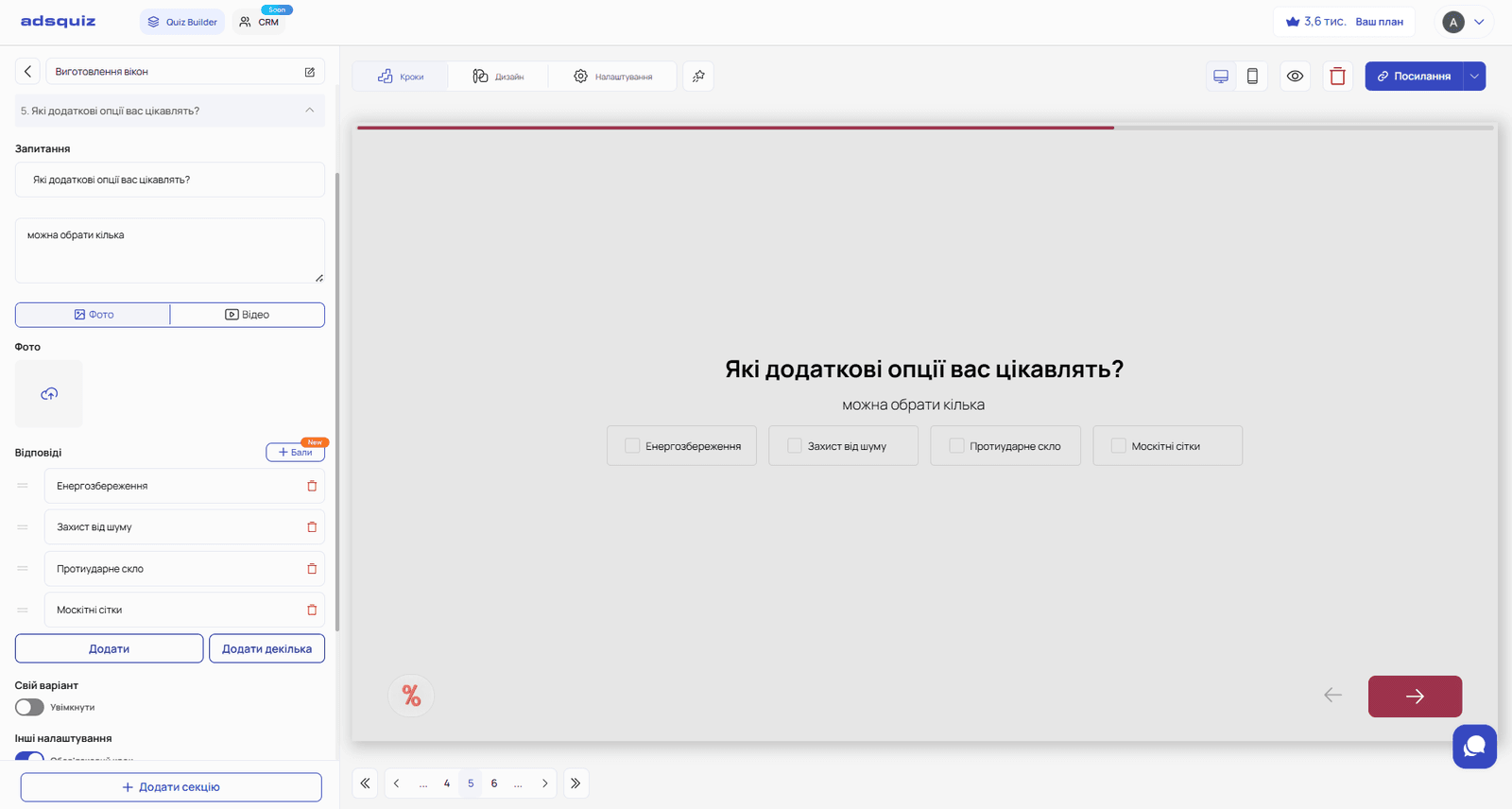
Question 4. Extra options (several can be chosen) Options: Energy saving / Noise protection / Impact-resistant glass / Mosquito nets
Contact form
After the questions comes the contact form. Then the results page with one of three personalised offers.
🏆 Results page: three personalised offers
Three offers are added to the results page – one for each service package. Results logic is set up for each offer: it is shown only if certain conditions on the user's answers are met.
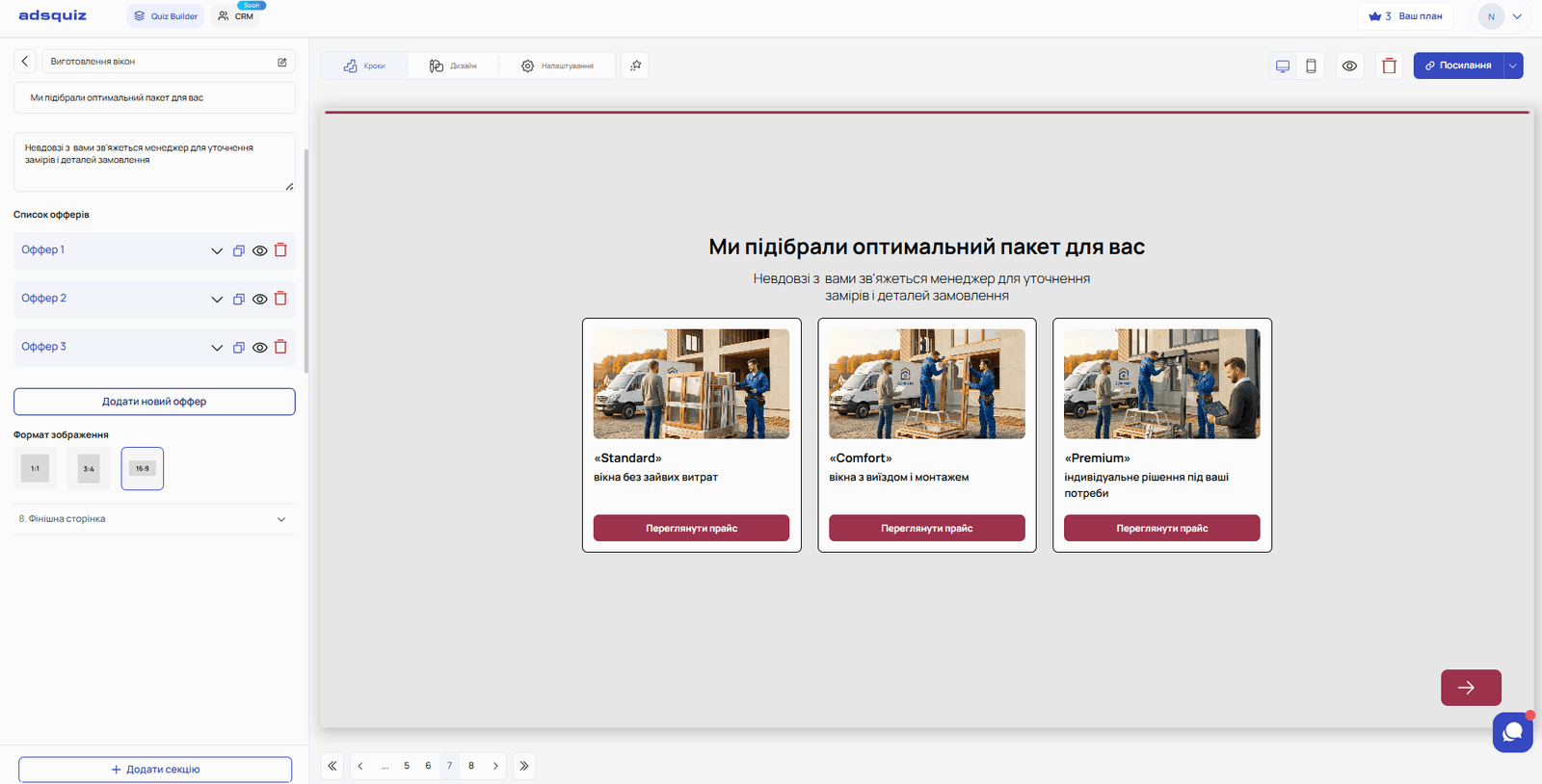
Read more about adding a results page and setting up offers in the article: Results page
Offer 1 – «Standard»
Display conditions:
- Question 1 – «uPVC» selected
- Question 2 – «White» selected
- Question 3 – «No» selected (no installation needed)
- Question 4 – nothing selected – no extra services
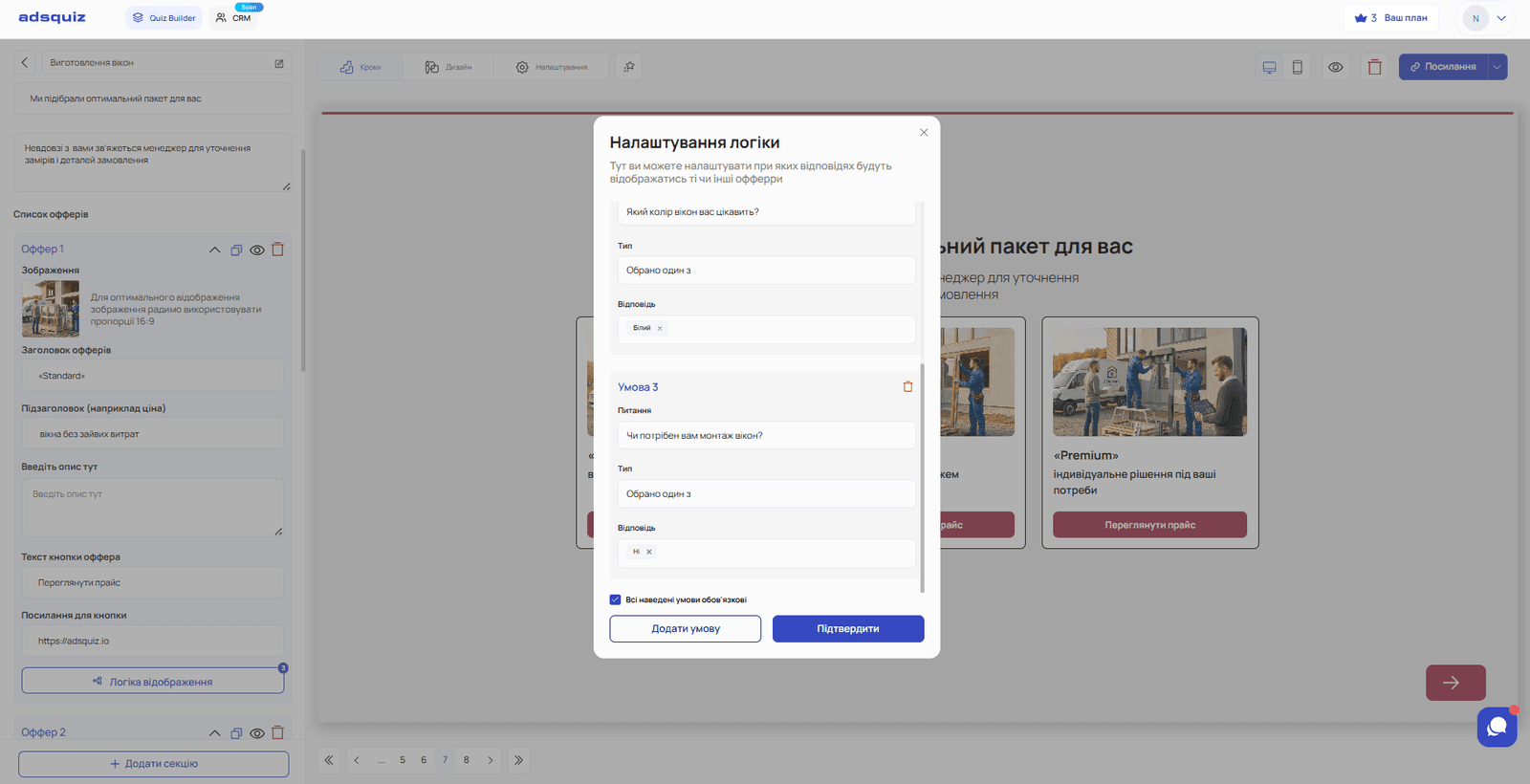
Offer 2 – «Comfort»
Display conditions:
- Question 1 – «uPVC» selected
- Question 2 – «White» selected
- Question 3 – «Yes» selected (installation needed)
- Question 4 – nothing selected – no extra services
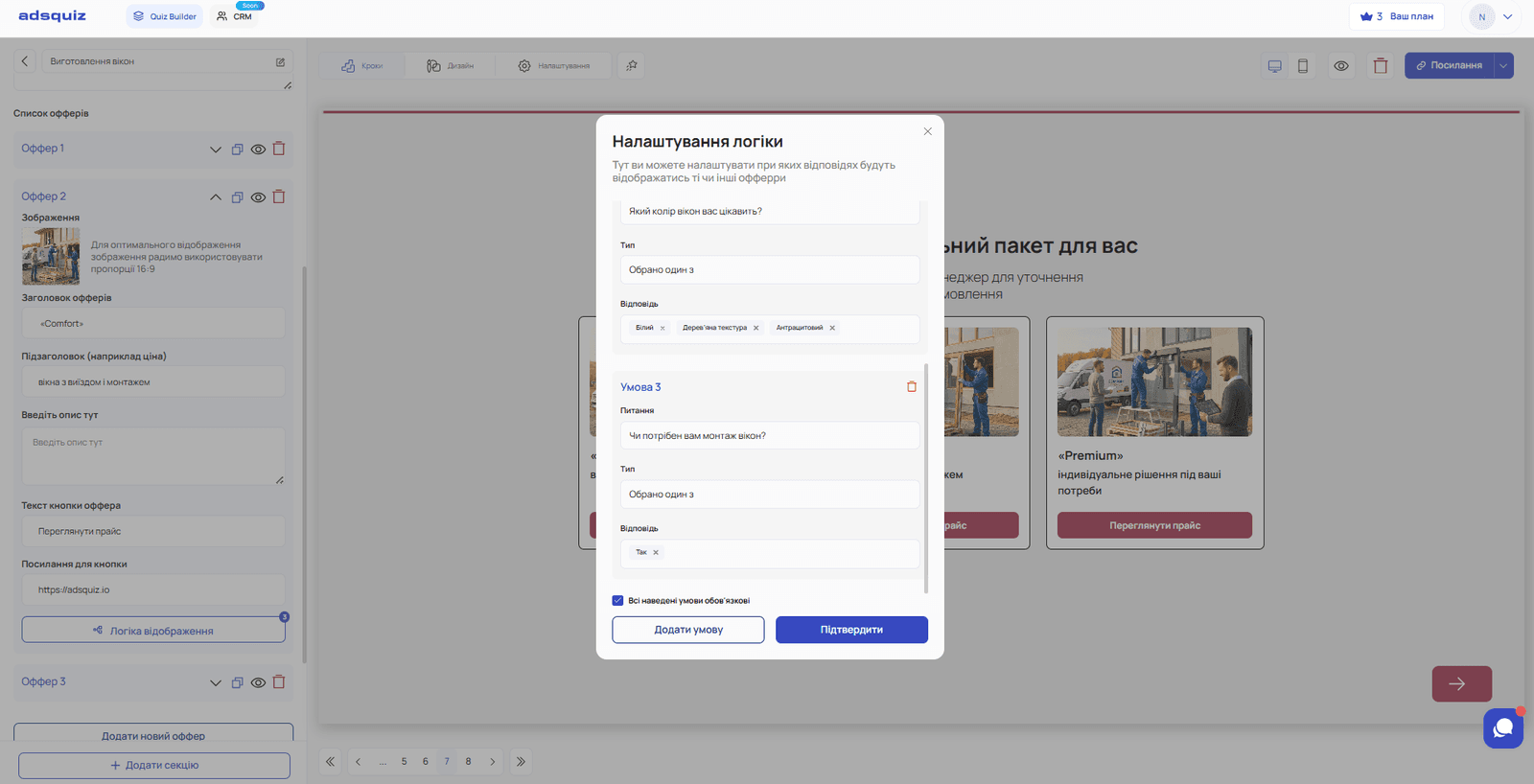
Offer 3 – «Premium»
Display conditions:
- Question 1 – one of «uPVC», «Aluminium» or «Wooden» selected
- Question 2 – one of «White», «Wood effect» or «Anthracite» selected
- Question 3 – «Yes» or «No» selected
- Question 4 – one or more options selected: «Energy saving» / «Noise protection» / «Impact-resistant glass» / «Mosquito nets»
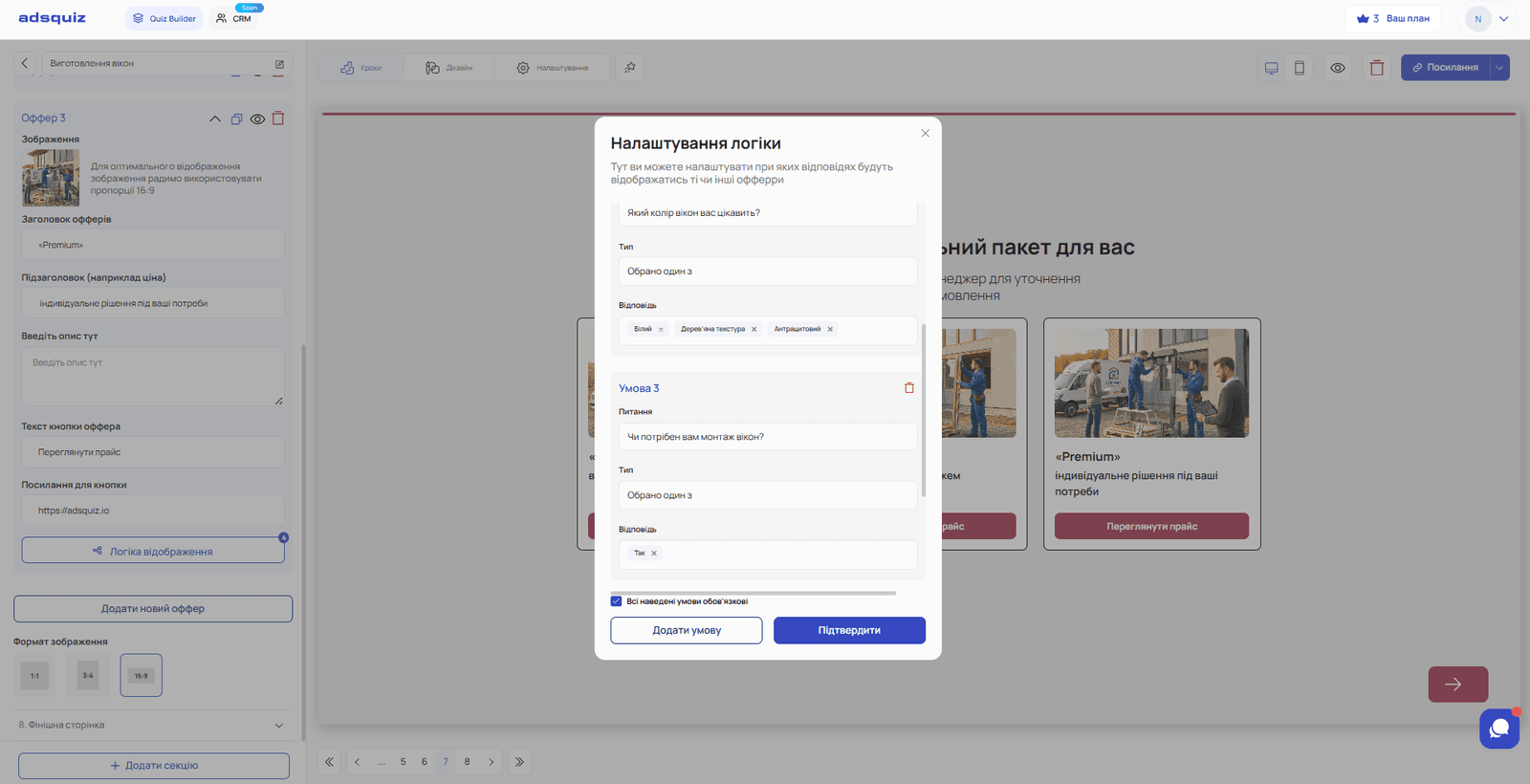
🔧 Step-by-step setup: results logic for each offer
For personalised offers to work correctly, follow this sequence:
- Create a quiz with standard questions
- Add a results page
- Add several offers to the results page – one for each package
- For each offer, click «Set up logic»
- Specify the conditions – for example, «Question 2 – one of selected – White» and «Question 3 – selected – Yes»
- Save the logic for each offer separately
As a result, the quiz automatically decides which offer to show each user based on their answers.
💡 Tip: Check every branch of the results logic before publishing – take the quiz yourself via its link with different combinations of answers and make sure each offer is shown correctly.
▶️ Recommended video
We go through examples of setting up branching by answers in more detail in our video review. We recommend watching it to see the full setup process in practice:
📊 Summary
Results logic lets one quiz replace several separate landing pages and hit each user's exact need. The advantages of this approach:
- One quiz – several business lines – no need to create a separate quiz for each product or service package
- Personalised result – the user gets an offer that matches their request
- Qualified lead – the manager sees the client's full profile and knows right away what to offer
- Saving resources – one quiz is easier to maintain and update than several separate ones
⚙️ What's next
- Setting up points for answers: Scores and results
- Choosing logic for different niches: Logic for different niches
❓ Frequently asked questions
Can I add an unlimited number of offers to the results page? Yes. There is no limit – add as many as you need to cover all the packages or lines of your business.
What if the user's answers match several offers at once? All offers whose conditions are met will be shown. That's why it's important to set conditions clearly so they don't overlap.
Do I have to use results logic? No. If the quiz has one direction, you can add one offer without logic and it will be shown to all users.
Can I add several conditions to one offer? Yes. For example, the Standard offer is shown only if all four conditions are met at once – window type, color, no installation and no extra options. More details: Question logic
Can I change the offers after the quiz is published? Yes. The results page and offer logic can be edited at any time without losing the leads you've collected.