
Result Scenarios by Score Range
Result scenarios by score range
In the previous section we covered how to set up points for answers and add a score-based results page. This article explains in detail how to set up result scenarios – display formats, score ranges and personalised results for each segment.
⚙️ Step 1. Add a score-based results page
Once points are set for all questions, click «Add section» and choose «Score-based results». The result scenarios settings page opens.
➕ Step 2. Choose a result format
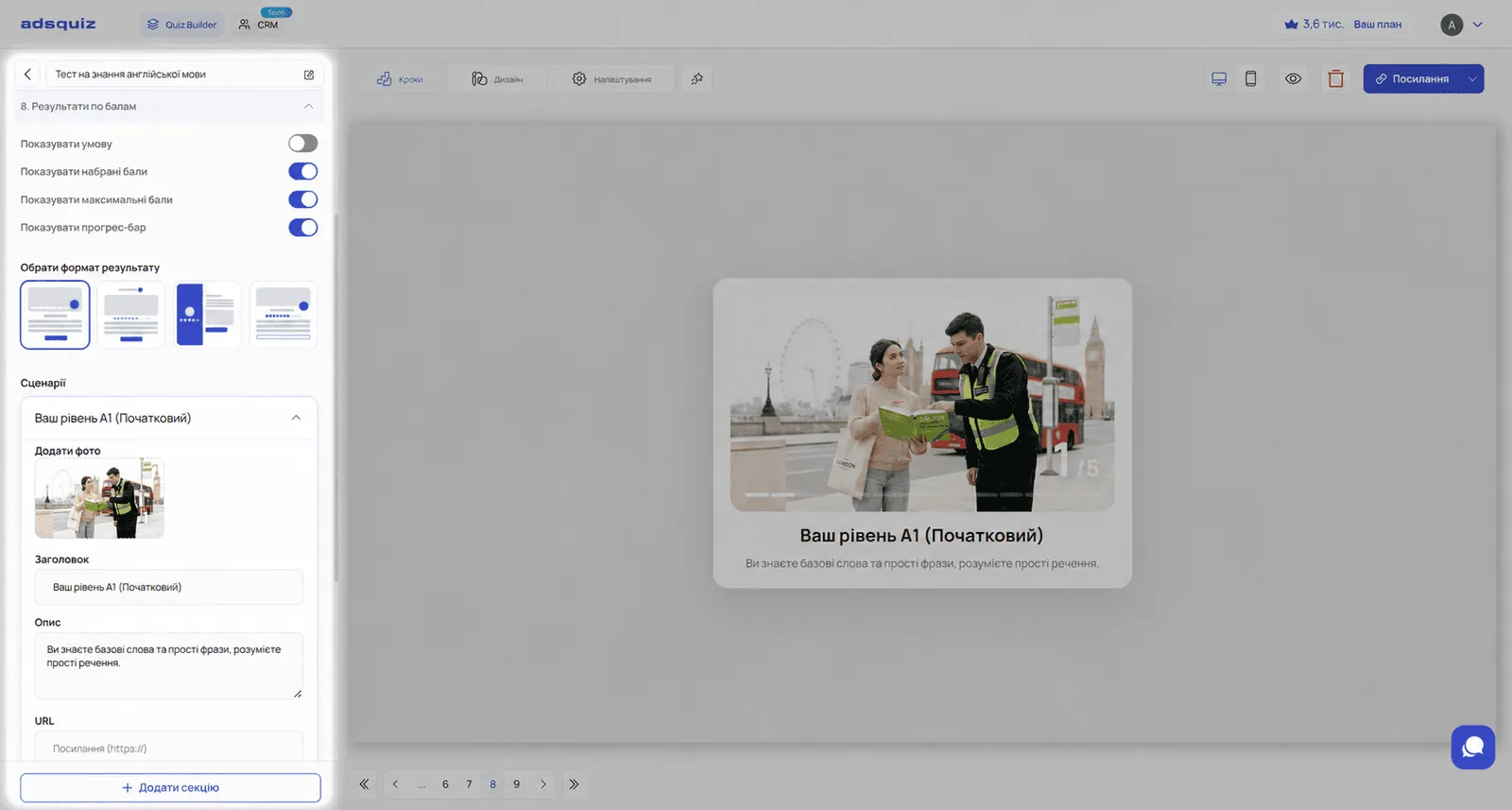
The first step is choosing how the result is displayed. The format defines what the final page looks like for the user: where the score is placed and how the description and explanation of the result are shown.
Choose the format that best suits your quiz and audience. For example, an educational test works well with a format that clearly shows the score and level. For choosing a product or service, use a format that focuses on the recommendation and the call-to-action button.
📊 Step 3. Set up display options
After choosing a format, you can turn additional display options on or off:
Show condition Shows the user the score range that matches their result. For example: «You scored between 7 and 10 points». Useful for educational tests and quizzes where transparent scoring matters.
Show points scored Shows the exact number of points the user scored. Suits knowledge tests, level assessments and quizzes where the user should understand their result in numbers.
Show maximum points Shows the maximum possible score next to the user's score. For example: «8 out of 10 points». Useful for tests where it matters how close the user came to the maximum.
Show progress bar Shows a visual progress scale with the result relative to the maximum. Suits quizzes where visuals matter – for example, assessing fitness level or readiness to buy.
💡 Tip: Combine the options to fit the type of quiz. For an educational test, turn on all four – it makes the result more credible. For a service finder quiz, a progress bar without exact points is enough.
🎯 Step 4. Set up scenarios by score range
A scenario is the result the user sees if they score a certain number of points. A separate scenario is set up for each score range.
Click «Add scenario» and specify:
Score range: Set the minimum and maximum values for this scenario. For example: 0 to 5 points is the first scenario, 6 to 10 the second, 11 to 15 the third.
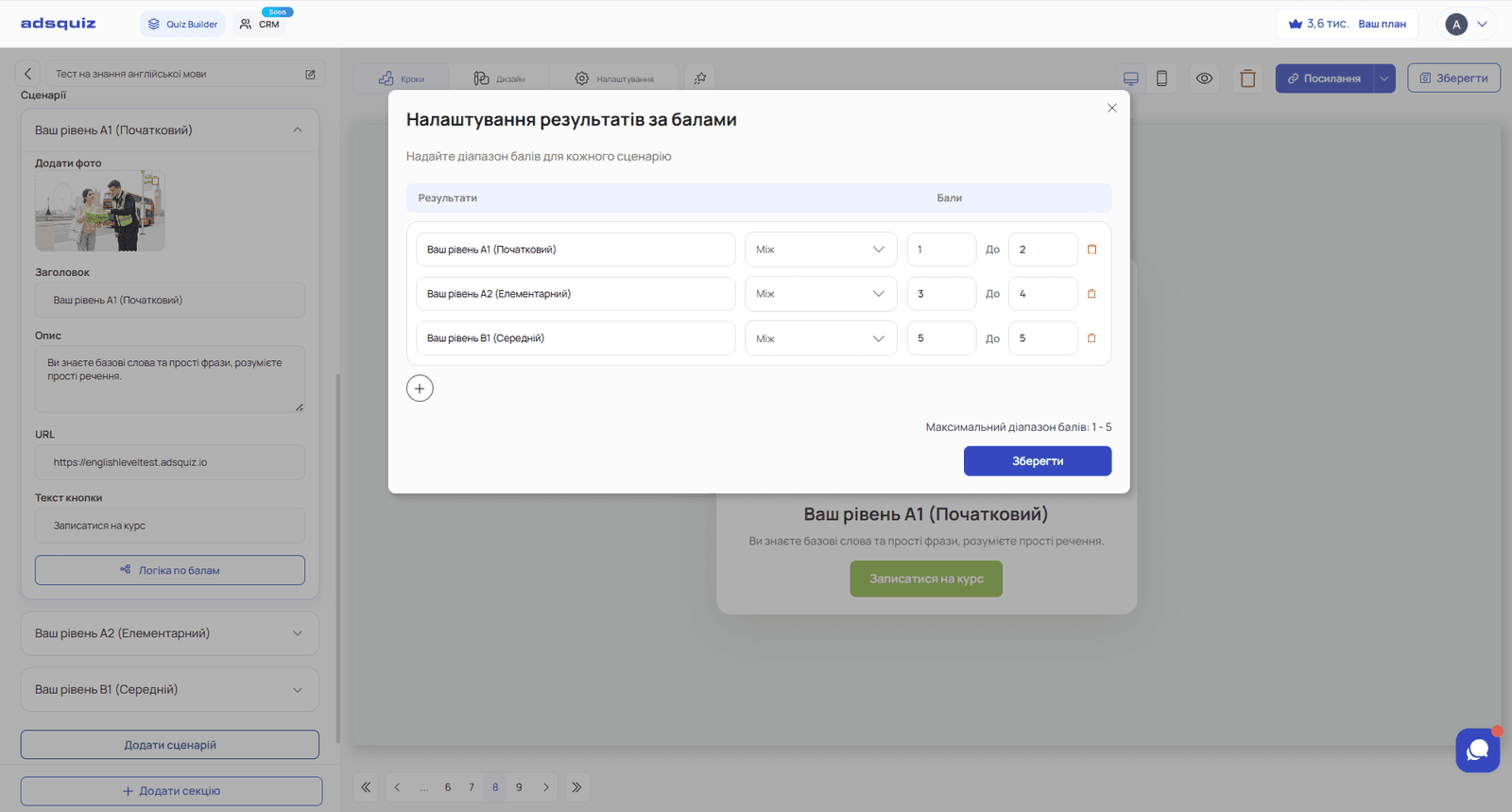
Photo: Add an image to be shown for this scenario.
💡 Tip: We recommend always adding a photo to each scenario. A visual element makes the result easier to take in and the final page more attractive. For educational tests it can be an image matching the level; for choosing a service, a photo of the relevant package or product.
Headline: A short, clear headline for the result. It's the first thing the user sees.
Tips for results page headlines:
- For educational tests: state the level clearly and positively – «Intermediate level – you already have a good command of the language» instead of just «Intermediate level»
- For choosing a service: name the package and add a benefit – «Comfort package – turnkey manufacturing and installation»
- For readiness assessments: state the next step – «You're ready for a deal – a manager will contact you shortly»
- Avoid generic headlines like «Your result» or «Thank you» – they add no value and don't motivate the next action
Description: A short explanation of what this result means and what happens next. The description should answer two questions: what the result means and what the next action is.
For example, for an English school:
- «You have a confident command of basic grammar and vocabulary. The next step is our Pre-Intermediate course, which will take you to a new level. Click the button below to join a group starting soon.»
Button URL and label: Add a link and button text. The button leads the user to a specific target action after they get their result.
Examples of using the button:
- English school – language level test → the «Join a group» button leads to the sign-up page for a group of the matching level
- Fitness club – fitness level assessment → the «Choose a program» button leads to the page of a specific training package
- Real estate agency – readiness-to-buy assessment → the «Get a selection» button leads to a page with relevant properties
- Online course – knowledge test → the «Start learning» button leads to the registration page for the matching course
💡 Tip: The button text should match what the user expects after reading the result. If the description says «join a group», the button should say exactly that, not «learn more» or «go».
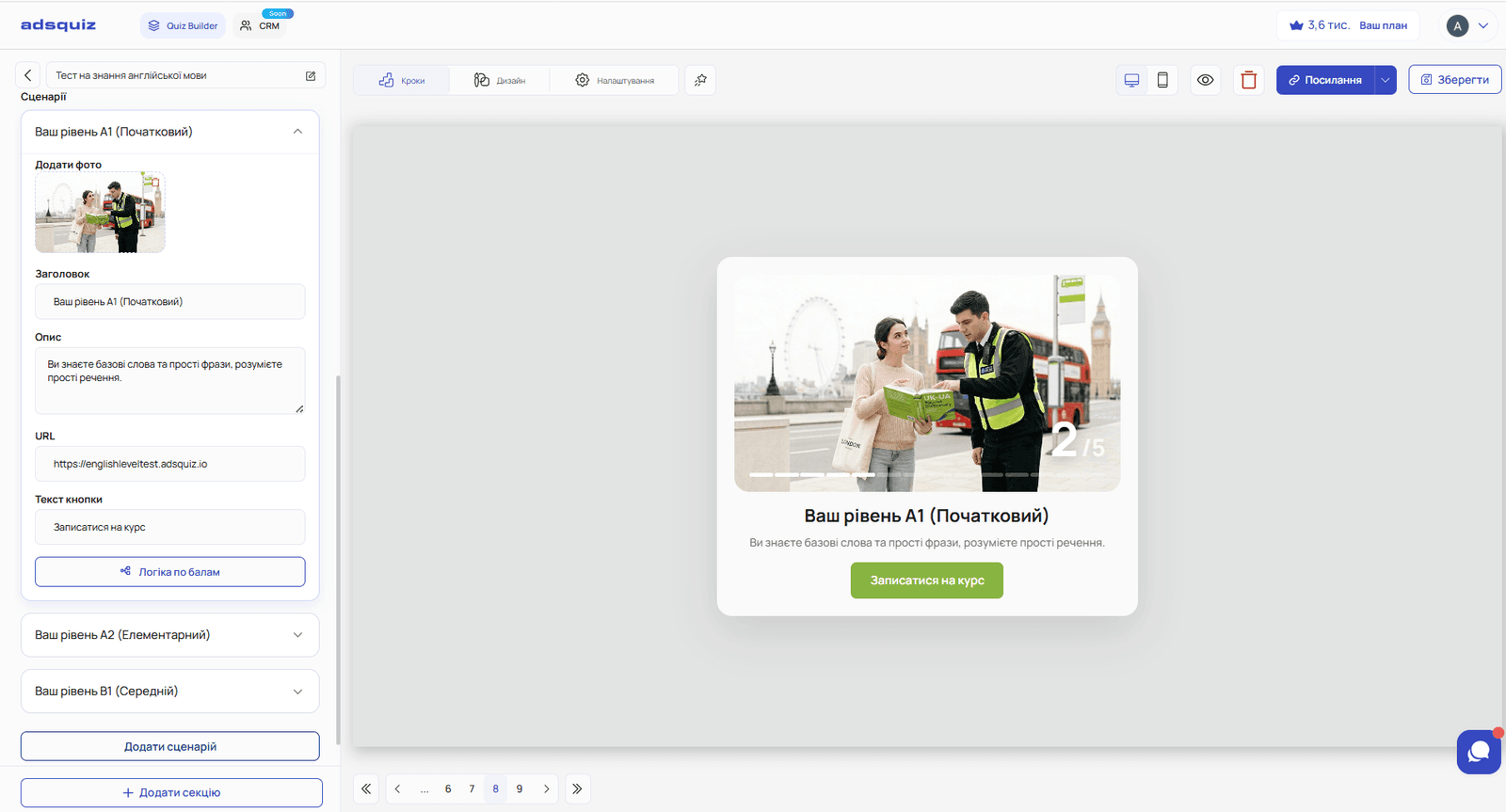
📌 Scenario setup example: an English school
A 10-question quiz on grammar and vocabulary. The maximum is 10 points.
Scenario 1 – range 0-2 points
- Photo: an image for the Beginner level
- Headline: «Your level is A1»
- Description: «You're just getting started with English – and that's great. Our beginner course is built from scratch and will help you move forward with confidence.»
- Button: «Sign up for the course» → link to the sign-up page
Scenario 2 – range 3-4 points
- Photo: an image for the Elementary level
- Headline: «Your level is A2»
- Description: «You know the basics and can already build simple sentences. The Elementary course will help you strengthen your foundation and reach a new level of confidence.»
- Button: «Join an Elementary group» → link to the sign-up page
Scenario 3 – 5 points
- Photo: an image for the Intermediate level
- Headline: «Level B1»
- Description: «Your level lets you talk freely about everyday topics. The Intermediate course will help you get rid of mistakes and feel more confident in harder situations.»
- Button: «Join an Intermediate group» → link to the sign-up page
⚙️ What's next
- Setting up integrations to send leads: Integrations
- Placing the quiz on a website or your own domain: Quiz placement
❓ Frequently asked questions
How many scenarios can I add? There is no limit. We recommend 3-5 scenarios – enough for good segmentation without overcomplicating the setup.
Can score ranges overlap between scenarios? No. Each score must belong to only one scenario. Make sure the ranges don't overlap and there are no gaps between them.
Do I have to add a button to each scenario? No, the button is optional. But we recommend always adding it – a button with a specific target action increases conversion after the user gets their result.
Can I add different photos for different scenarios? Yes. A separate image is uploaded for each scenario – this makes the results more personalised and visually appealing.
Can I change scenarios after the quiz is published? Yes. Result scenarios can be edited at any time without losing the leads and statistics you've collected.