
Facebook Pixel
Setting up the Facebook Pixel integration in an AdsQuiz quiz
Once the quiz is created – questions, transition logic, scoring and design are set up – you can publish it and start collecting requests. But for effective marketing campaigns it's important not only to get leads but also to track user behaviour and send data to ad platforms.
That's what the «Integrations» section in AdsQuiz is for – it lets you connect analytics systems, ad platforms, CRMs and automation services. You can open it via «Quiz settings» → «Integrations».
Available integrations include: Facebook Pixel and Facebook Conversions API, TikTok Pixel, Google Analytics, Google Tag Manager, Mailchimp, SendPulse, Pipedrive, KeyCRM, Kommo, SalesDrive, NetHunt CRM, Telegram notifications, Email notifications, Webhook, Zapier, Make.
This article covers in detail how to set up the Facebook Pixel to track events and conversions in an AdsQuiz quiz.
What the Facebook Pixel is and why you need it
The Facebook Pixel is an analytics tool that tracks user actions on quiz pages and sends this data to your Meta Ads account. Once it's connected, you can:
- analyse the performance of your ad campaigns
- build retargeting audiences based on user behaviour in the quiz
- optimise ads for the Lead event – that is, for actual request submissions
- build Lookalike audiences based on people who filled in the form
⚙️ How to connect the Facebook Pixel to an AdsQuiz quiz
Step 1. Open the integration settings
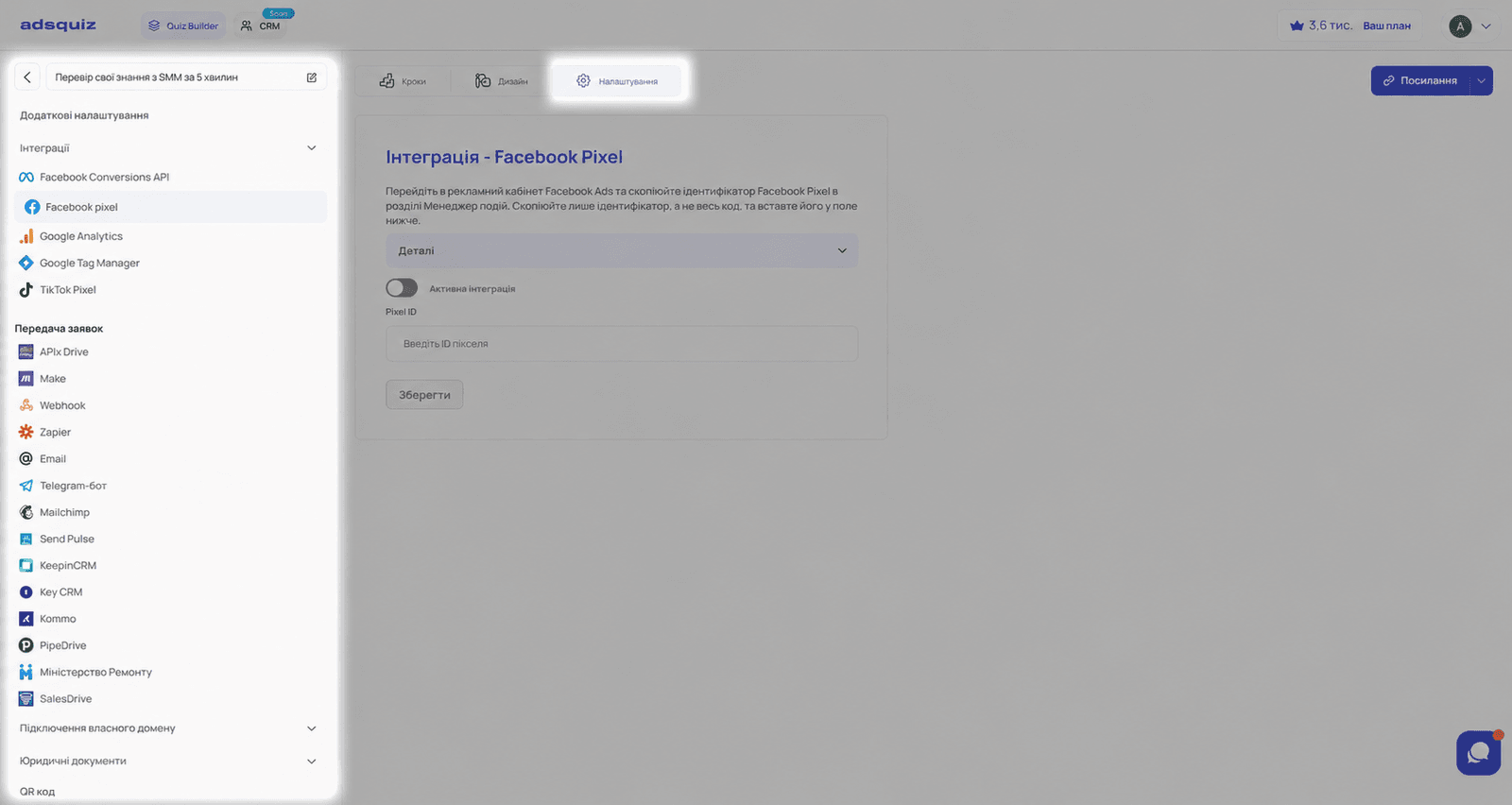
Go to the quiz you need and open: Settings → Integrations → Facebook Pixel.
When you open the integration, you'll see a field for the pixel ID
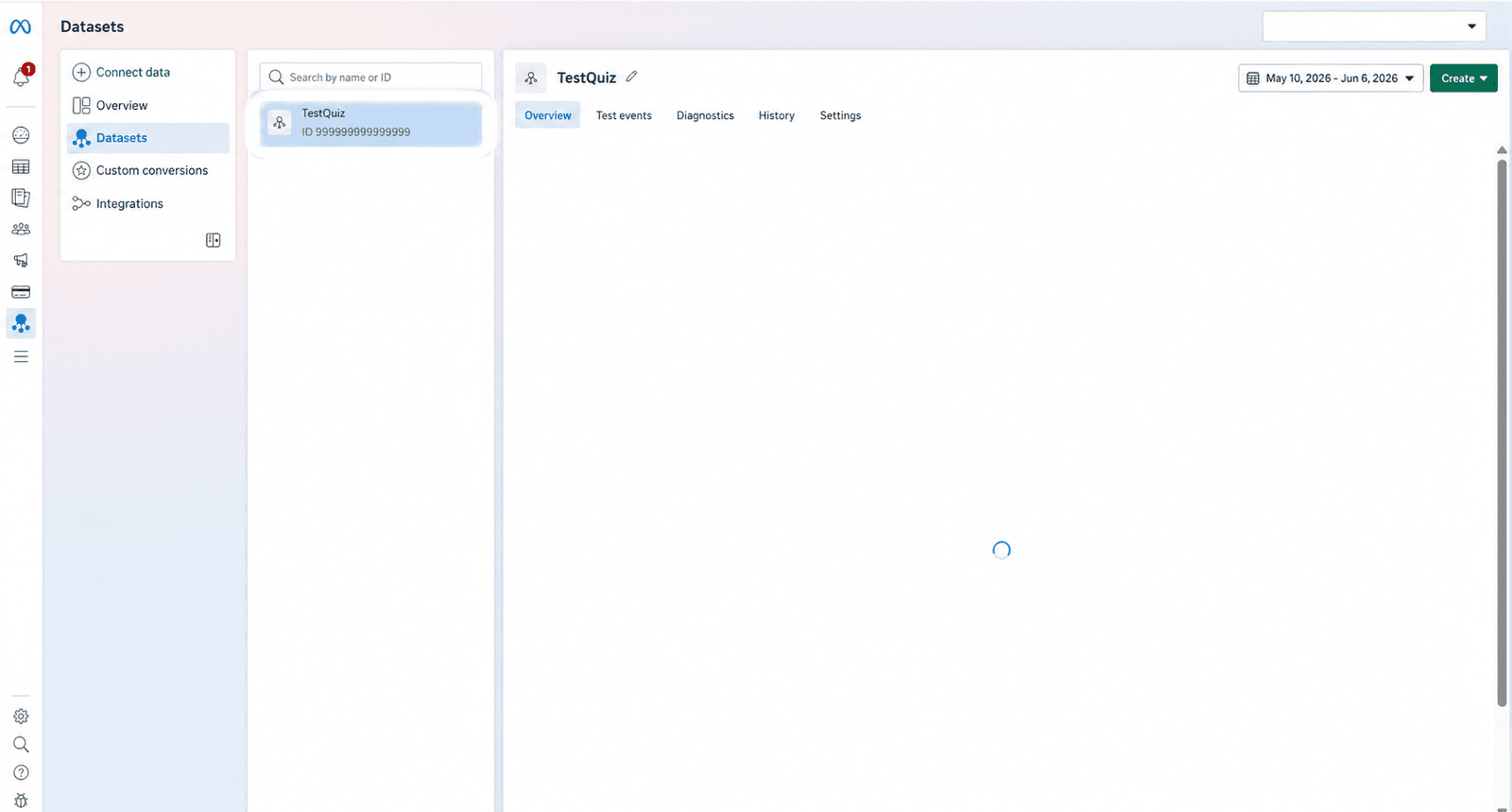
Step 2. Copy the Pixel ID in Meta Events Manager
Log in to your Meta ad account and open Events Manager. Find the pixel you need and copy its ID – the Pixel ID.
⚠️ Important: copy only the numeric pixel ID – not the whole installation code.
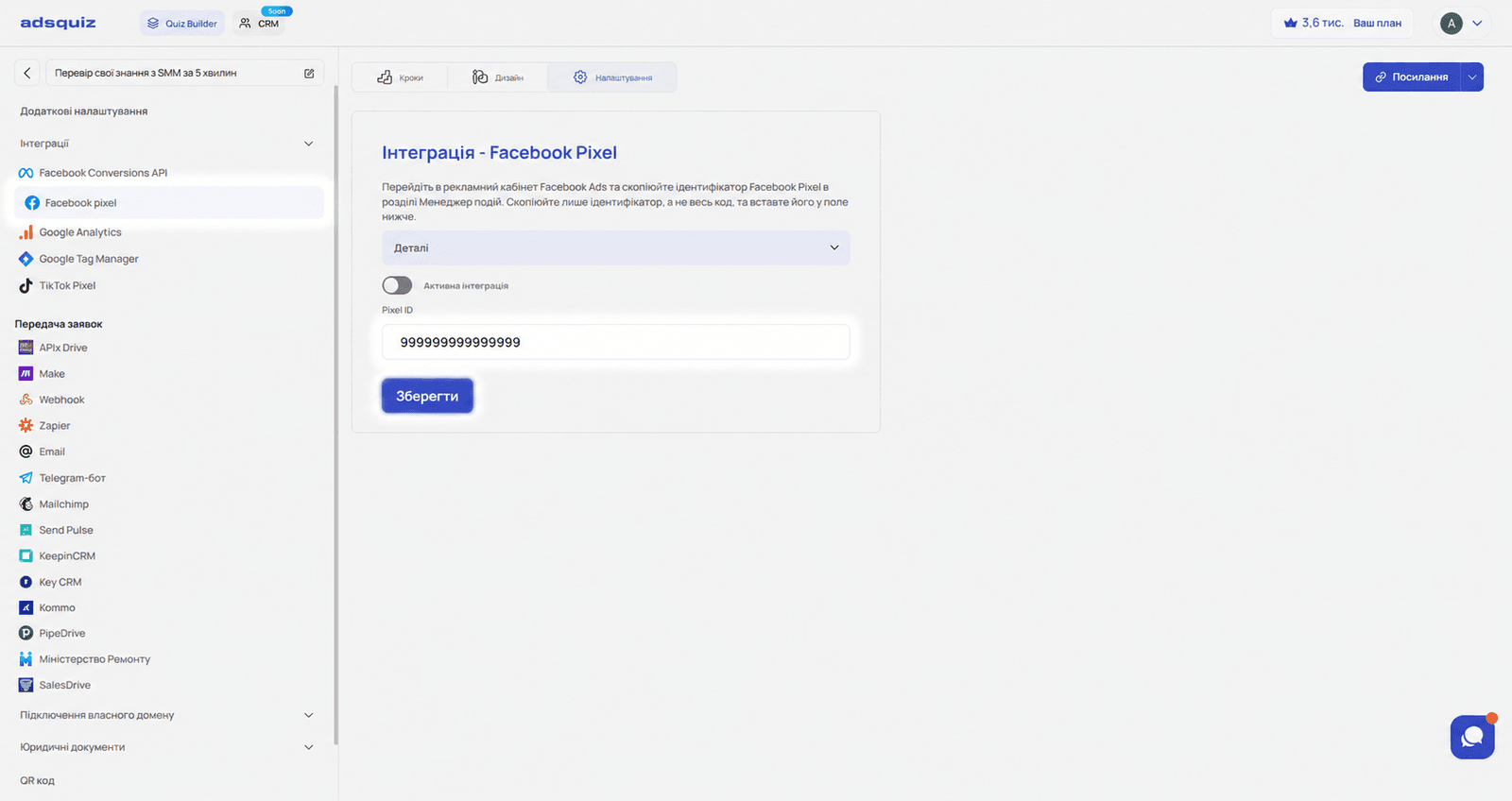
Step 3. Paste the Pixel ID into AdsQuiz
Go back to the integration settings in AdsQuiz and paste the copied Pixel ID into the field. Once entered, the integration becomes active automatically. Click «Save».
After saving, the Facebook Pixel will start receiving events from your quiz.
📊 Which events the Facebook Pixel sends
Once the Facebook Pixel is connected, the system automatically sends these events:
- adsquiz_Start – visit to the start page;
- Question_N – visit to step N;
- Open_Contact-Page – visit to the contacts page;
- Lead – successful submission of the form with contact details;
- adsquiz_ThankYou – visit to the final page
💡 Tip: Use the Lead event as the main one for optimising your Meta Ads campaigns – it fires only after a request is actually submitted and is the most accurate conversion signal.
🔍 How to check that the Facebook Pixel works
After you first connect it, events may not appear in Meta right away – Facebook needs some time to process the data. We recommend two ways to check:
Method 1. Test events in Events Manager
- Go to Meta Events Manager
- Open the «Test events» tab
- Launch the quiz and complete it to the end
- Make sure all events reach Meta successfully
Method 2. Meta Pixel Helper
Install the Meta Pixel Helper extension for Google Chrome. It lets you:
- check that the pixel is present on the page
- see active events in real time
- find setup errors
- make sure data is sent correctly
Open the quiz link and go through it step by step – the extension will show which events are sent to Meta at each step.
✅ What to do if Facebook asks you to confirm new events
When new events arrive for the first time, Meta may show a warning next to some of them. In that case:
- Open the event in Events Manager
- Click the button to confirm the event
- Confirm the data source
Once confirmed, Facebook starts fully using these events for analytics and ad optimisation.
❓ Frequently asked questions
Why don't I see events right after connecting the pixel? Meta may need some time to process new events. For an instant check, use the «Test events» section in Events Manager or the Meta Pixel Helper extension.
Which event is the main one for tracking leads? The main event is Lead. It fires after the contact form is successfully submitted and is used to optimise Meta Ads campaigns.
Do I need to install any extra Facebook Pixel code on my website? No. For the AdsQuiz integration, entering the Pixel ID is enough. No extra code is needed.
Does connecting the pixel affect how fast the quiz loads? No. Connecting via the Pixel ID doesn't affect the loading speed of quiz pages.