
Quiz from a Template
What is a Quiz Template
A quiz template is a ready-made structure with pre-configured questions, logic, and design that you adapt to your needs. It’s the fastest way to launch a lead generation quiz without building from scratch.
AdsQuiz offers over 100 ready-made quiz templates for various niches: real estate, beauty, education, fitness, e-commerce, and more. Each template includes a well-thought-out structure, design, and question logic — just adapt it to your product and launch.
How to Create a Quiz from a Template: Step-by-Step Guide
Follow this simple guide — and your first quiz will be ready in 15–20 minutes. No technical skills required: just choose a quiz template, replace the text with your product details, and publish.
Your AdsQuiz quiz template already includes a ready-made question structure, transition logic, and conversion-optimized design. No need to build from scratch — just adapt it to your product or service.
➕ Step 1. Open the Template Gallery
Log in to your AdsQuiz account and click the «+» button (create a new quiz) on the main page. The template gallery will open, showing all available options sorted by niche.
🔍 Step 2. Choose a Template
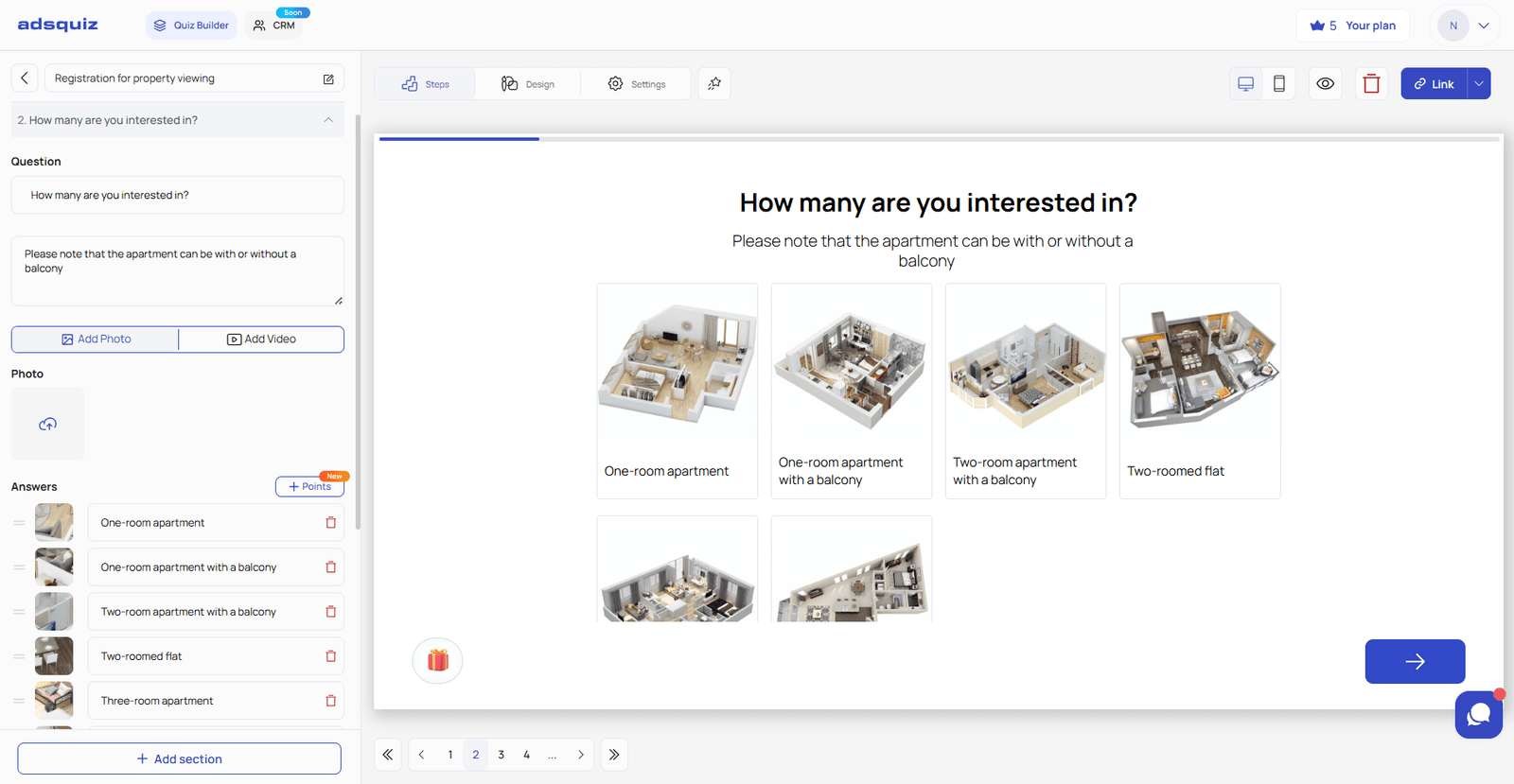
Browse the gallery or use tag-based search. Click on a template to preview its structure: number of questions, answer types, design, and transition logic. If it fits — click «Use Template». The template will be copied to your account.
✏️ Step 3. Set Up Your Questions
Once you select a template, the quiz editor will open.
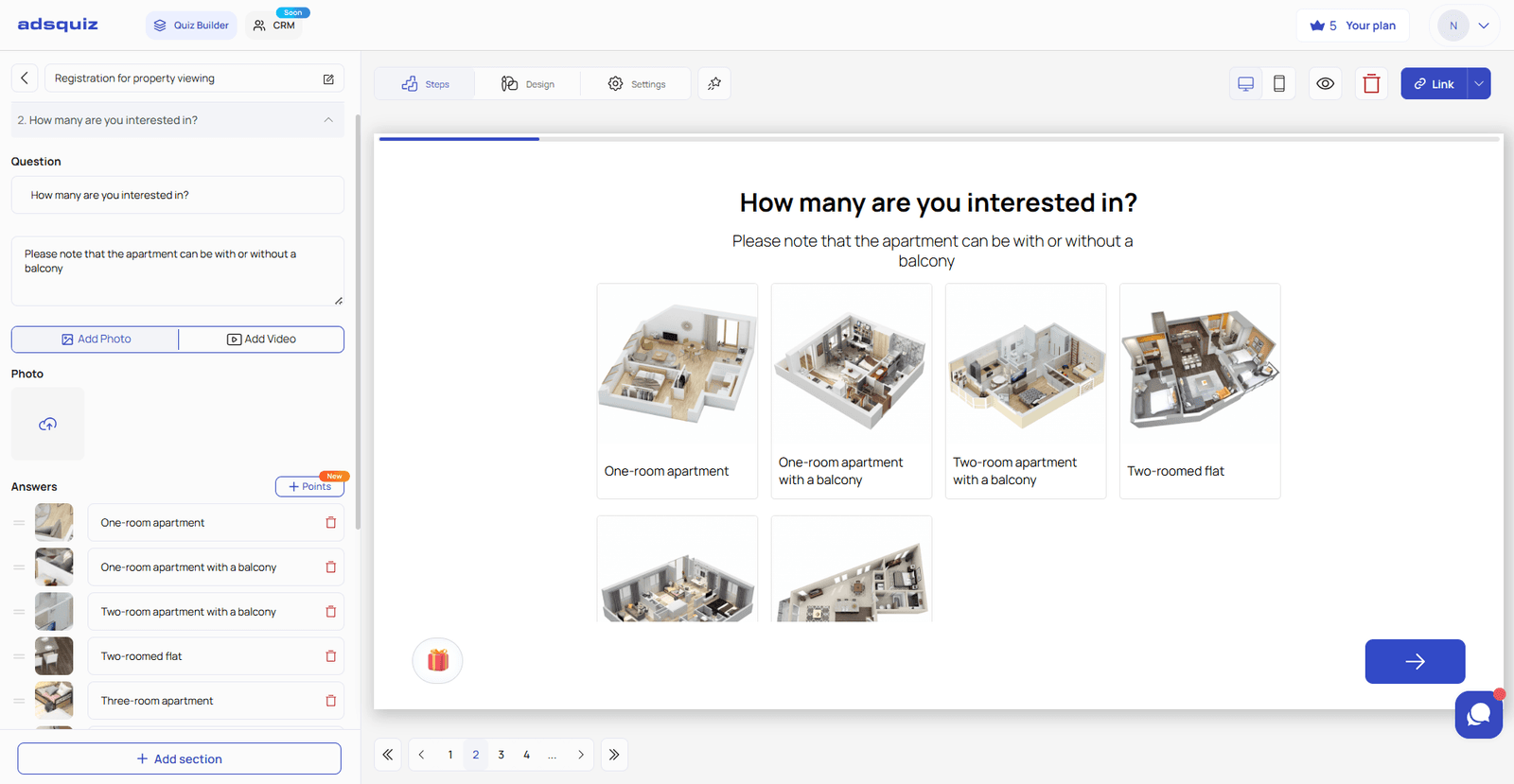
What you must change:
- Question text — adapt it to your product or service
- Answer options — replace the examples with real ones
- Question images (if needed) — upload your own or keep the defaults
What you can leave as is:
- Question order
- Transition logic, if the structure works for you
💡 Tip: The optimal number of questions is 4–7. More questions reduce completion rates to the final form.
📋 Step 4. Set Up the Contact Form
The contact form collects lead data after the quiz is completed. Go to the «Contact Form» block in the editor, configure the fields (name, phone, email), and set the submit button text — for example, «Get My Result» or «Find Out the Price». Add a post-submission message or set up a redirect to a thank-you page.
If needed, add extra fields — for example, a social media handle if you plan to reach leads via Instagram or Telegram. You can also add a checkbox — for instance, consent to receive newsletters or promotional emails. This is useful if you plan email marketing and want to build a list with confirmed opt-ins.
💡 Tip: Fewer fields mean higher form conversion. Start with just one field — phone number or email.
🏆 Step 5. Set Up Results
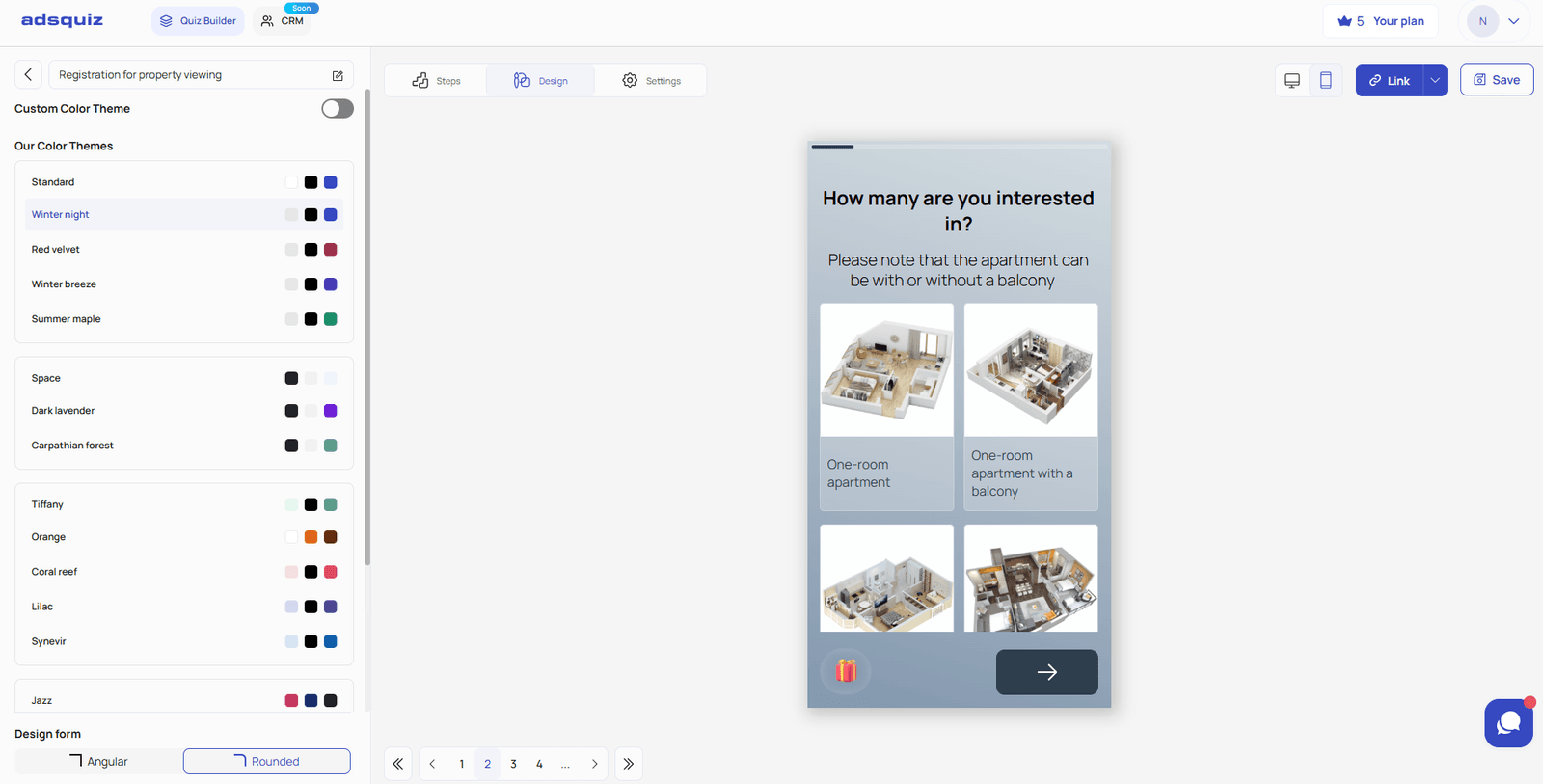
Go to the «Results» section and edit the text to match your offer: what the user gets next, what the next step is. If the template includes multiple result variants (for example, by segment) — configure each one separately.
🎨 Step 6. Customize the Design
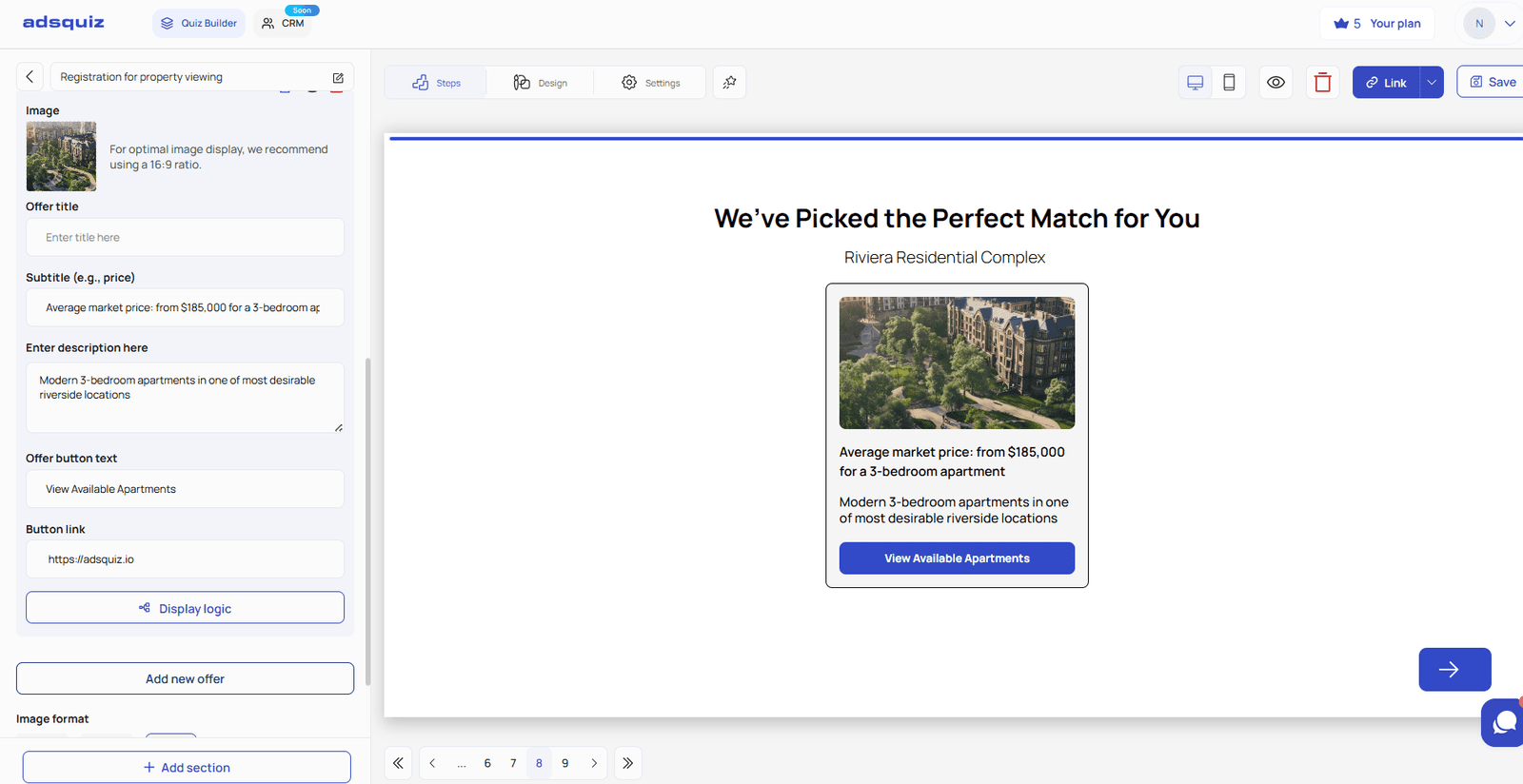
Go to the «Design» section. Your quiz template already comes with one of the ready-made color schemes — you can keep it or choose another one that better suits your brand. Full customization with your own color scheme is also available. Make sure to check how the quiz looks on mobile — switch to mobile preview in the editor.
💡 Tip: If you’re running the quiz alongside paid ads, make sure the quiz design matches your ad creatives — this builds user trust and reduces drop-off on the first screen.
🚀 Step 7. Save All Changes
Click «Save» in the top right corner. Set your subdomain and copy the link. Test the quiz in your browser before driving traffic.
Before sending traffic, go through the quiz yourself — from the first question to the thank-you page. Check that all questions display correctly, transition logic works, and leads arrive in your CRM. It takes 2 minutes but can save your budget from being wasted on a broken form.
⚙️ What’s Next
- Connect an integration — send leads to your CRM, Google Sheets, or messenger. Learn more: Connect Integration
- Set up UTM tags — to track lead sources from ads. Learn more: Traffic & Promotion
- Publish your quiz — embed it on your website or publish on your own domain. Learn more: Publishing Your Quiz
❓ Frequently Asked Questions
Can I edit the template after publishing? Yes. The editor is available at any time. Changes take effect immediately after saving.
Will I lose my data if I edit the quiz? No. Collected leads are stored independently of any changes to the quiz structure.
Can I use the same template more than once? Yes. Each time you select a template, a new copy is created. You can have multiple quizzes based on the same template.
Can I switch to a different template after creating a quiz? No. Once a quiz is created, the base template cannot be changed. If you need a different structure — create a new quiz.