
Text Page, Slider, Date and Time and Tags in a Quiz
Question types: text page, slider, date and time, and tags
In the previous section we covered input field, large input field and photo cards. Let's continue with the page types in a quiz – this article covers four formats: text page, slider, date and time, and tags. Each solves specific tasks and fits different scenarios.
📄 Text page
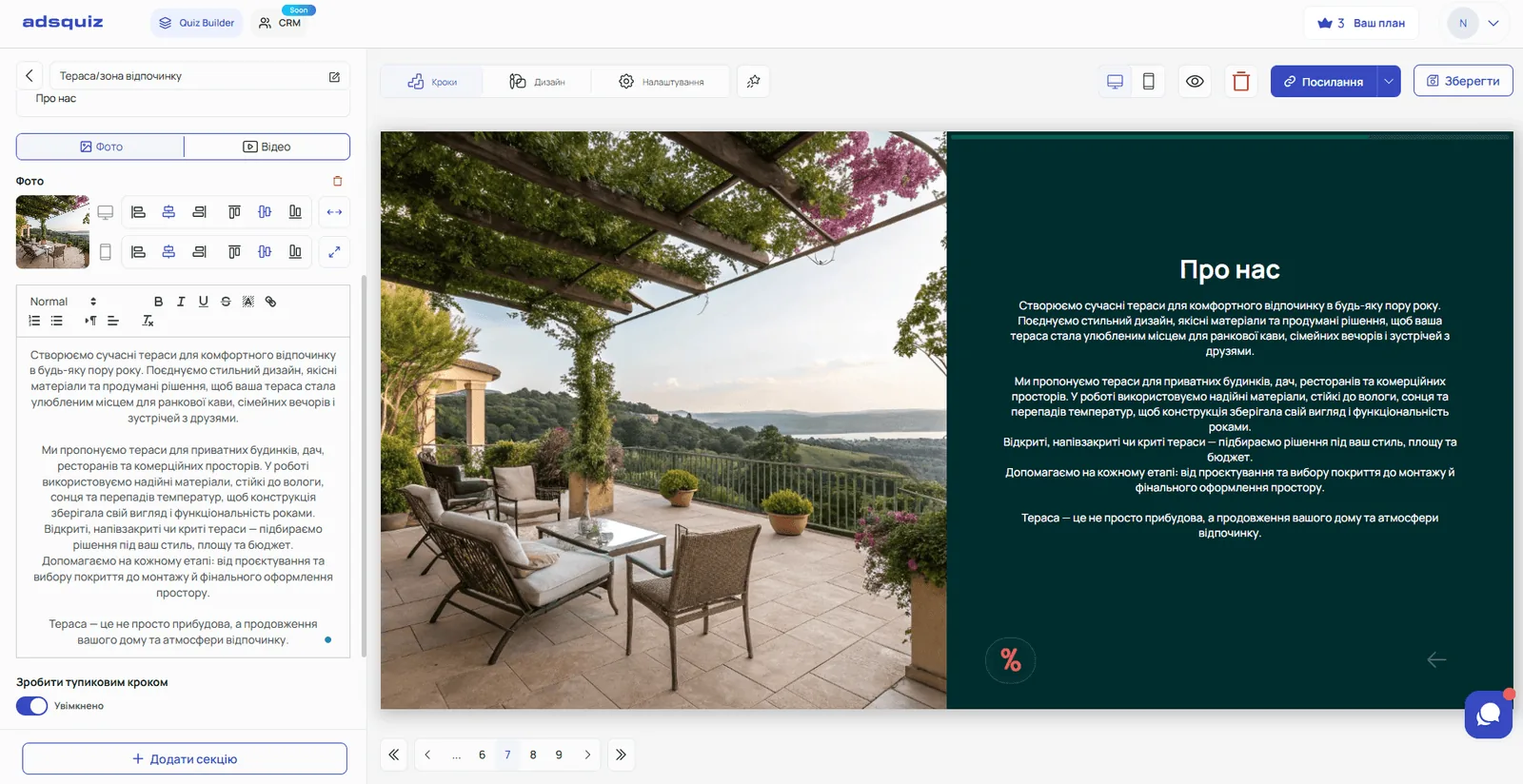
Besides different question types, you can add an intermediate text page to the quiz. To add one, click «+» in the editor, choose «Add section» and select the «Text page» type.
A text page is not a question but an intermediate slide. It doesn't collect an answer from the user, but it does important work inside the quiz.
What to use a text page for:
- About you or your services – between questions you can add a slide with a short description of your company, advantages or offer. For example: «We'll find an individual solution for you – here's how we work»
- An intermediate comment in an educational quiz – if the quiz is educational, a text page helps you move smoothly between blocks of questions. For example: «In the previous block we found out your level – now let's move on to practical tasks»
- Explanations based on logic – if transition logic is set up, a text page can act as a personalised message. For example, if the user chose a specific answer, they land on a page with a detailed explanation for their case, while other users don't see it
- Dead-end step – a text page can be the final point for a certain segment of users. For example, if a user doesn't match your target audience, they land on a page with a suitable message and the quiz ends for them
💡 Tip: Read more about setting up dead-end steps and transition logic in the section Question logic
You can add to a text page:
- text up to 3,000 characters
- a photo or video
🎚 Slider
To add a slider, click «+» in the editor, choose «Add section» and select the «Slider» type.
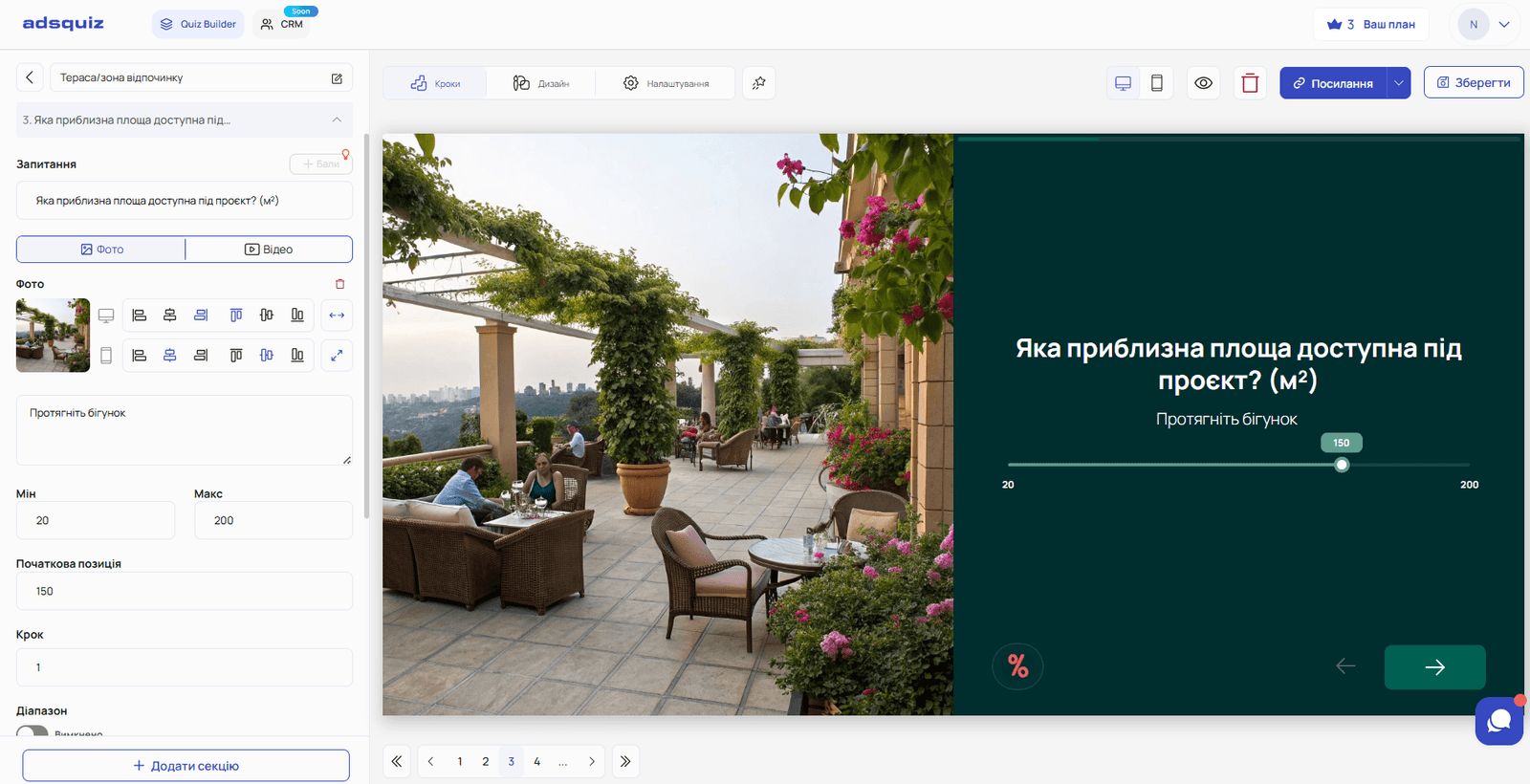
A slider is a question type where the user picks a numeric value by moving a handle along a scale. Instead of typing a number or choosing from a list, they simply drag – easy and intuitive.
What you can set up:
- Minimum value – the lower end of the scale
- Maximum value – the upper end of the scale
- Starting position – where the handle is by default
- Step – the increment by which the value changes
- Range – the user can choose a range «from – to» instead of a single value
When to use a slider:
- Real estate and renovation – «What is the area of your premises?» from 20 to 500 m²
- Construction – «How many floors?» or «What is your construction budget?»
- E-commerce – «How many units do you need?»
- Fitness – «What is your current weight?» or «How many times a week do you plan to train?»
- Education – «How many hours a week can you spend studying?»
💡 Tip: A slider works especially well when you need to find out the client's budget. Psychologically, it's easier for people to drag a slider than to type a specific amount into a field.
📅 Date and time
To add a date and time question, click «+» in the editor, choose «Add section» and select the «Date and time» type.
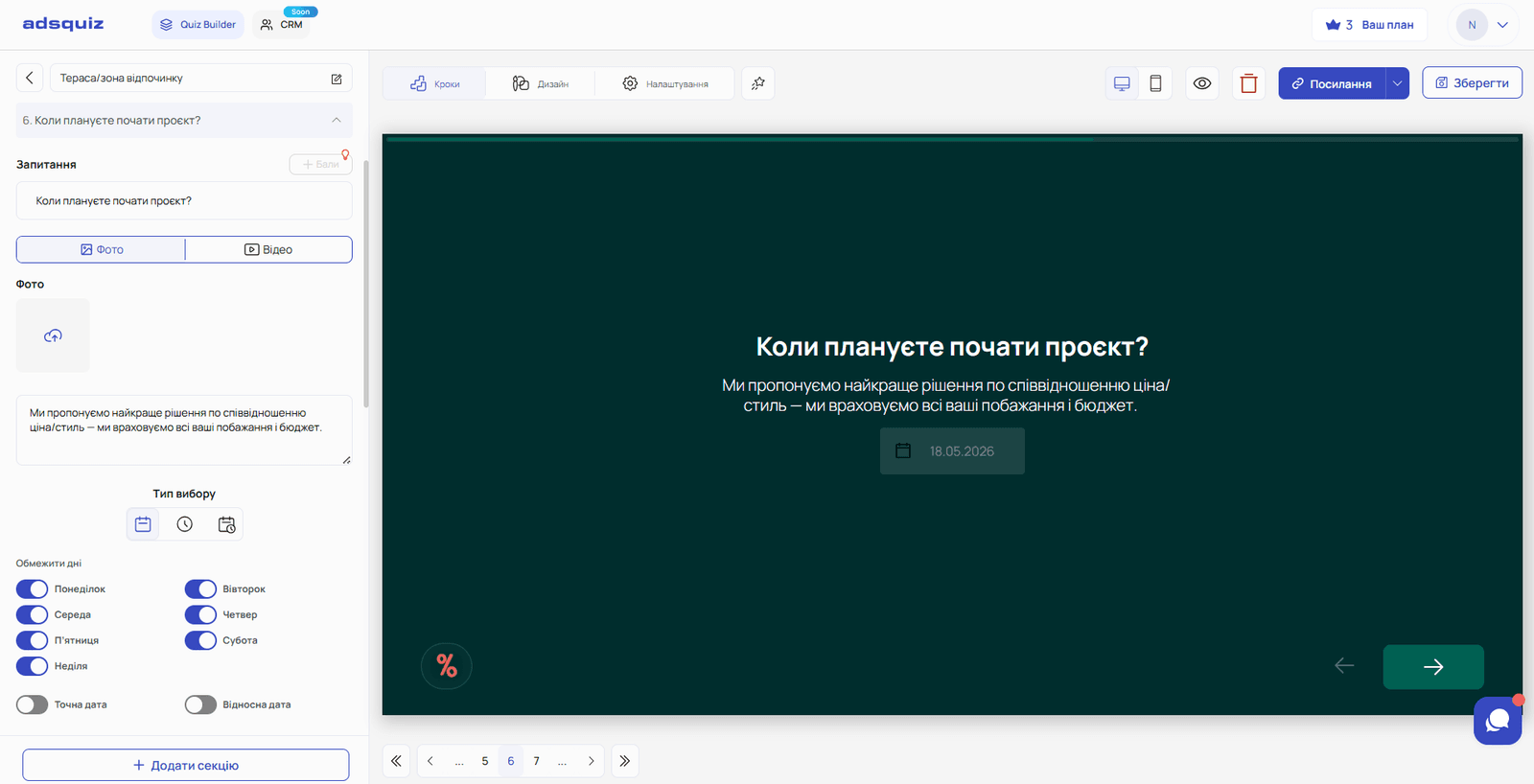
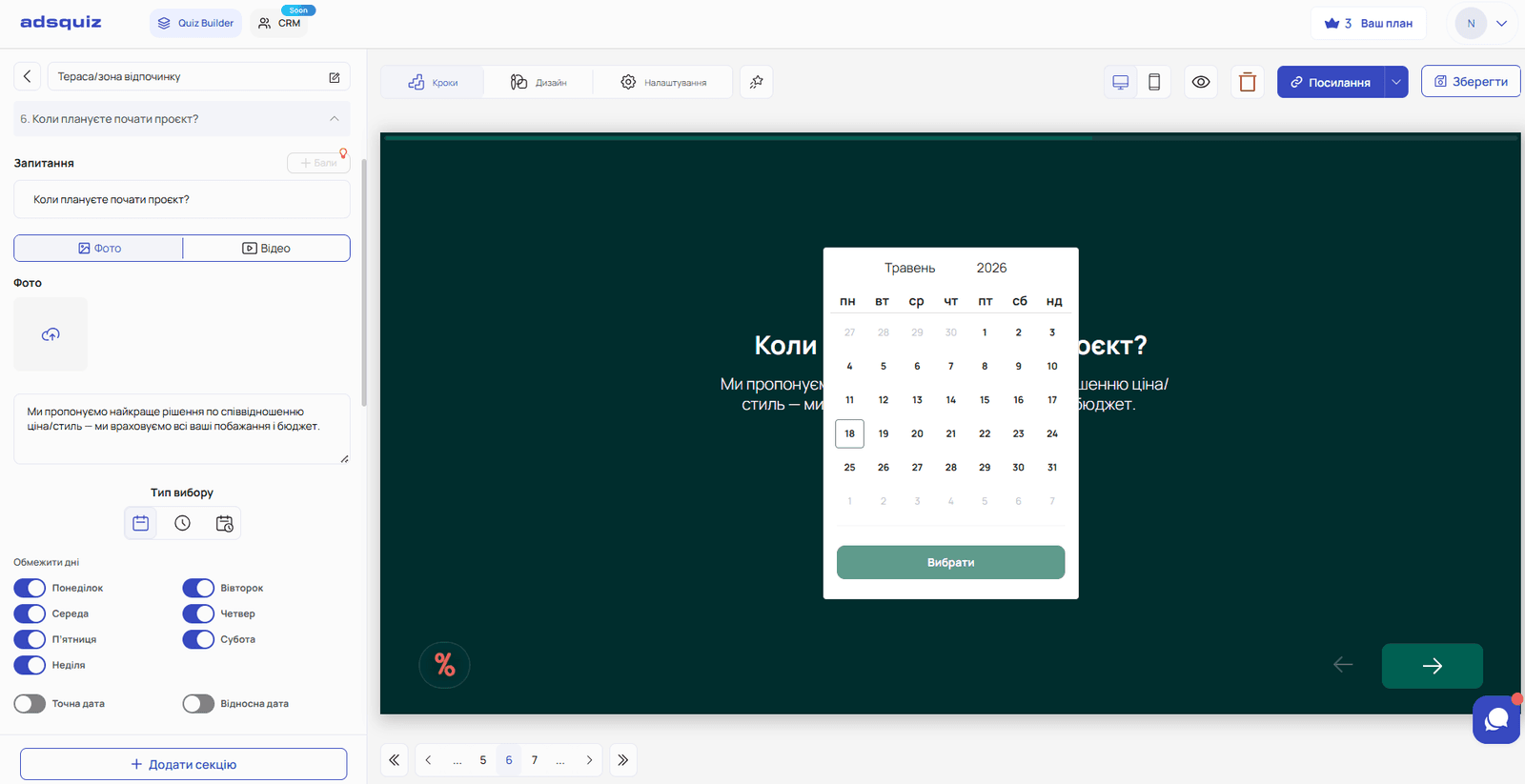
This question type lets the user pick a specific date or time right in the quiz – without typing it into an input field.
Available formats:
- Date only – a calendar opens to choose a specific day. You can limit the available days – for example, Monday to Friday only if Saturday and Sunday are days off
- Time only – the user specifies a convenient time. For example: «Tell us when it's convenient for us to call you»
- Date and time together – the user chooses a specific day and time. Ideal for booking an appointment, consultation or meeting
When to use date and time:
- Medicine and beauty – booking an appointment, treatment or consultation
- Education – signing up for a trial lesson or webinar
- Legal and financial services – booking a consultation
- Delivery – «Choose a convenient delivery date and time»
- Any business that makes calls – «Choose a convenient time for us to call you back»
💡 Tip: A date and time question greatly improves lead quality. The manager immediately sees when the client expects a call or appointment – and doesn't waste time clarifying it during the conversation.
🏷 Tags
To add tags, click «+» in the editor, choose «Add section» and select the «Tags» type.
Tags are a compact answer format shown as label buttons. The user sees a set of tags and picks one or several options that match their needs.
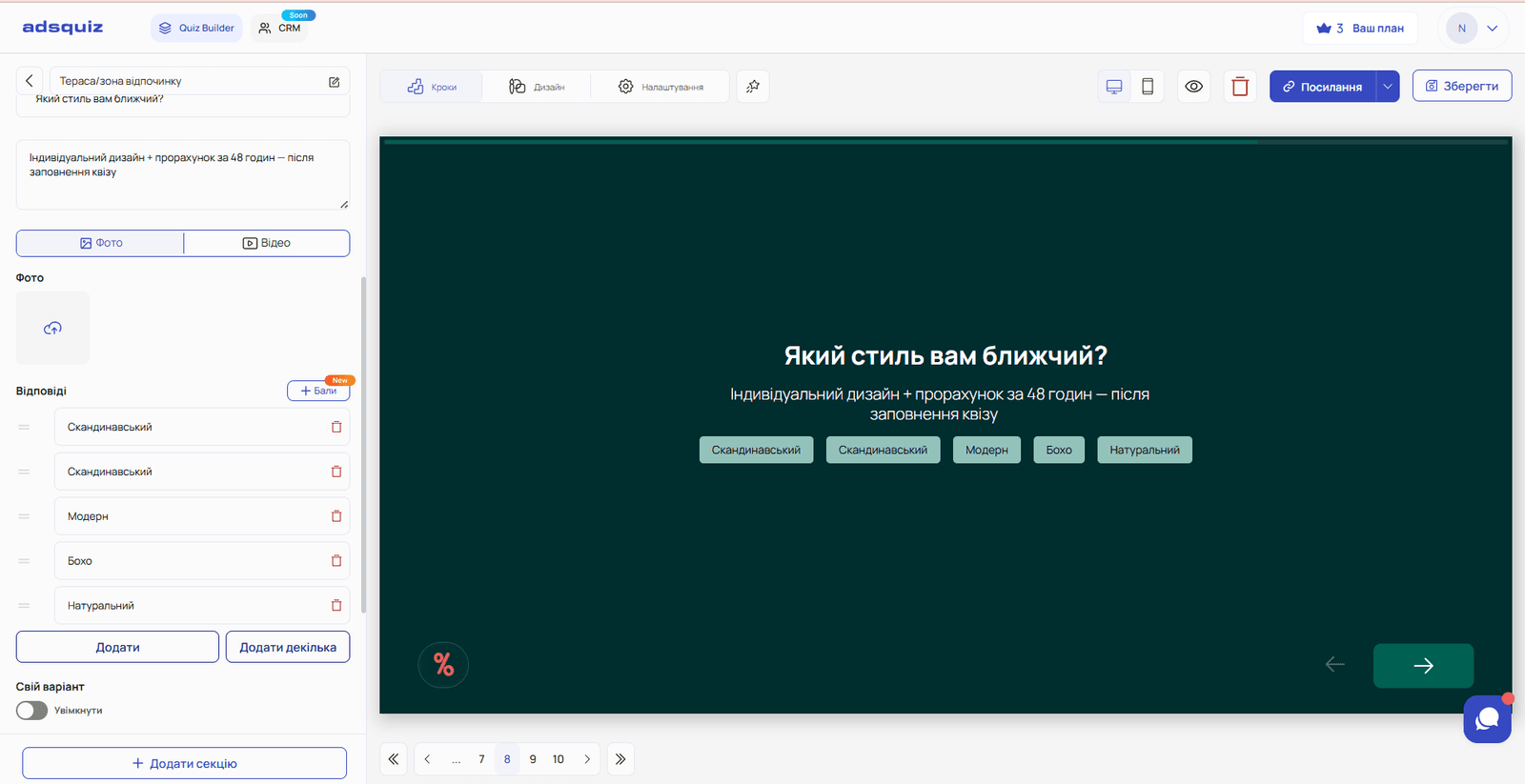
What you can set up:
- Number of tags – add as many options as you need, starting from one
- Multiple tags – you can allow users to pick several options at once
- Custom option – the user can add their own tag if none of the suggested ones fits
When to use tags:
- Interests and preferences – «Which topics interest you?» with the option to pick several
- Services – «Which services are you interested in?» when there are many and you need a compact layout
- Product features – «Which features matter to you?» with several options at once
- Goals – «What results do you want to achieve?» in fitness, education or marketing
💡 Tip: Tags work well when you need to collect several answers at once while keeping the page compact and clear. Unlike a list, tags take up less space and look more modern.
⚙️ General settings for all question types
Each question type – text page, slider, date and time, and tags – supports additional settings:
Question logic – set conditions for showing a question or moving on, depending on the user's answers. More details: Question logic
Points – assign points to each answer to build the final result. More details: Scoring setup
❓ Frequently asked questions
Is the slider only for numeric values? Yes. The slider works only with numbers – the minimum, maximum and step are set as numbers.
Can I limit the dates available in a «Date and time» question? Yes. You can set the available days of the week – for example, only working days from Monday to Friday.