
Quiz Settings: Language, Time Zone, Anti-Spam and Privacy Policy
Quiz Settings: Language, Time Zone, Anti-Spam and Privacy Policy
After creating your quiz and setting up the design, the next important step is configuring the additional quiz settings. This is where you can adapt the quiz to your specific needs and use cases – set the language, time zone, spam protection, and privacy policy.
🖼️ Quiz Banner Image
The banner image is the main visual displayed on the first screen of the quiz. It shapes the user’s first impression, so it’s important to prepare it in the right dimensions.
Recommended sizes
Banner sizes in AdsQuiz are responsive – the quiz displays correctly on screens of different widths. For the desktop version, we recommend a square image of at least 1124×1124 pixels. For mobile, the banner appears more rectangular, so the optimal size is 1200×669 pixels.
💡 Tip: Place your key content – text, logo, main visual – in the central area of the image, within approximately 900×900 pixels. This ensures that important elements won’t be cropped on either desktop or mobile.
How to upload an image
In AdsQuiz, you can add images to your quiz in two ways – upload your own file or use the built-in Unsplash library with millions of photos.
Option 1. Upload your own image
Open the quiz, go to the start page, and find the banner image upload field. Upload your file and save the changes.
⚠️ Important: Use images in JPG or PNG format. The file size must not exceed 5 MB.
Option 2. Choose an image from the Unsplash library
Unsplash is a photo library with millions of high-quality images on any topic, available for use without restrictions.
To add an image via Unsplash in AdsQuiz:
- Open the quiz and click on the banner image field.
- Enter a topic or keyword in the search bar – for example, “interior,” “fitness,” or “business.”
- Browse the results and click on the image that fits.
- The image is added automatically.
💡 Tip: Search in English for the best results – the Unsplash library returns significantly more relevant photos that way.
⚠️ Important: Unsplash images are license-free and can be used in commercial projects without additional permissions.
📥 Where to Find Your Quiz Leads
All submissions received through the quiz are stored in the “Leads” section inside the quiz. Here you’ll find the full list of collected leads: name, contact details, and quiz answers.
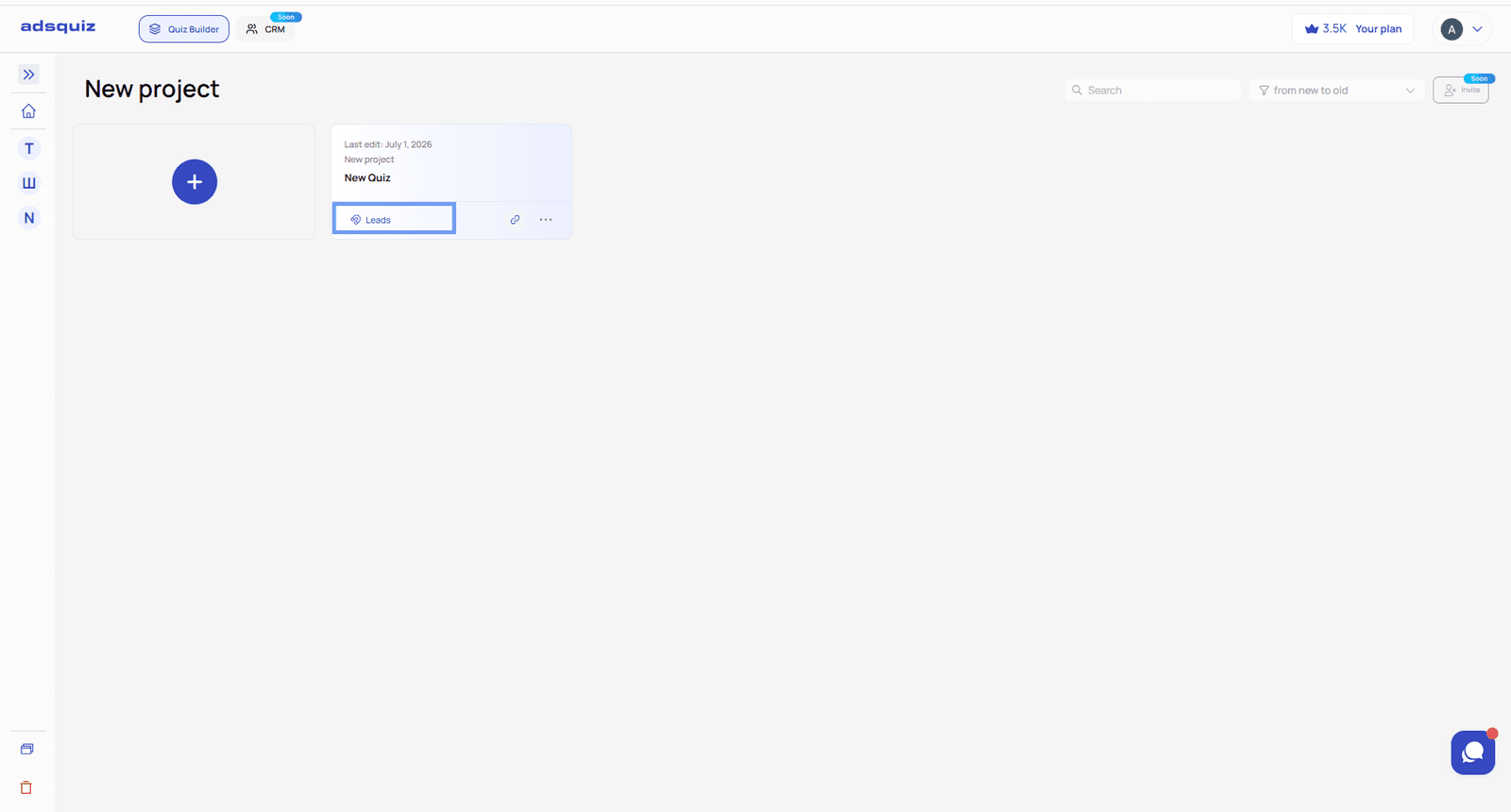
How to export leads
Click the export button in the “Leads” section. The file will be saved in CSV format.
CSV imports seamlessly into most data processing tools, including Excel and Google Sheets.
How to open a CSV in Excel
- Create a new Excel document or open a new sheet.
- Go to the “Data” tab and click “From Text/CSV.”
- Find the downloaded file on your device and click “Get Data.”
- Select comma as the delimiter and Unicode UTF-8 as the encoding.
- Click “Load” – the data will appear in the spreadsheet.
How to open a CSV in Google Sheets
Simply upload the CSV file to Google Sheets – formatting is applied automatically with no additional steps needed.
💡 Tip: If you collect leads regularly, it’s more convenient to set up automatic data transfer to a CRM via an integration – so you don’t have to export files manually.
🌐 Quiz Language Settings
In the quiz settings, select a language from the list of available options. This language will be used for system messages, buttons, and other fixed interface elements during the quiz.
It’s important to choose the language that matches your audience – this directly affects user experience and conversion. If your target audience speaks Ukrainian but system elements appear in English, it creates a friction point that reduces completion rates.
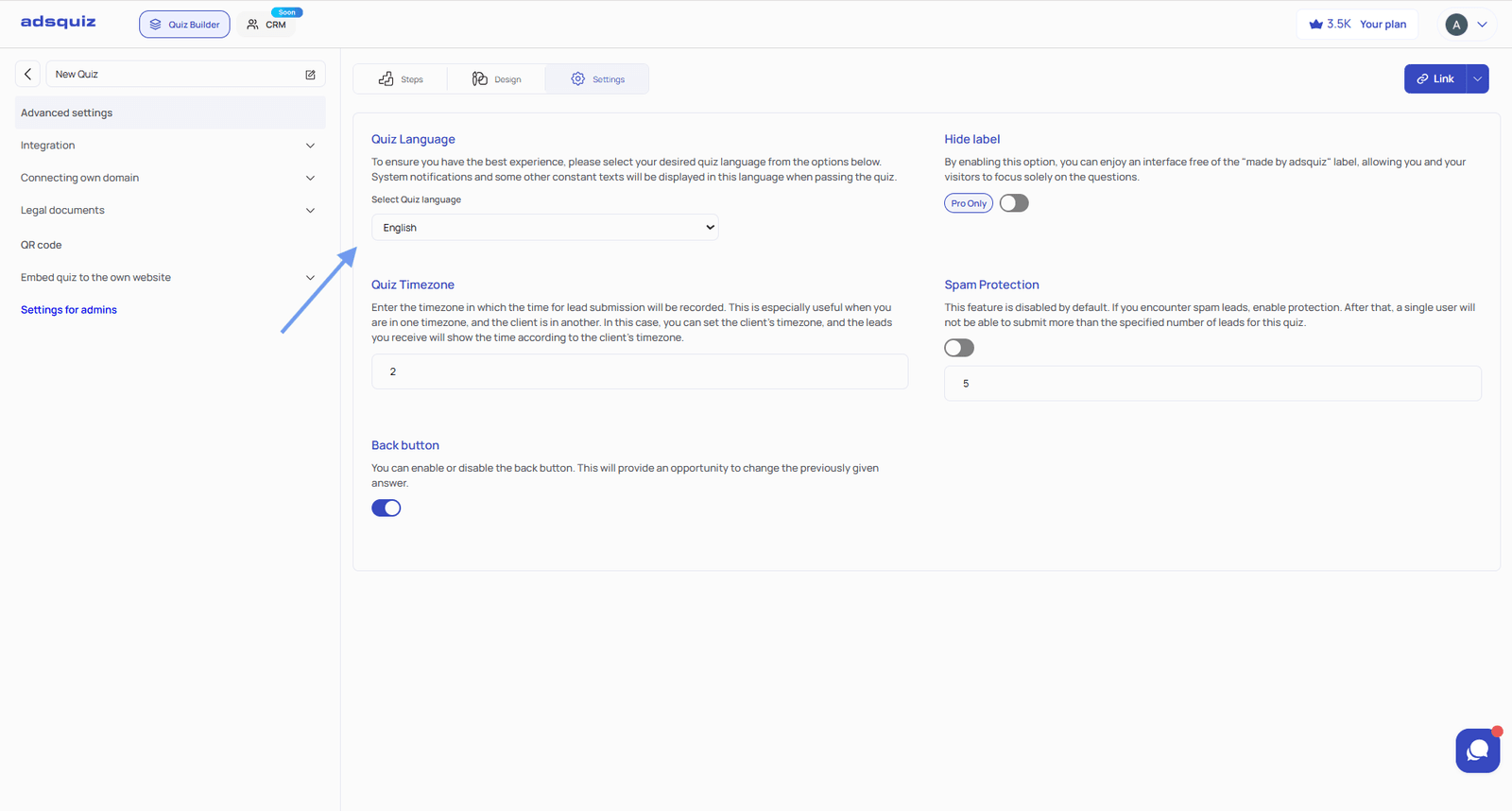
💡 Tip: The quiz language only affects system interface elements. The text of your questions and answers can be written in any language you choose.
🕐 Time Zone Settings
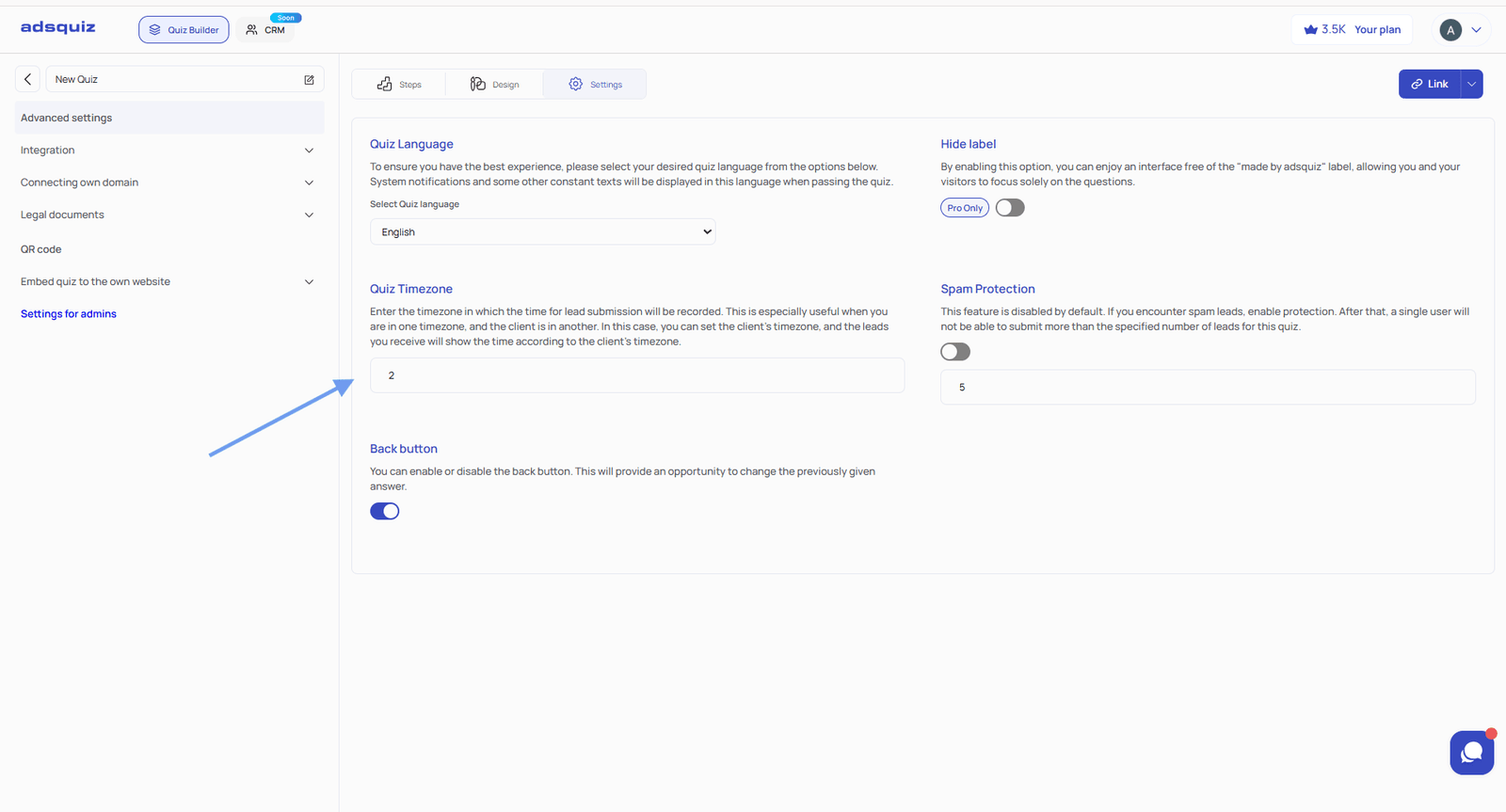
Specify the quiz time zone in the settings. All incoming leads will be timestamped according to this time zone.
This is especially important if you and your clients are in different time zones. If you work with audiences across multiple regions, the correct time zone setting lets you accurately track when leads arrive and interpret your analytics without time discrepancies.
↩️ Back Button
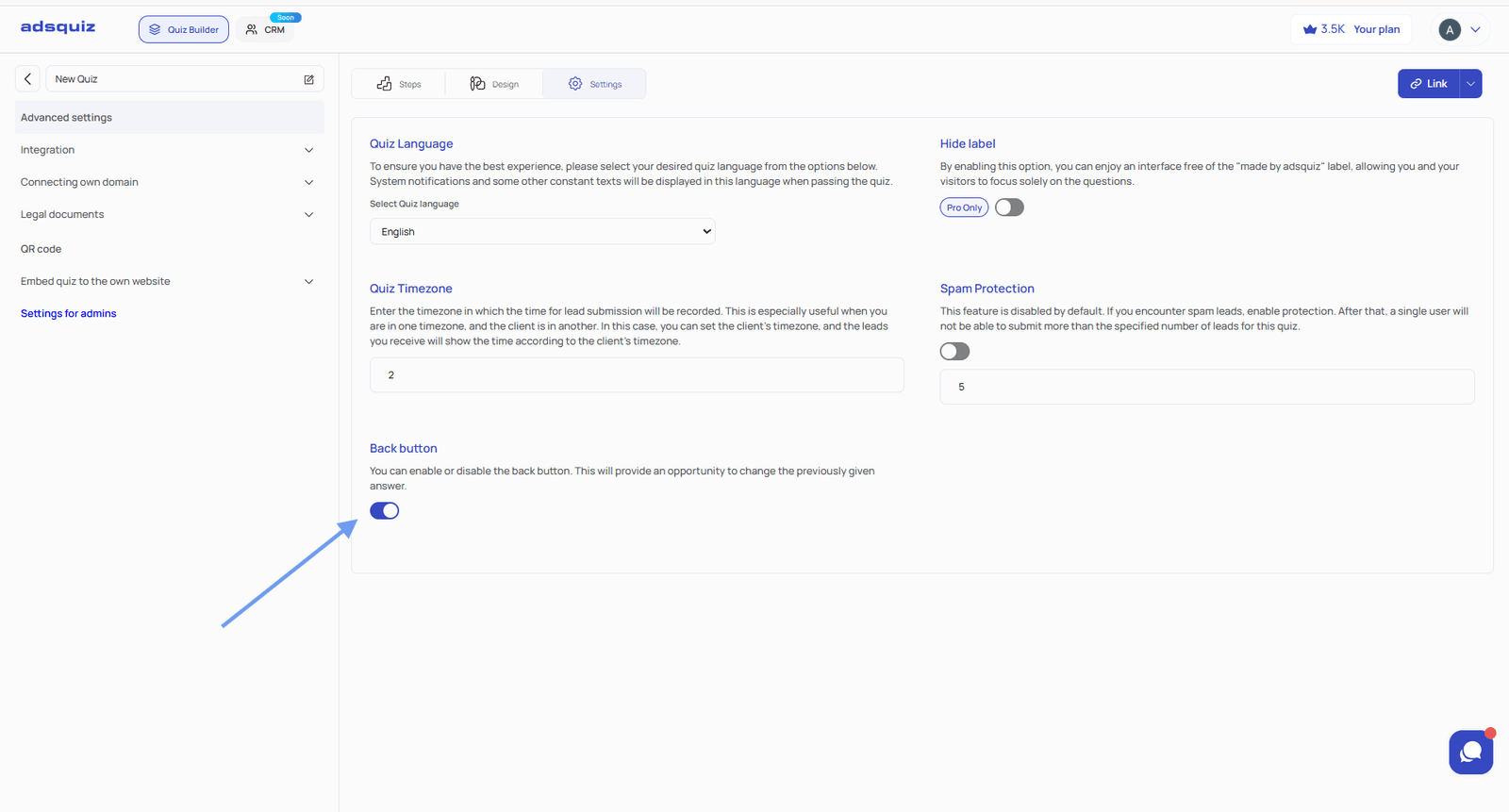
The option to return to a previous step can be enabled or disabled:
- Enabled – users can go back to a previous question and change their answer.
- Disabled – no going back; users move forward only.
Disabling the back button makes sense for knowledge tests and assessments, where capturing the first spontaneous answer matters. It’s also useful when branching logic is built on specific answers and going back could disrupt the correct question sequence.
🛡️ Spam Protection
Spam protection is a feature that limits the number of times the quiz can be completed from a single device. It is disabled by default.
When to use it:
- The quiz is receiving a suspiciously high volume of submissions in a short time
- You’re seeing repeated leads with identical data
- The quiz is being used in a contest or promotion where limiting entries is important
How it works: Once enabled, you can set the maximum number of completions allowed from a single device – for example, 2. After reaching the limit, the user won’t be able to submit leads again from that browser. The protection currently works at the browser level.
Keep in mind: the limit has no automatic expiration. Once the threshold is reached, the block remains active until manually reset.
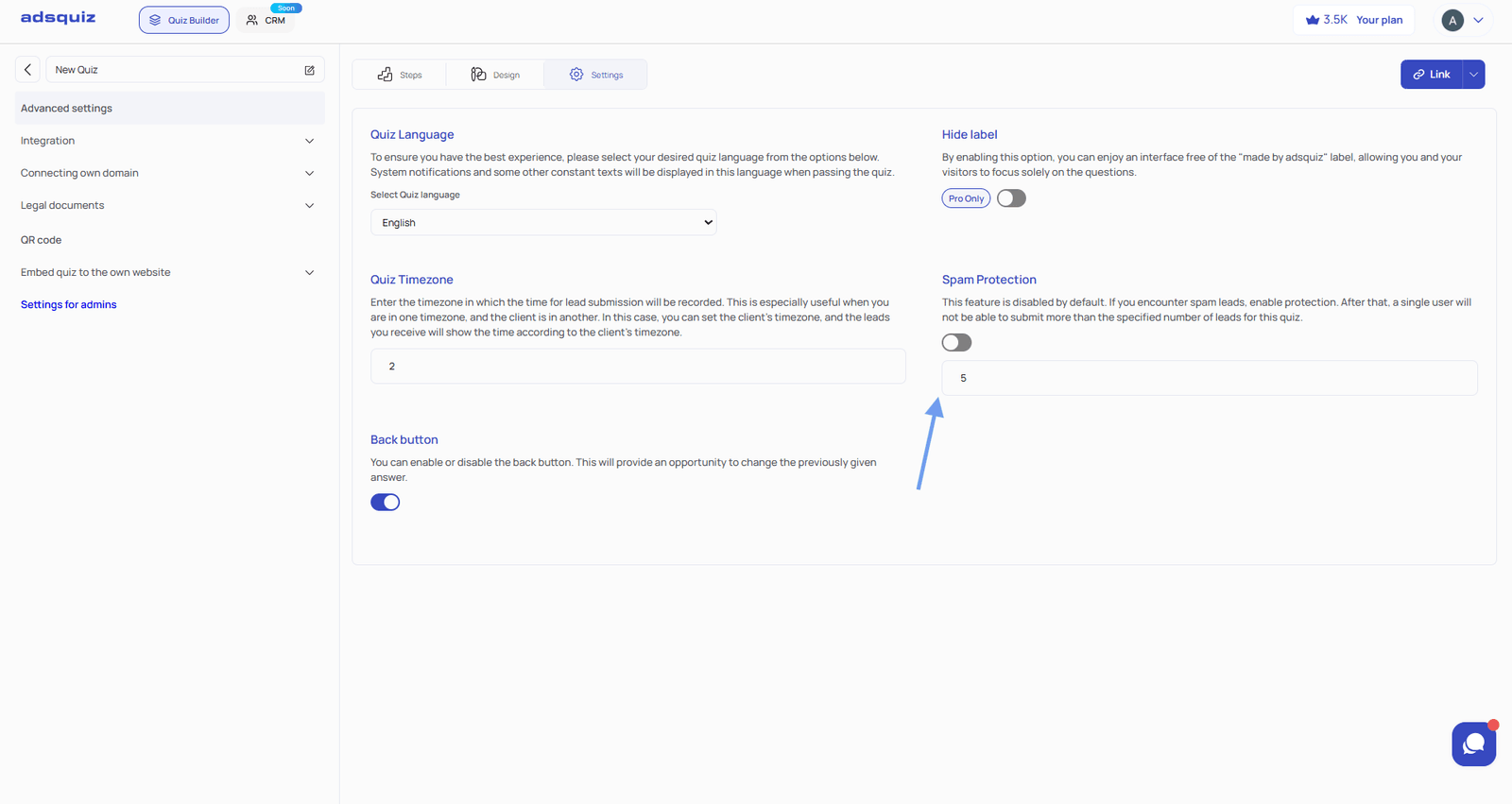
💡 Tip: For most quizzes, a limit of 2-3 completions per device is sufficient. This filters out spam without blocking real users who may have accidentally closed the quiz.
📄 Custom Privacy Policy
In the quiz settings, you can add a link to your own legal documents and privacy policy. By default, AdsQuiz’s standard service policy is used, but it’s recommended to add your own – one that’s relevant to your specific business.
A custom privacy policy:
- builds trust with potential clients – users understand exactly who is collecting their data
- explains how contact information will be used after the form is submitted
- may be a mandatory requirement of ad platforms – Meta Ads and Google Ads both require a privacy policy for running ads with lead capture forms
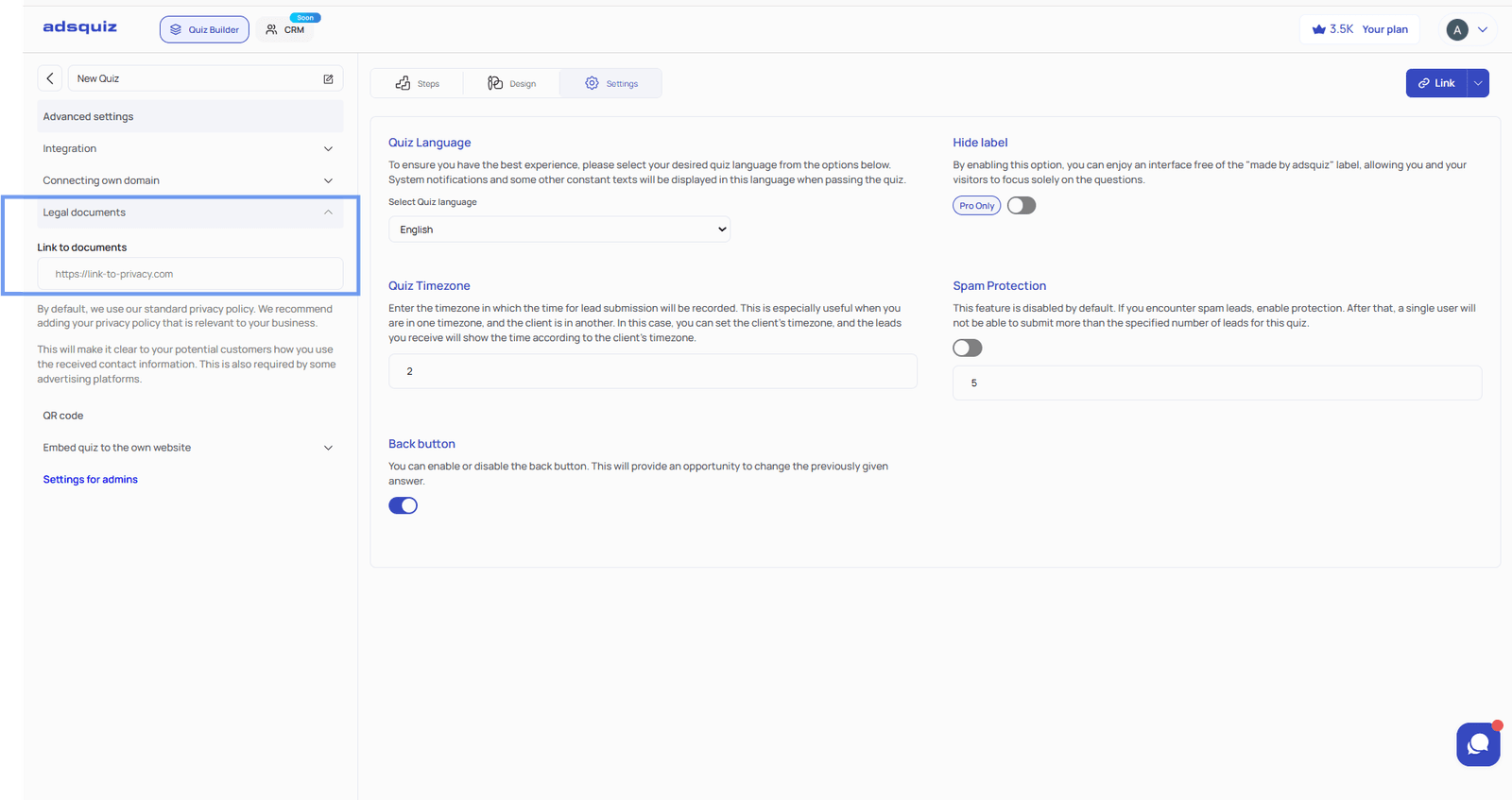
💡 Tip: If you don’t have a privacy policy yet, create a separate page on your website with a basic text and add the link to it in the quiz settings.
❓ Frequently Asked Questions
Can I configure spam protection to block a specific IP address?
No – spam protection currently works differently. Blocking happens at the browser level, not at the IP level. Once the set limit of completions is reached, the user won’t be able to submit leads again from that browser.
How do I change the language of the default privacy policy?
The language of the default privacy policy changes automatically when you change the quiz language. Simply select the desired language in the resource settings.
If spam protection is enabled, will users notice it while taking the quiz?
No. The quiz looks and functions normally for the user. They can complete the quiz in full, but once the set limit is exceeded, that lead will not be delivered to your system.