
Input Field, Large Input Field and Photo Cards
Question types: input field, large input field and photo cards
In the previous section we covered the «List» and «Dropdown list» question types. Let's continue with the page types in a quiz – this article covers three formats: input field, large input field and photo cards. Each solves a different task and suits different data collection scenarios.
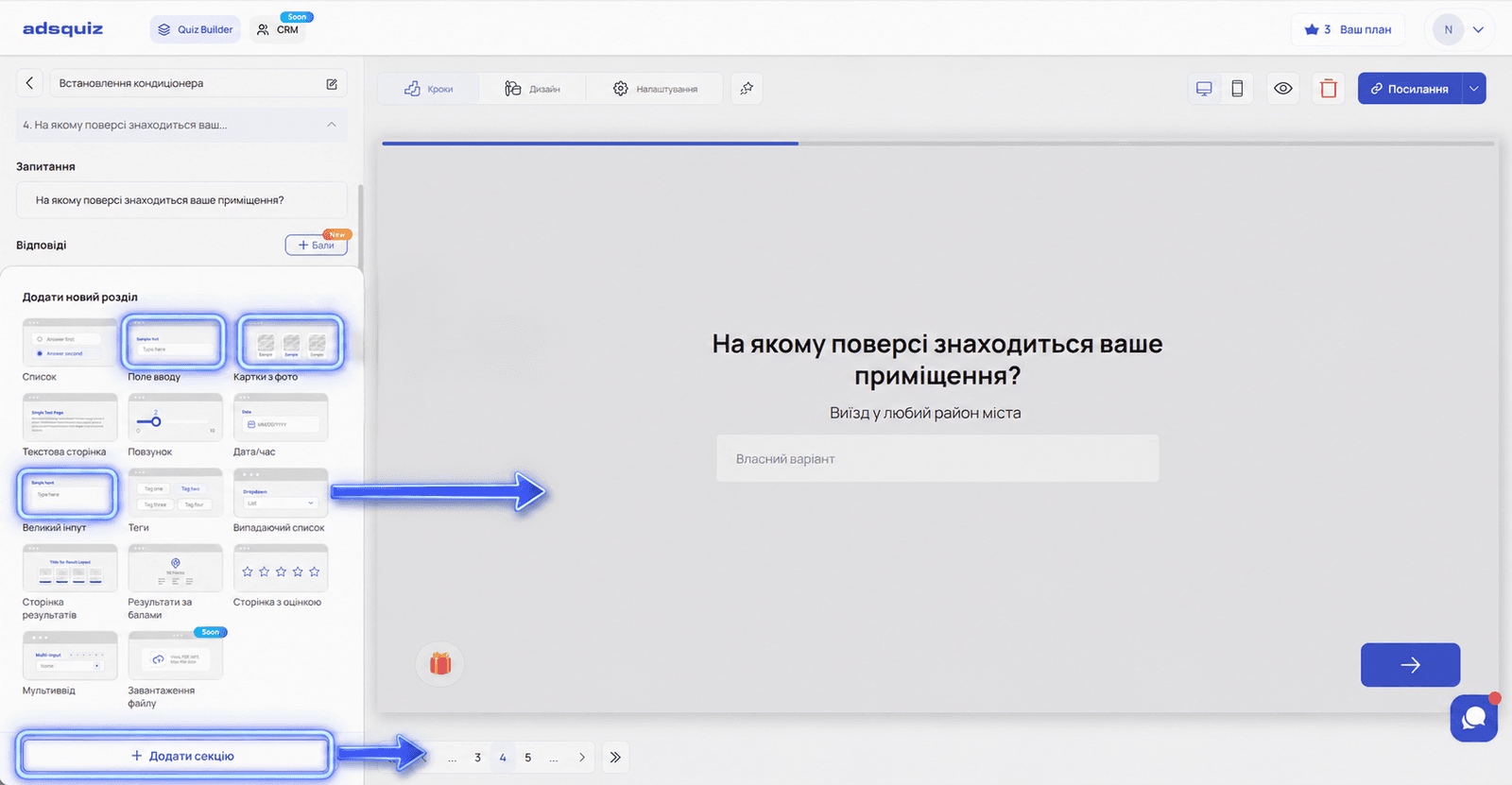
✏️ Input field
To add an input field question to your quiz, click «+» in the editor, choose «Add section» and select the «Input field» page type.
After adding it, you can set up:
- Question – phrase it clearly and for your audience
- Question description – an extra explanation or hint for the question, up to 80 characters
- Photo or video – you can attach media to the question itself
- Placeholder – the text shown inside the field before the user starts typing
💡 Tip: We recommend always filling in the placeholder. It tells the user exactly what to enter – for example, «Enter your email» or «Specify your city». This reduces mistakes and improves the quality of the data you collect.
In the input field settings you can choose the display style:
- Classic – a standard field with a border
- Line – a minimalist field shown as a line
You can also set the data type for the field:
- Email – checks that the address entered is valid
- Letters only – allows only letters
- Numbers only – allows only numbers
- No restrictions – any value, if no data type is set
The question can be made a required or optional step.
📝 Large input field
To add a large input field, click «+» in the editor, choose «Add section» and select the «Large input field» page type.
After adding it, you can set up:
- Question – the title or question for the user
- Question description – an extra explanation for the question, up to 80 characters
- Photo or video – media for the question
- Placeholder – a hint shown inside the field
💡 Tip: The large input field is good for detailed answers – for example, «Describe your request» or «Tell us more about your project». Use it when you need more context from the user.
The difference from a regular input field is the size. The large field is designed for multi-line text and takes up more space on the screen. The question can also be made a required or optional step.
📚 Photo cards
To add photo cards, click «+» in the editor, choose «Add section» and select the «Photo cards» page type.
Photo cards are a question type where you can add a separate image to each answer option. The user sees visual options and picks the one that fits.
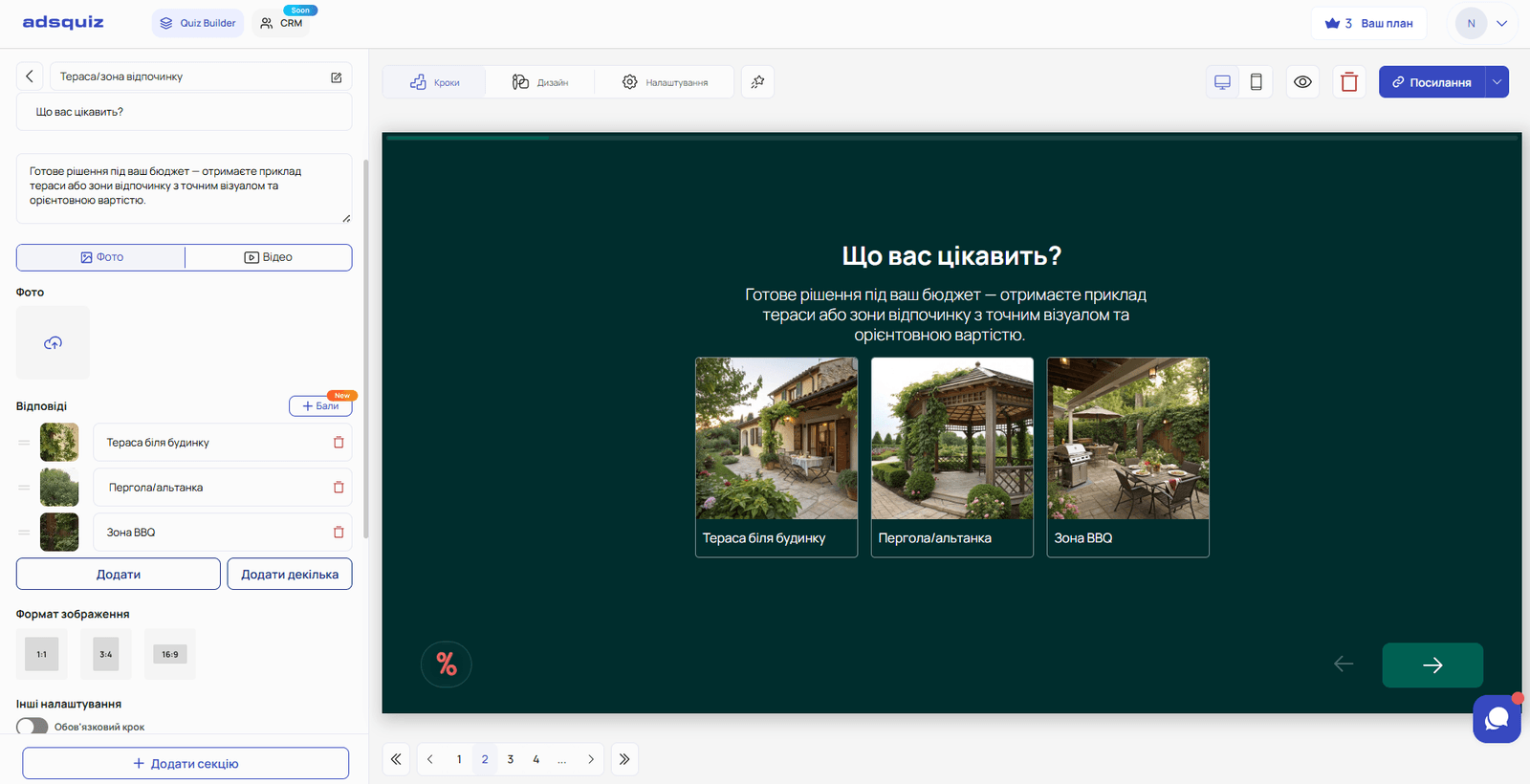
After adding it, you can set up:
- The question and its description
- A photo for each answer option – upload a separate image for each option
- Photo format – three aspect ratios are available: 1:1, 3:4 or 16:9
- Multiple choice – you can let the user pick several answers at once
- Automatic transition – the quiz moves to the next step right after a choice is made
- Required step – make the question required or optional
When to use photo cards: This format is especially handy in niches where the choice depends on how things look. For example:
- real estate – choosing a layout type or interior style
- furniture and decor – choosing a style or color
- clothing and accessories – choosing a model or design
- construction – choosing a material or finish
- beauty – choosing a hairstyle or manicure style
Photo cards make the quiz more engaging – the user interacts with visual options instead of just reading text.
💡 Tip: Use the same photo format for all cards in one question – it keeps the interface neat and doesn't distract the user from choosing.
⚙️ General settings for all question types
Each question type – input field, large input field and photo cards – supports additional settings:
Question logic – set conditions for showing a question or moving on, depending on the user's answers. More details: Question logic
Points – assign points to each answer to build the final result. More details: Scoring setup
❓ Frequently asked questions
What is the difference between an input field and a large input field? A regular input field is for short answers – name, email, phone number. A large input field is for longer text – a description of the request, wishes, a comment.
Which photo format is best for cards? It depends on the content. 1:1 suits products and portrait photos, 3:4 suits vertical images, and 16:9 suits horizontal photos of interiors or real estate.
Do I have to fill in the placeholder? No, but we recommend it. A placeholder tells the user what exactly to enter and reduces mistakes in the collected data.