
Setting Up Points for Answers
Setting up points for answers in a quiz
Besides logic between pages, AdsQuiz lets you award points for answers. Points let you create not only classic lead generation quizzes but also full-fledged knowledge tests, user level assessments and personal recommendations.
What points for answers are for
Points for answers are especially useful for:
- Educational tests – checking students' knowledge with automatic scoring
- Level assessment – the user takes the quiz and gets an assessment of their level – for example, language level, fitness level or expertise in a topic
- Choosing products or services – points help determine which product or package suits a particular user best
- Audience segmentation – depending on their score, users fall into different segments and get different offers
- Personalised results – each user gets a unique result based on their answers
⚙️ How to set up points for answers
Step 1. Add points to questions
Next to each question there is a «Points» button. Click it to open a panel where you can set the number of points for each answer option separately. This way you build the scoring logic and the quiz scenario yourself.
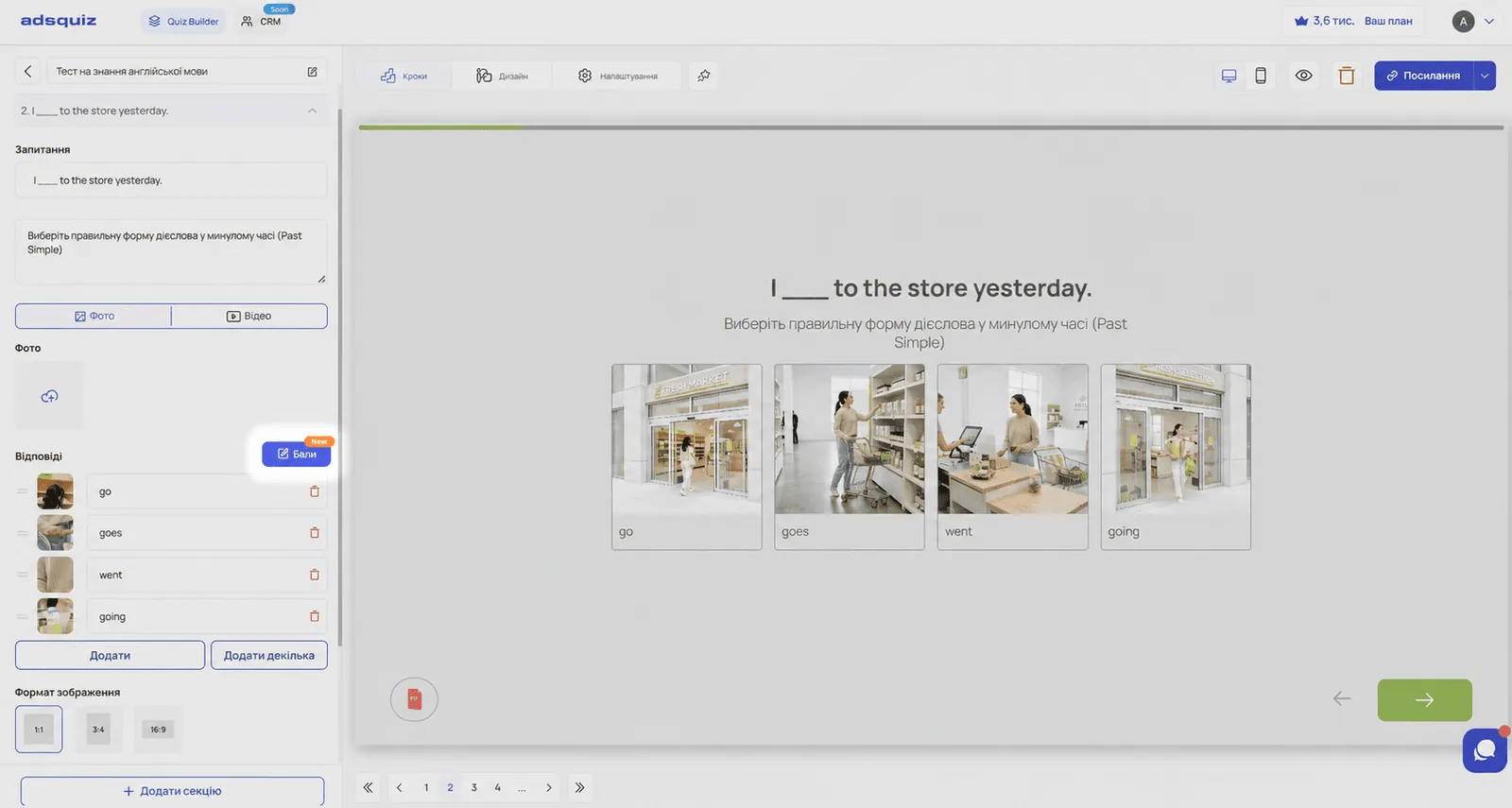
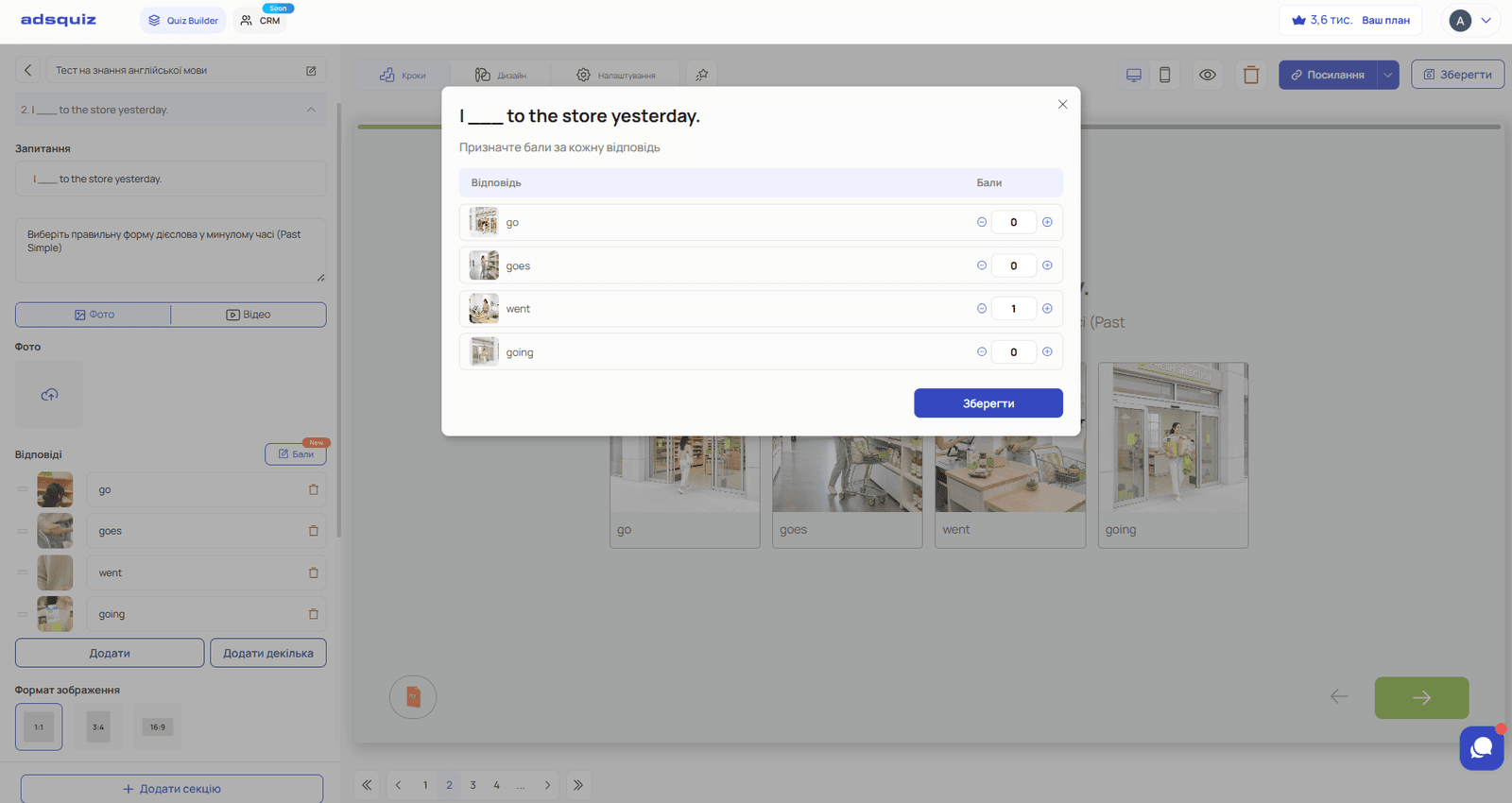
For example:
- Correct answer – 1 point
- Wrong answer – 0 points
💡 Tip: Plan your scoring system before you start setting it up. Decide on the maximum possible score and the ranges for each result. This makes setup easier and keeps the scoring logic consistent.
Step 2. Add a score-based results page
Once points are set for all questions, click «Add section» and choose «Score-based results». The results settings page opens.
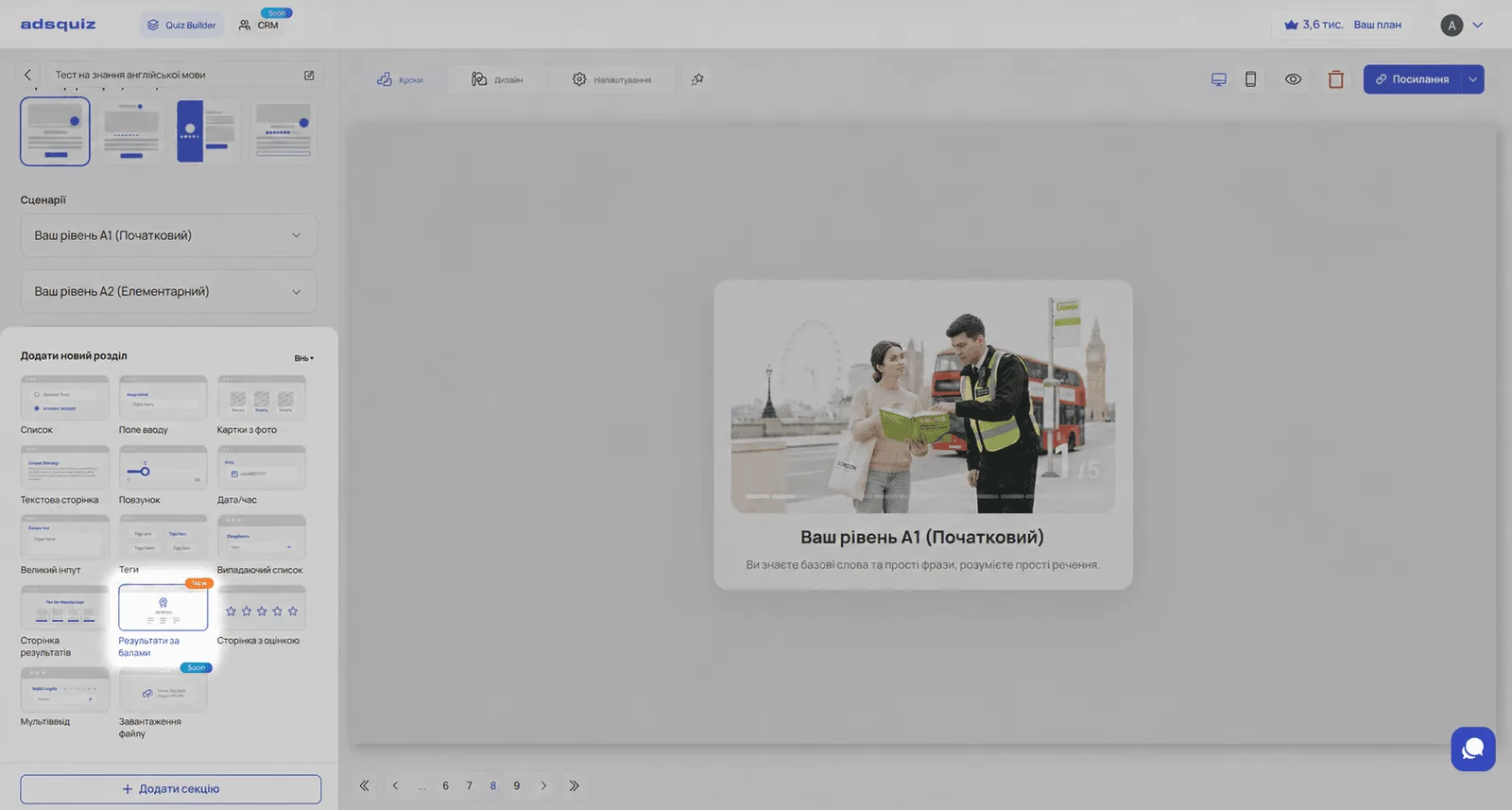
Step 3. Set up scenarios by score range
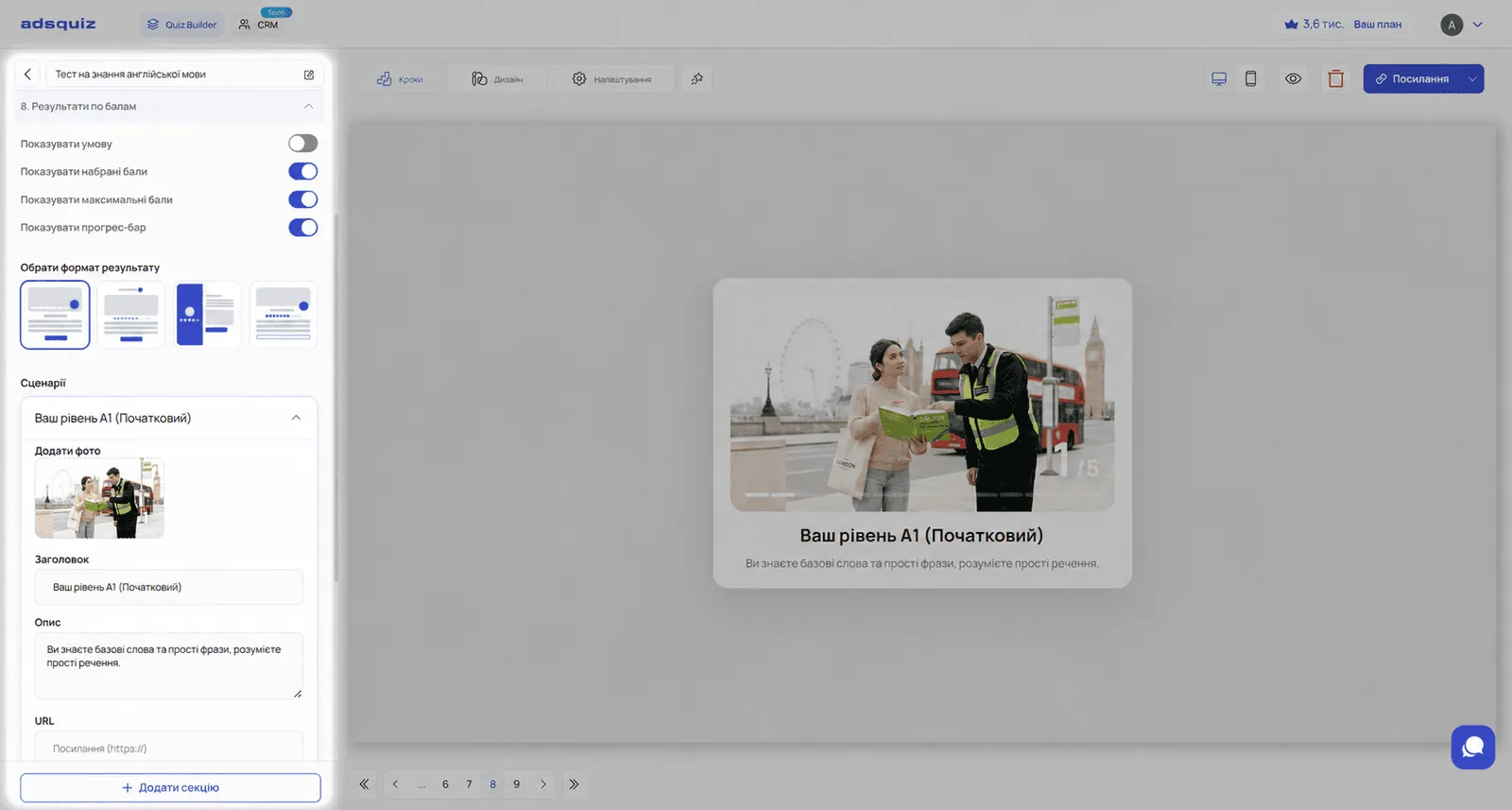
On the score-based results page you can:
- Choose how the result is displayed – what the final page will look like for the user
- Set up scenarios by score – specify ranges and assign a result to each
- Add different results for different ranges – for example, three levels: beginner, intermediate, expert
- Set up headlines, descriptions, buttons and design – for each result separately
📌 Examples of using points for answers
Example 1 – Knowledge level test An online English school. A 10-question quiz on grammar and vocabulary. Each correct answer gives 1 point.
Result ranges:
- 0-2 points → «Your level is A1 (Beginner) – we recommend a beginner course»
- 3-4 points → «Your level is A2 (Elementary) – we'll find a course for your level»
- 5 points → «Your level is B1 (Intermediate) – there's room to grow»
Example 2 – Choosing a service package A fitness club. A quiz about goals, fitness level and training frequency. Answers that suggest intensive training get more points.
Result ranges:
- 0-5 points → «Light package – training twice a week»
- 6-10 points → «Standard package – training 3-4 times a week»
- 11-15 points → «Pro package – intensive training with a personal trainer»
Example 3 – Assessing readiness to buy A real estate agency. A quiz about readiness for a deal – budget, timing, previous experience.
Result ranges:
- Low score → «Still gathering information – we'll send you a useful guide»
- Medium score → «Ready to consider options – a manager will contact you for a consultation»
- High score → «Ready for a deal – a manager will contact you shortly»
▶️ Recommended video
To better understand how points work, we recommend watching the video review on setting up points for answers:
📊 Summary
Points for answers turn a regular quiz into a full interactive tool. Instead of just collecting contacts, the quiz assesses the user, segments them and gives a personalised result. This increases the quiz's value for the user and lead quality for the business.
❓ Frequently asked questions
Can I combine points and question logic in one quiz? Yes. Points and logic are two independent tools that can be used together in one quiz.
Do I have to add points to every question? No. You can add points only to the questions that affect the final result. Other questions can be used to collect data without scoring.
Are points available for all question types? No, not for all. Scoring is not available for these page types: slider, text page, rating page and multi-input.
Can I set up score-based results and an offers page at the same time? No. You can set up only one option – either score-based results or an offers page. Both at once are not supported.
Can I set up logic if there are points for answers? Yes. Question logic and points for answers work independently – you can use them together in one quiz.